

Inspect an asset
Answer one question before exploring every section.
1. Open the security
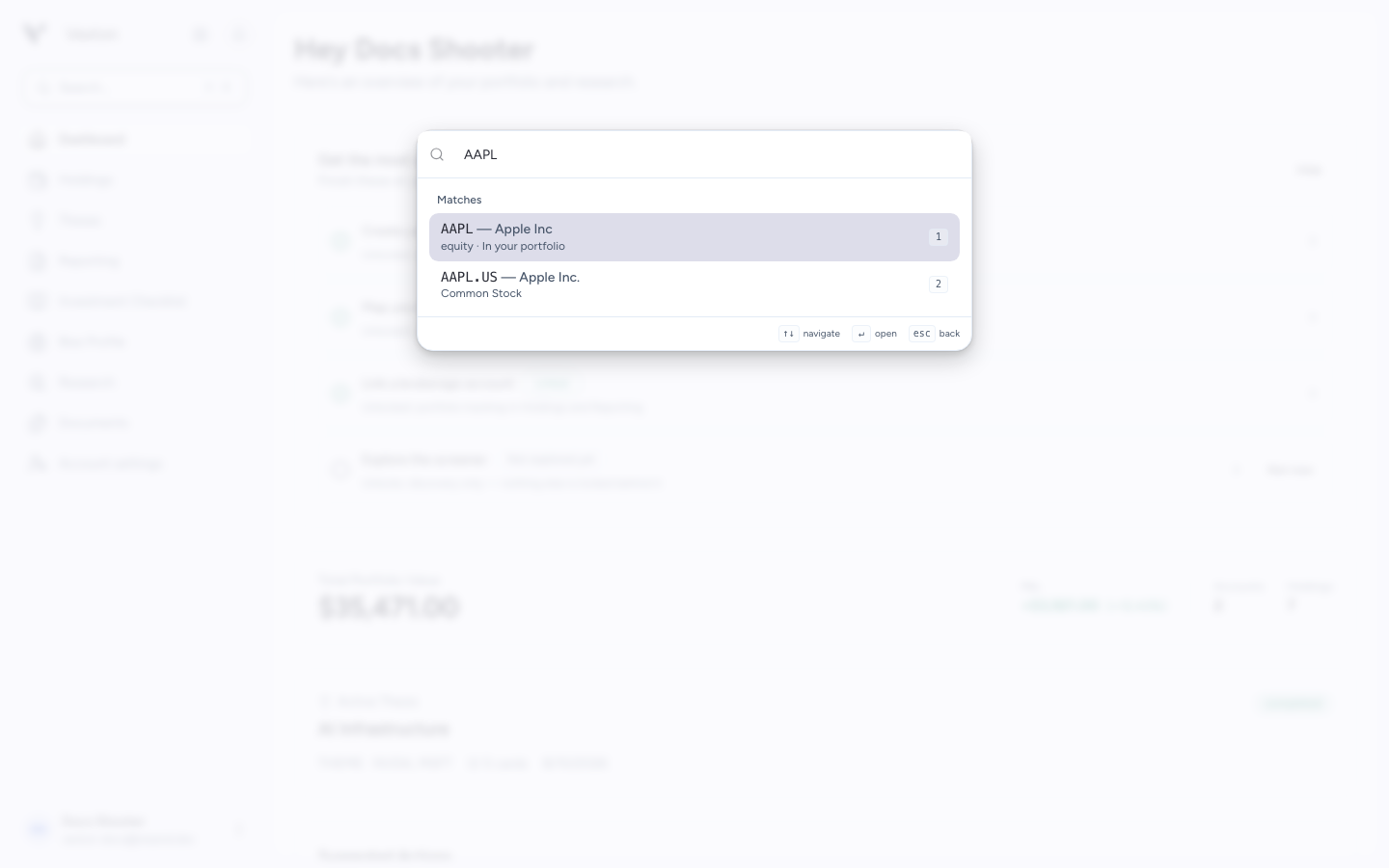
Click a position in Holdings, or press ⌘K / Ctrl+K, choose ticker search, and find a company or fund. You do not need to own an asset to research it.
A ticker link in a thesis can open the drawer too. Available sections vary with where you opened it.
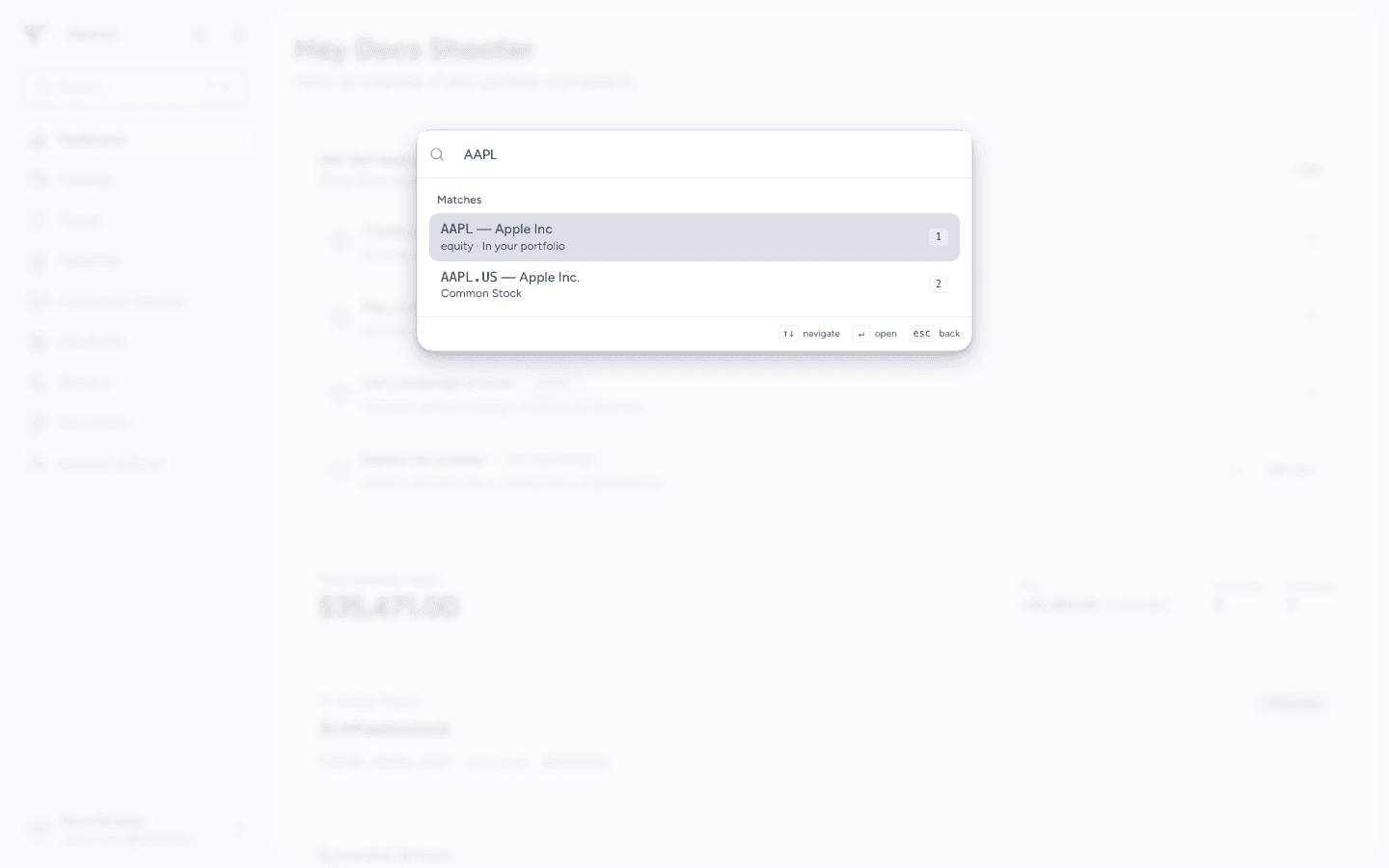
In ticker search, click the matching company or fund to open Asset Detail. View full size
2. Confirm identity and currency
Check the name, ticker, exchange, and price information. Where offered, use the currency control to compare the asset's currency with your reporting currency.
If you own the asset, review the position information. Unrealized P&L compares current value with recorded cost; it is not a cash-flow-adjusted portfolio return.
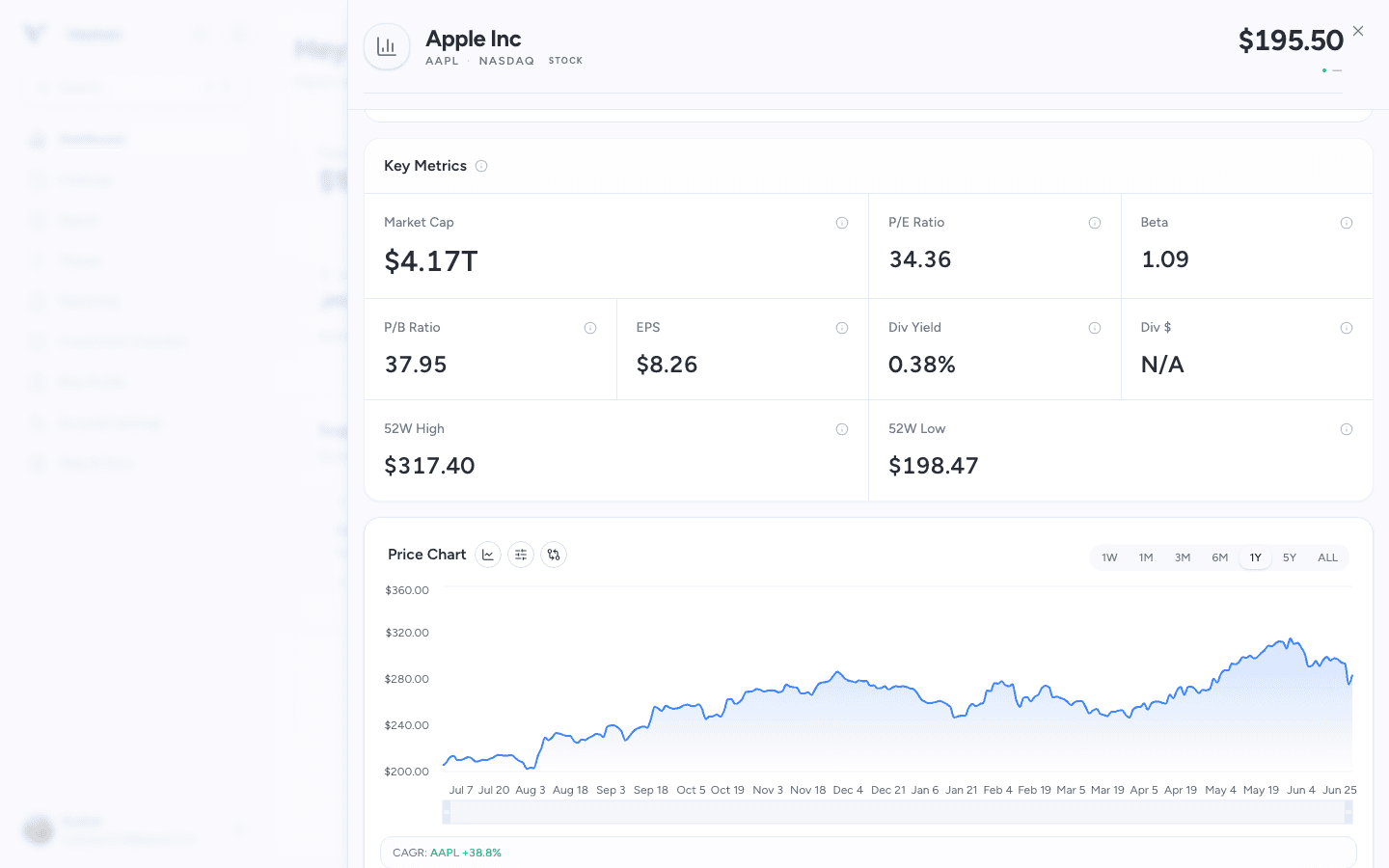
Example view; figures are illustrative, not current quotes. View full size
3. Choose the relevant evidence
| Your question | Look at |
|---|---|
| What does the business do? | Company Profile |
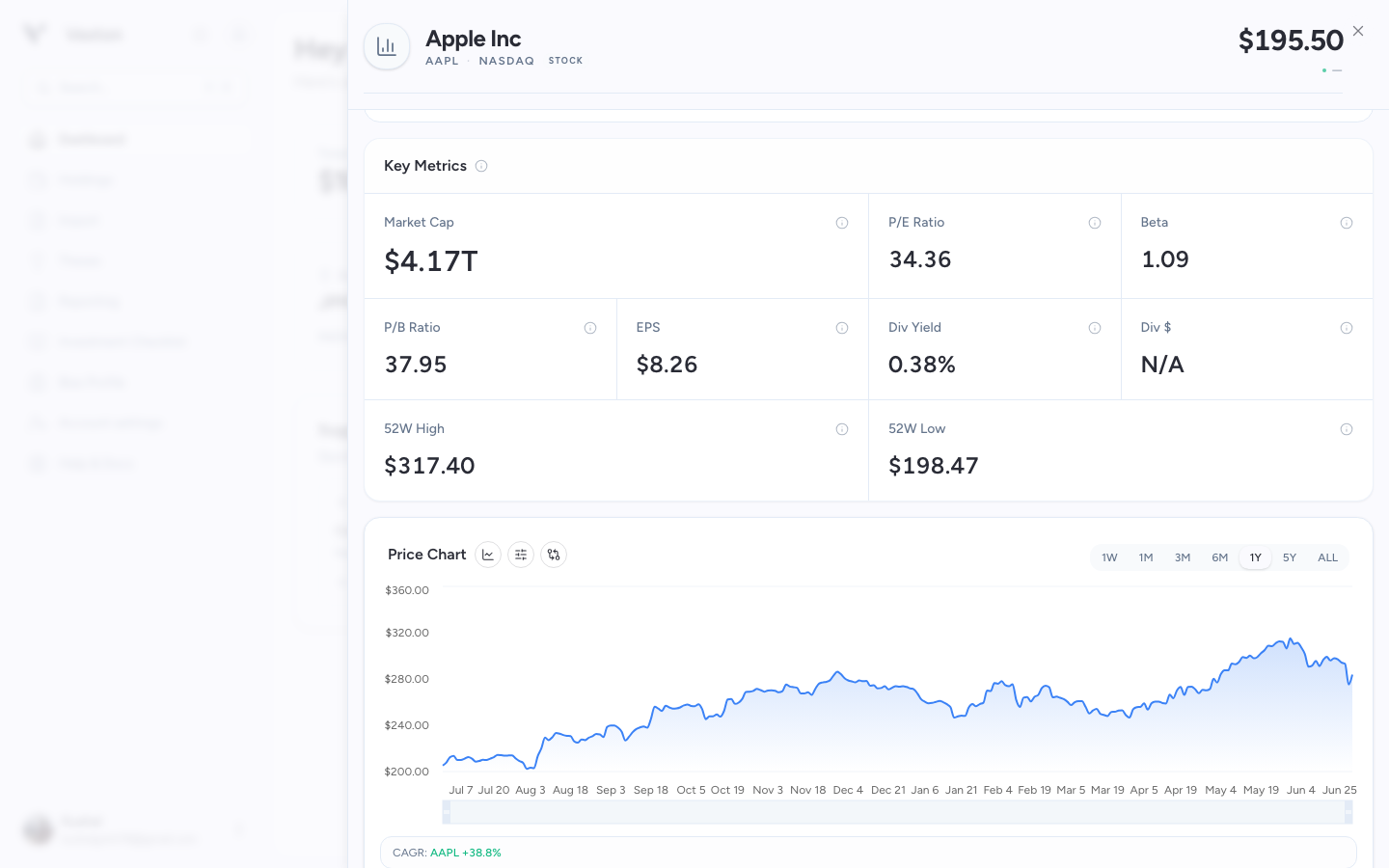
| What supports the valuation? | Key Metrics and Fundamentals |
| How have results changed? | Financial statements and Earnings |
| What income is recorded? | Dividends, with coverage in mind |
| What does a fund hold? | ETF Composition and Fund Info |
| What changed recently? | News and its linked sources |
Choose a period where a chart offers one. Compare annual figures with annual figures, and quarterly figures with quarterly figures.
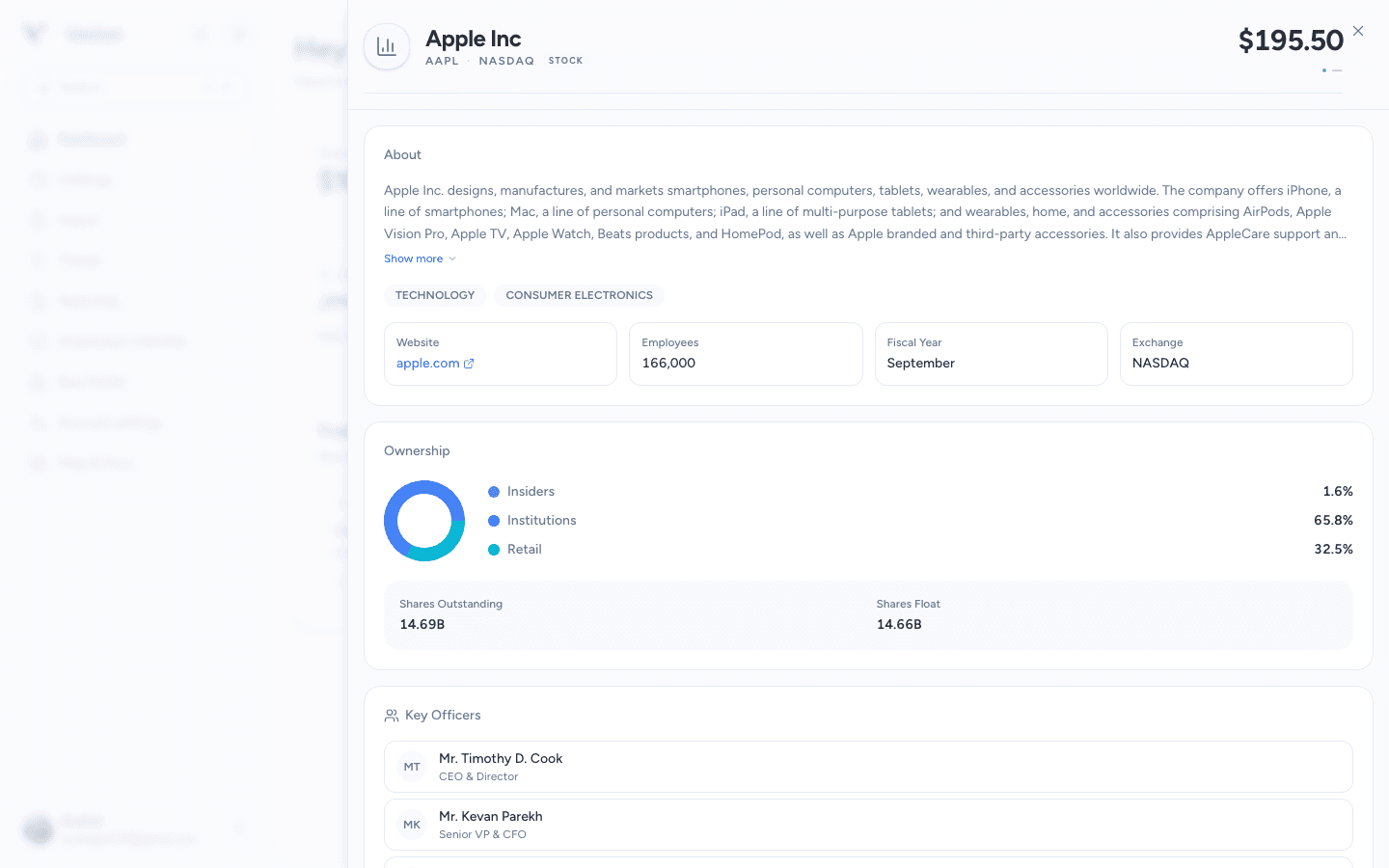
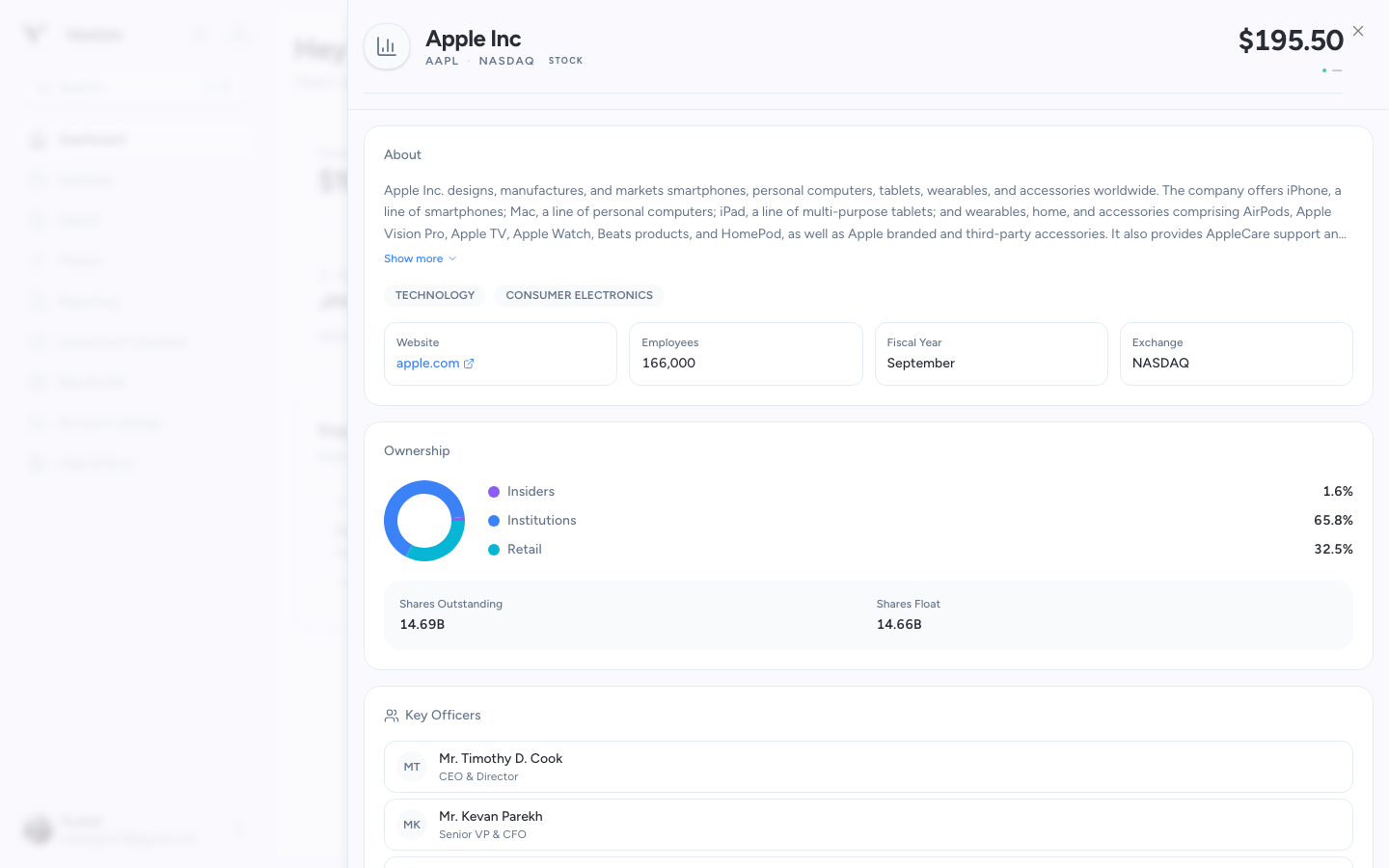
Use Show more to expand the company description; keep the ticker and exchange in view as you read. View full size
4. Keep your conclusion separate
A price target, sentiment label, or historical risk figure is one input. Use Thesis Builder when you want to record the reasoning and opposing evidence.
Close the drawer with Escape or the close control to return to your original view.