

Read asset data in context
Use the drawer to gather evidence for a specific investment question.
Start with the business
Use the profile and financial statements to understand how the company earns money. A valuation multiple is easier to interpret once you understand the earnings or assets behind it.
Compare like with like
Check the currency, period, and asset type. A fund's expense ratio answers a different question from a company's operating margin. The drawer changes sections accordingly.
Separate expectations from results
Analyst targets and estimates describe expectations. Reported earnings and statements describe historical results. News sentiment describes an interpretation of coverage. None is a substitute for your investment case.
Compare company financials
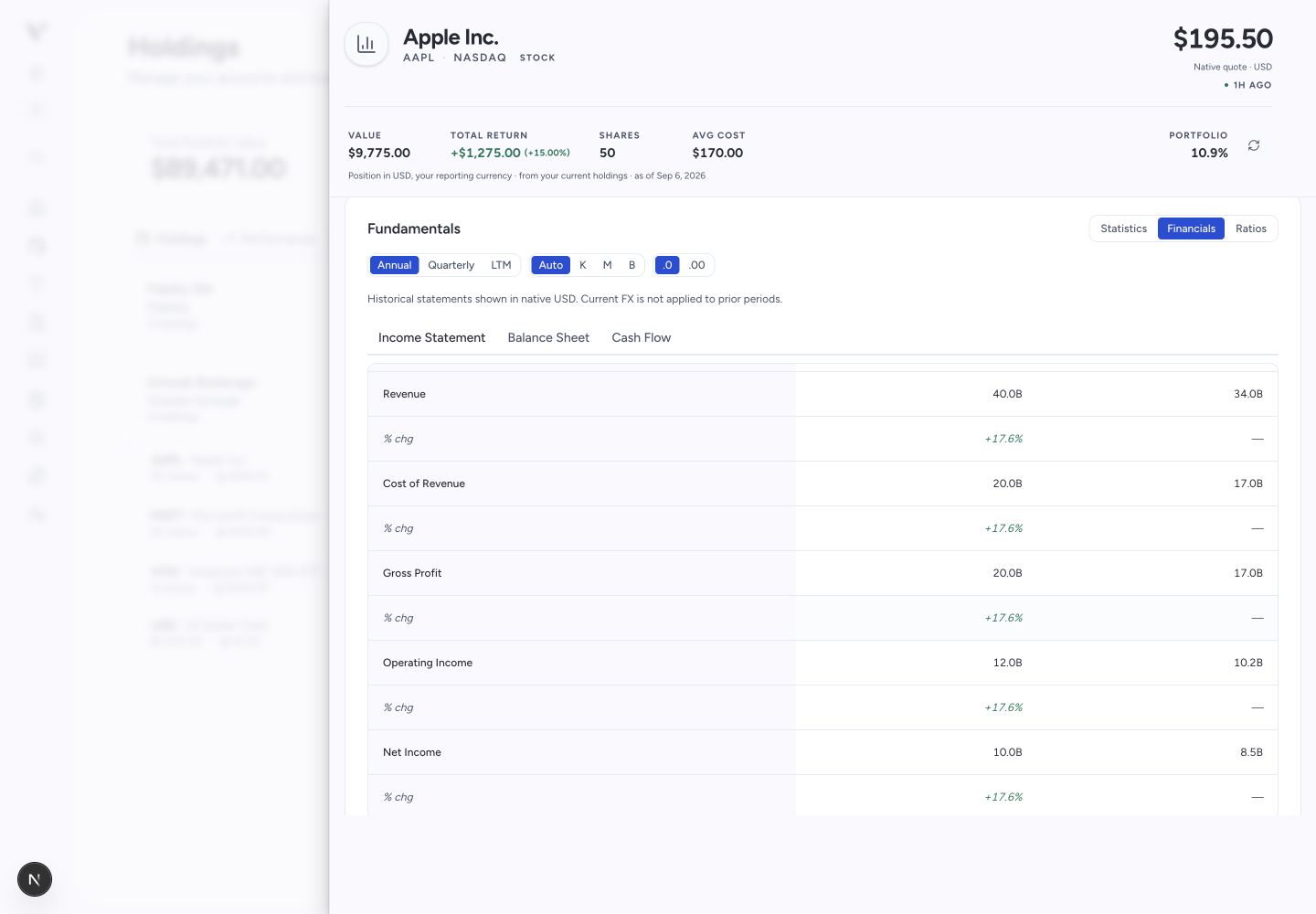
- In Fundamentals, select Statistics for a summary, Financials for statements, or Ratios for comparisons.
- In Financials, choose Income Statement, Balance Sheet, or Cash Flow.
- Select Annual, Quarterly, or LTM (the latest twelve months). Compare matching periods; a quarter and a full year answer different questions.
- Use Auto, K, M, or B to change the display scale, and .0 or .00 to change precision. Check the displayed units and currency before comparing columns. Missing amounts are not zero; a table can show unavailable currency or different currencies by period.
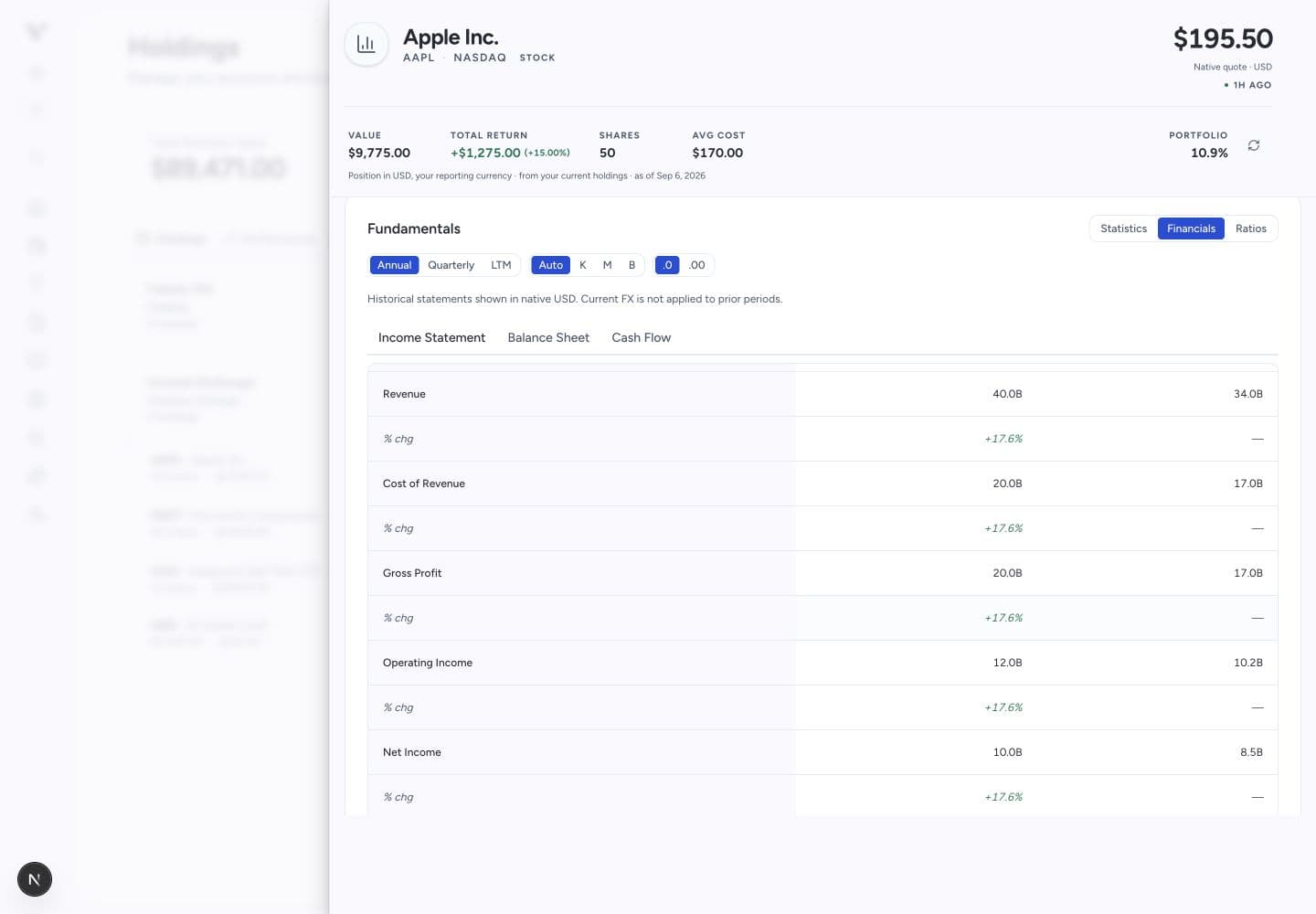
Use the controls to compare the same statement and period. Fictional example figures. View full size
Compare earnings with expectations
In Earnings, compare Actual with Estimate for the same period. Hover over a point to inspect its values. Beat and Miss describe the difference from an estimate, while Forecast marks a future expectation. Read the dates and any currency-unavailable notice before reusing the figures.
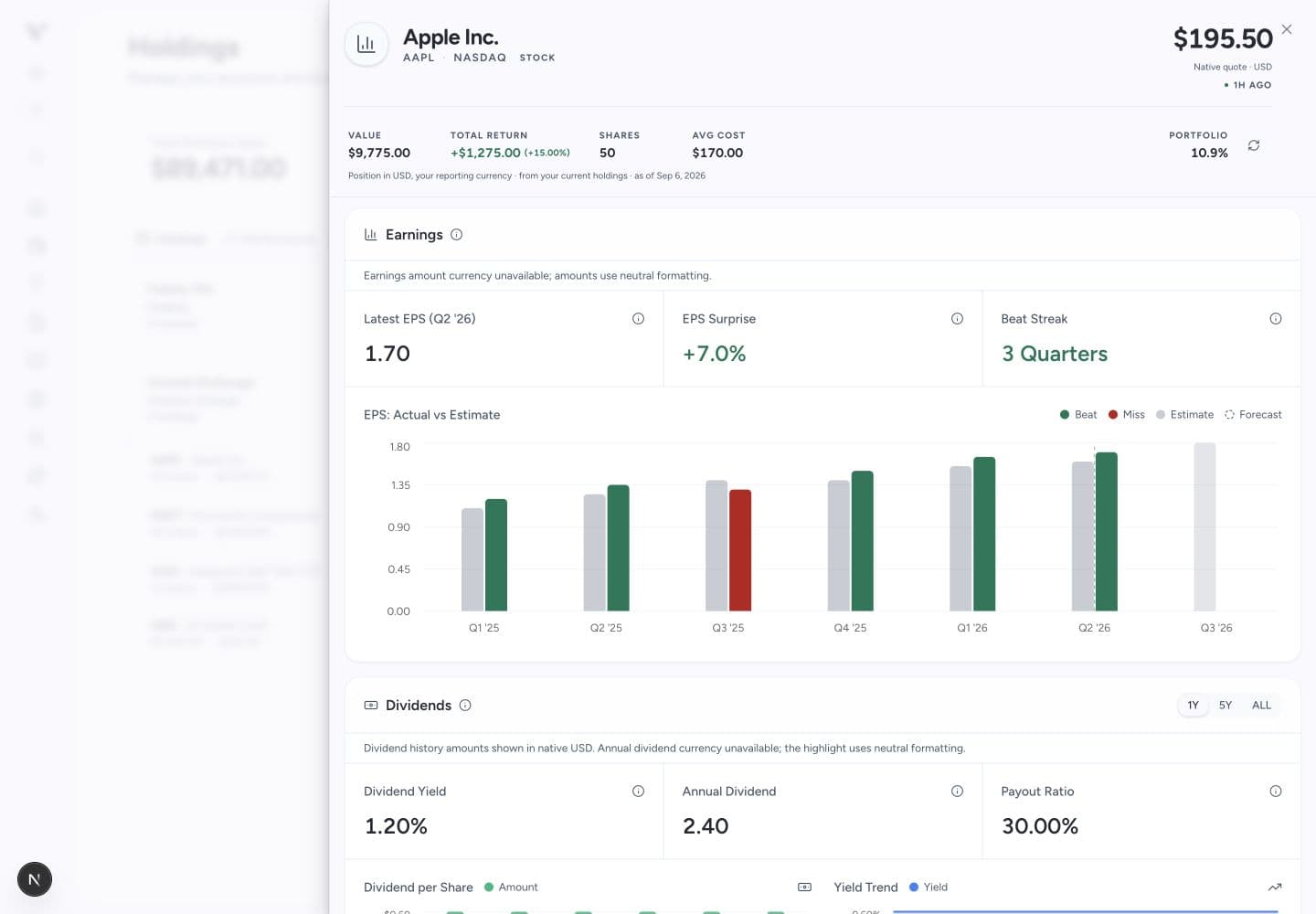
Read reported results separately from the forecast period. Fictional example figures. View full size
Look inside a fund
In ETF Composition, select Holdings to see the listed constituents and weights, Allocation for sector exposure, or Geography for regional exposure. The holdings table shows the available top holdings; it is not necessarily the fund's complete portfolio. Use Top 10 Concentration to assess how much the largest positions dominate.
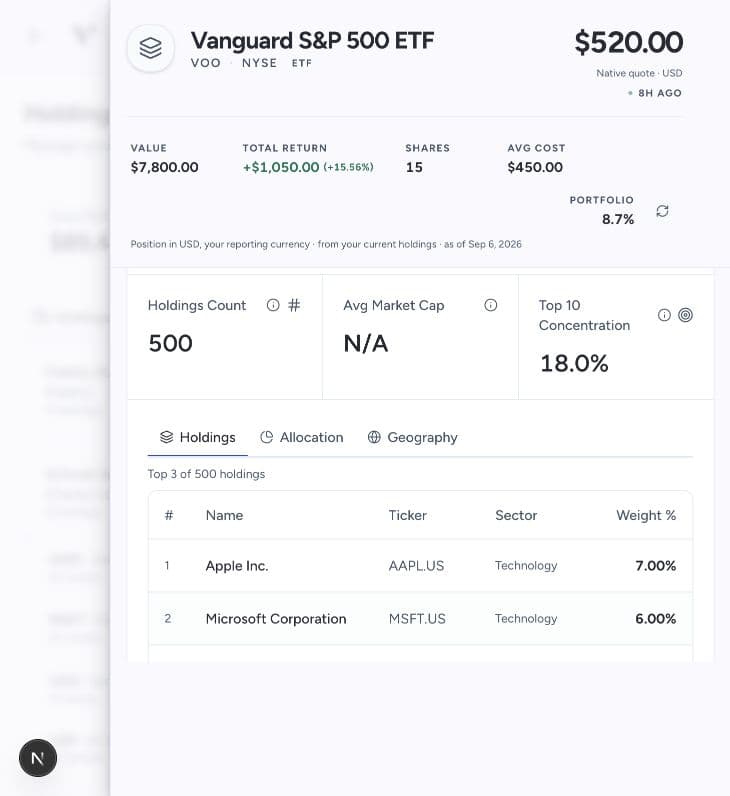
Check how many constituents are listed before treating their weights as the whole fund. Fictional example figures. View full size
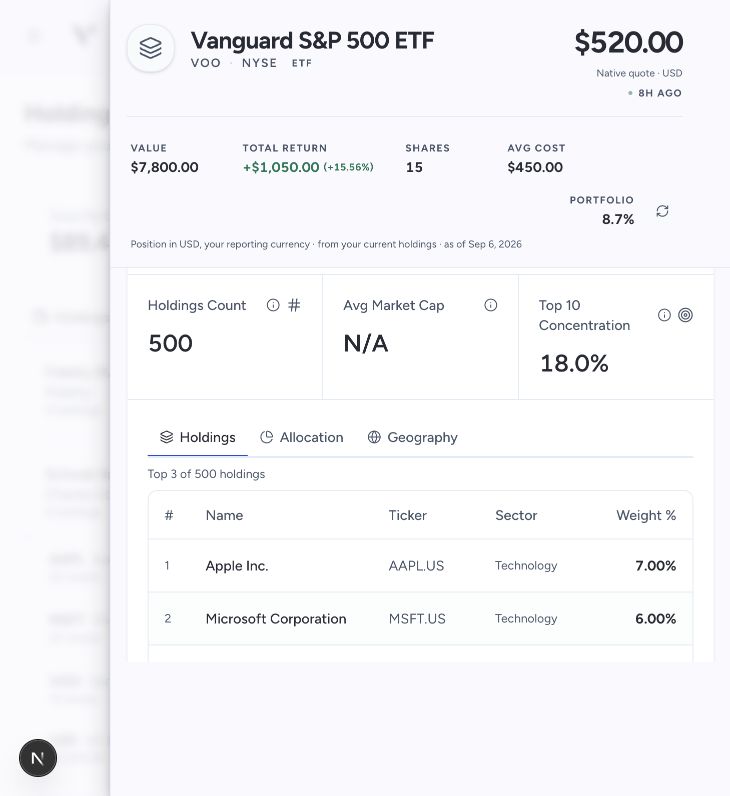
In Fund Information, compare the expense ratio, index tracked, fund size, inception date, and available return periods. A fund's stated dividend yield is separate from the income your account actually received.
Review a company’s dividend history
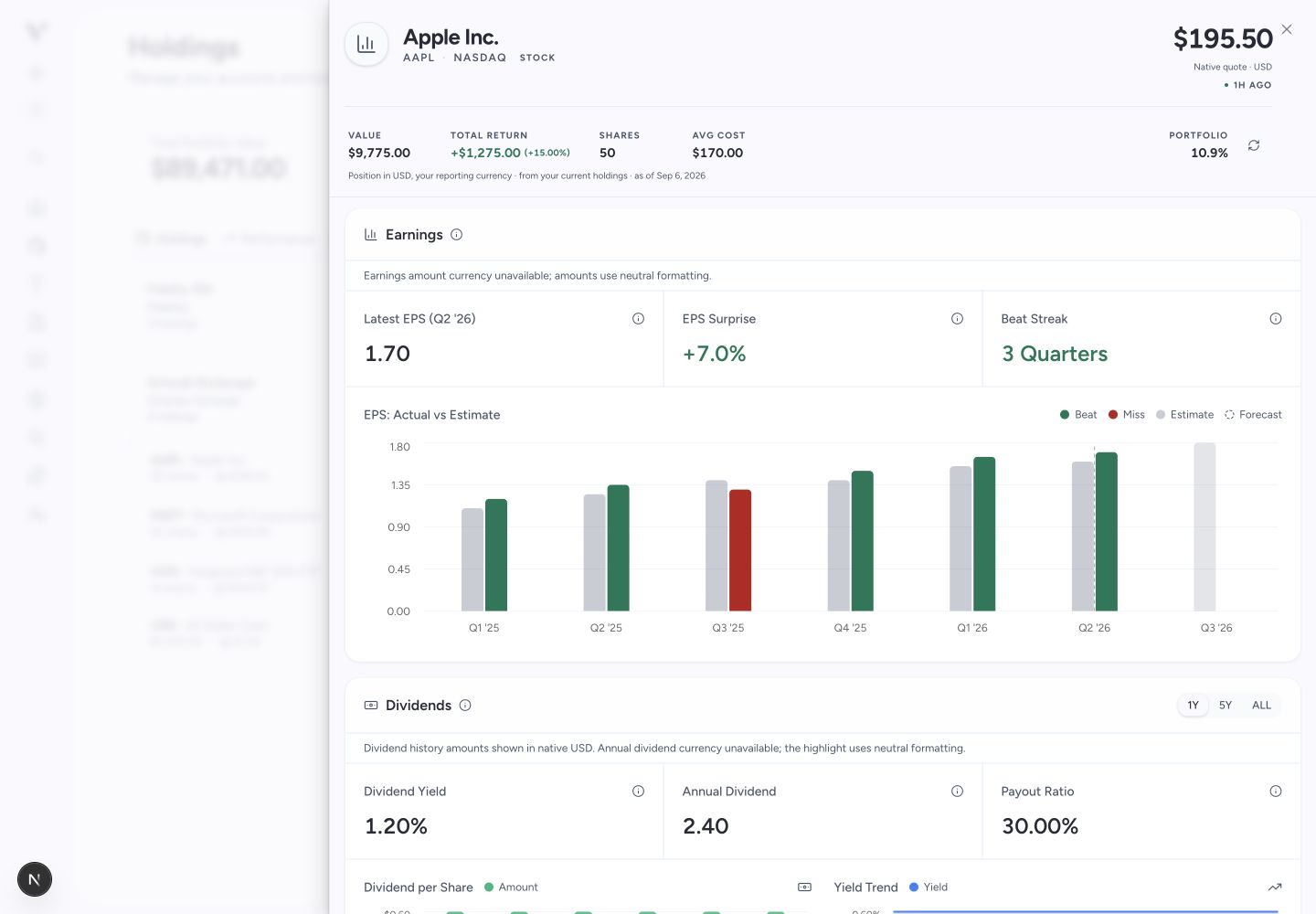
Open the security from Holdings, then find Dividends. This section is available for supported stocks and funds; the sections offered can differ when you open the drawer from search or a thesis.
- Choose 1Y, 5Y, or ALL in the Dividends header.
- Read Dividend per Share. Hover over a bar for its payment amount and the percentage change from the previous record, where available.
- Dividend per Share Trend shows how payment amounts changed over time, in the same currency as the history chart. It is not a historical yield percentage.
- Check Annual Dividend for the trailing twelve months per share, Dividend Yield for the current yield figure, and Payout Ratio for the share of earnings distributed. Missing metrics may not be displayed.
- Read the currency note. The dividend record’s native currency can differ from the currency used elsewhere in the drawer.
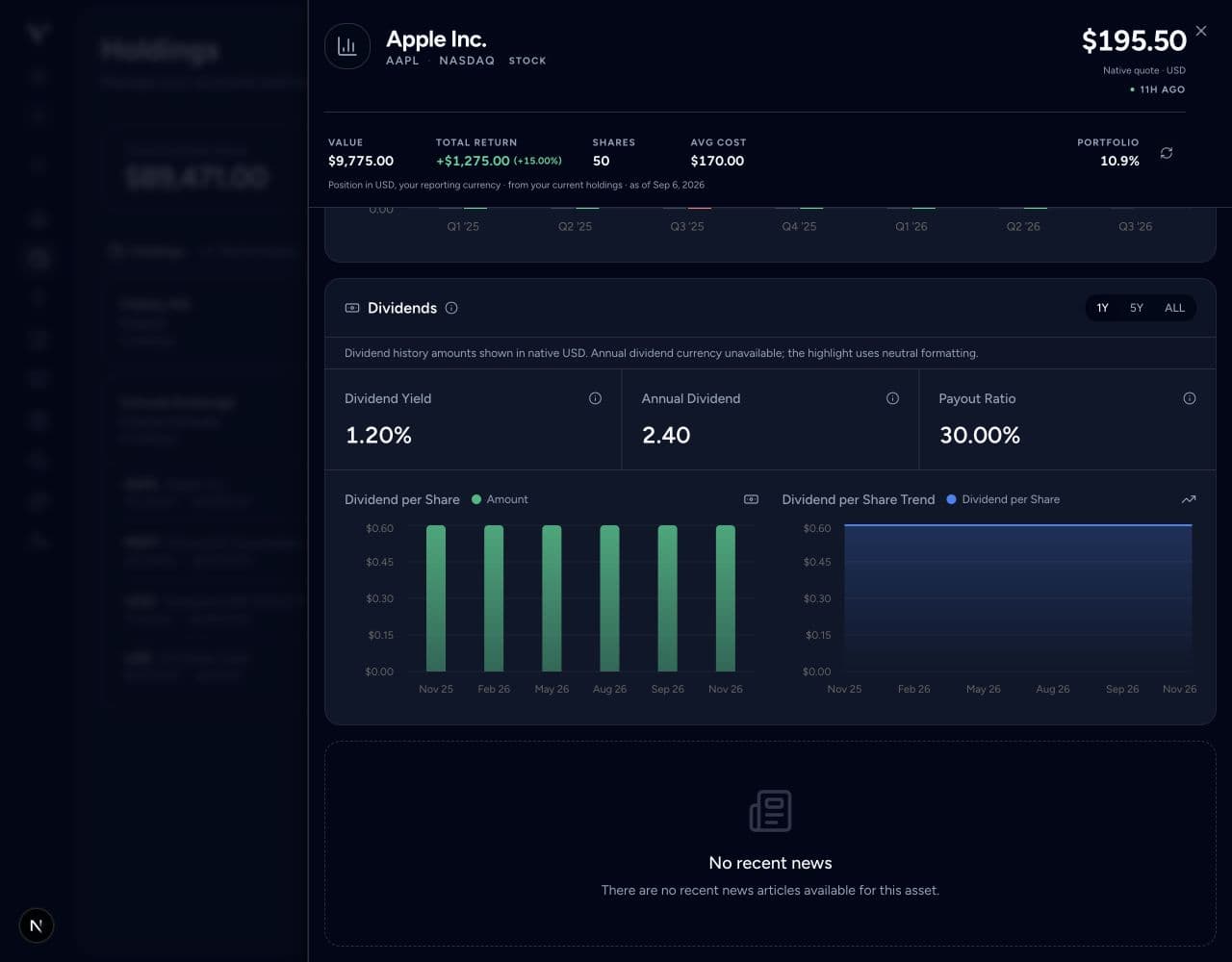
Choose a range and read the per-share amounts alongside the currency note. Fictional example figures. View full size
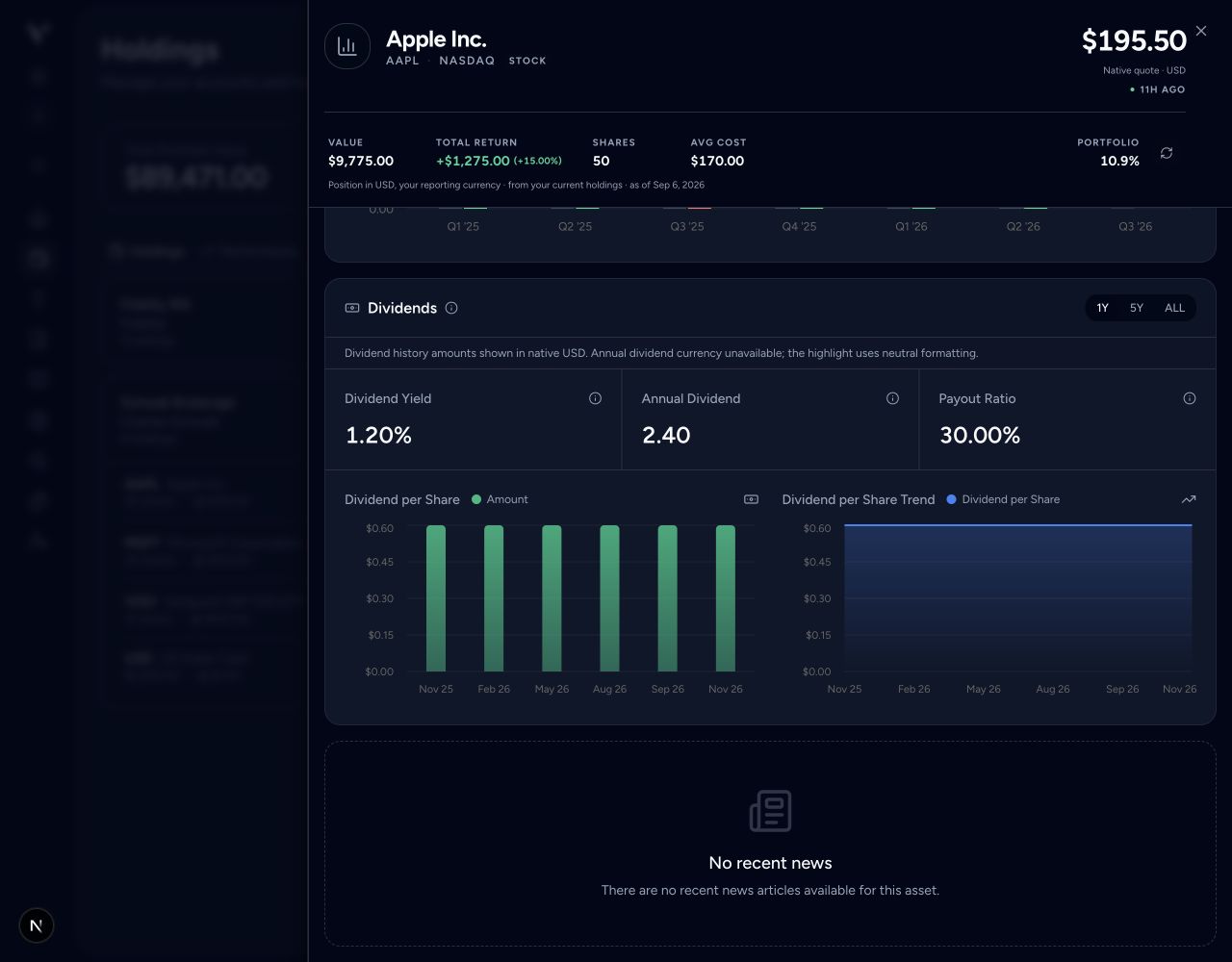
These are security-level figures. A dividend per share is not the total cash your account received: ownership quantity, eligibility dates, withholding, and currency conversion can affect that amount. Use the portfolio’s income forecast for expected portfolio income and income reports for dated event details.
Treat missing data honestly
N/A or an empty panel can reflect limited provider coverage. Check the original filing, fund material, or broker record when the missing figure matters.