
Add a document and ask about it
Make one useful source searchable before adding more integrations.
1. Create a source
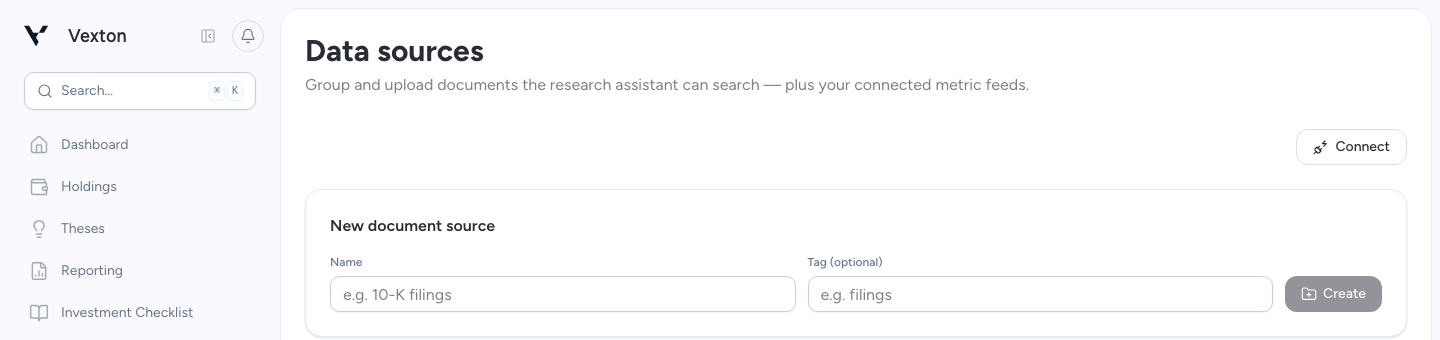
Select Documents in the main navigation to open Data sources. In New document source, enter a name such as “Company filings,” add an optional tag, and select Create.
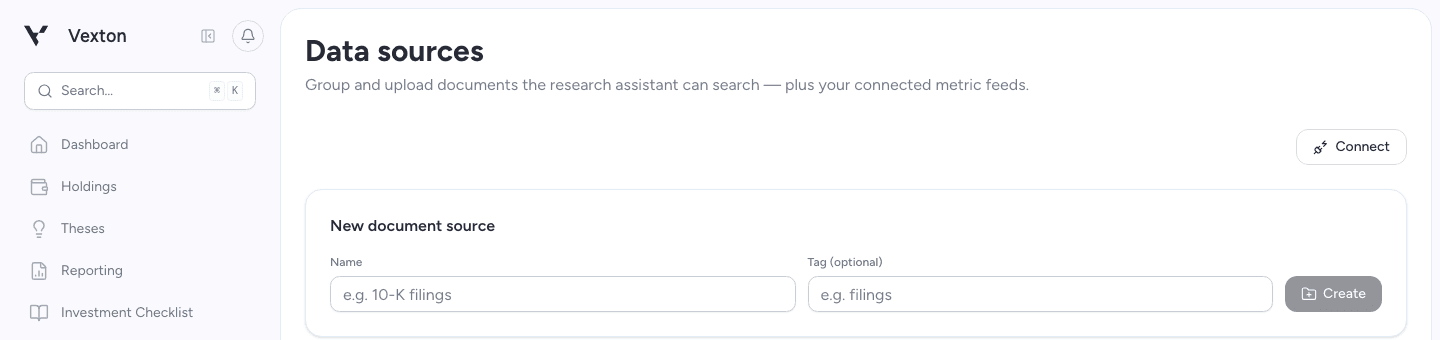
Name the source so you can refer to it in Research. View full size
2. Upload one file
Select Upload on the source and choose a document. A PDF or plain-text note is a useful first test.
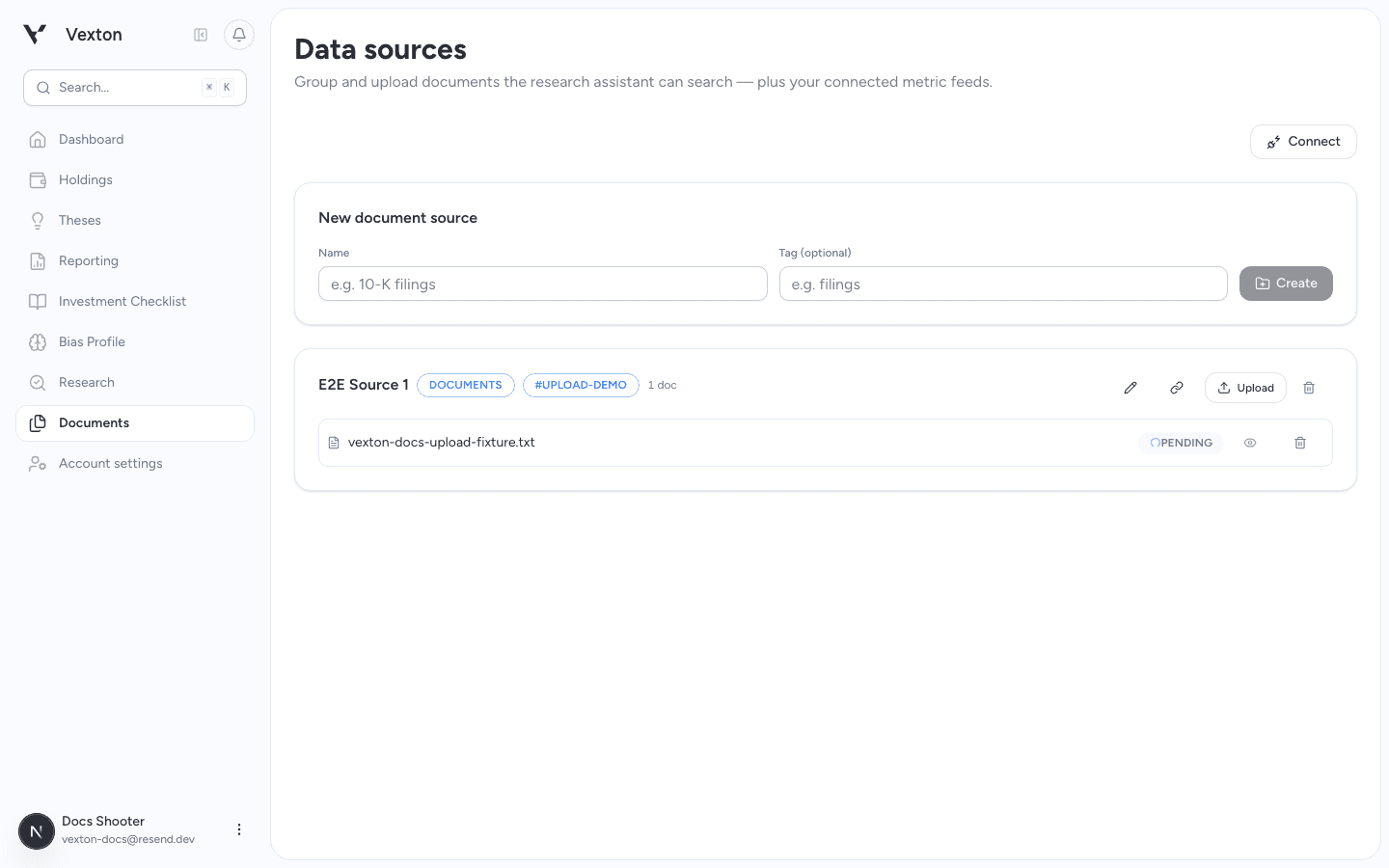
After Upload, the file appears under its source. Pending means processing has not finished. View full size
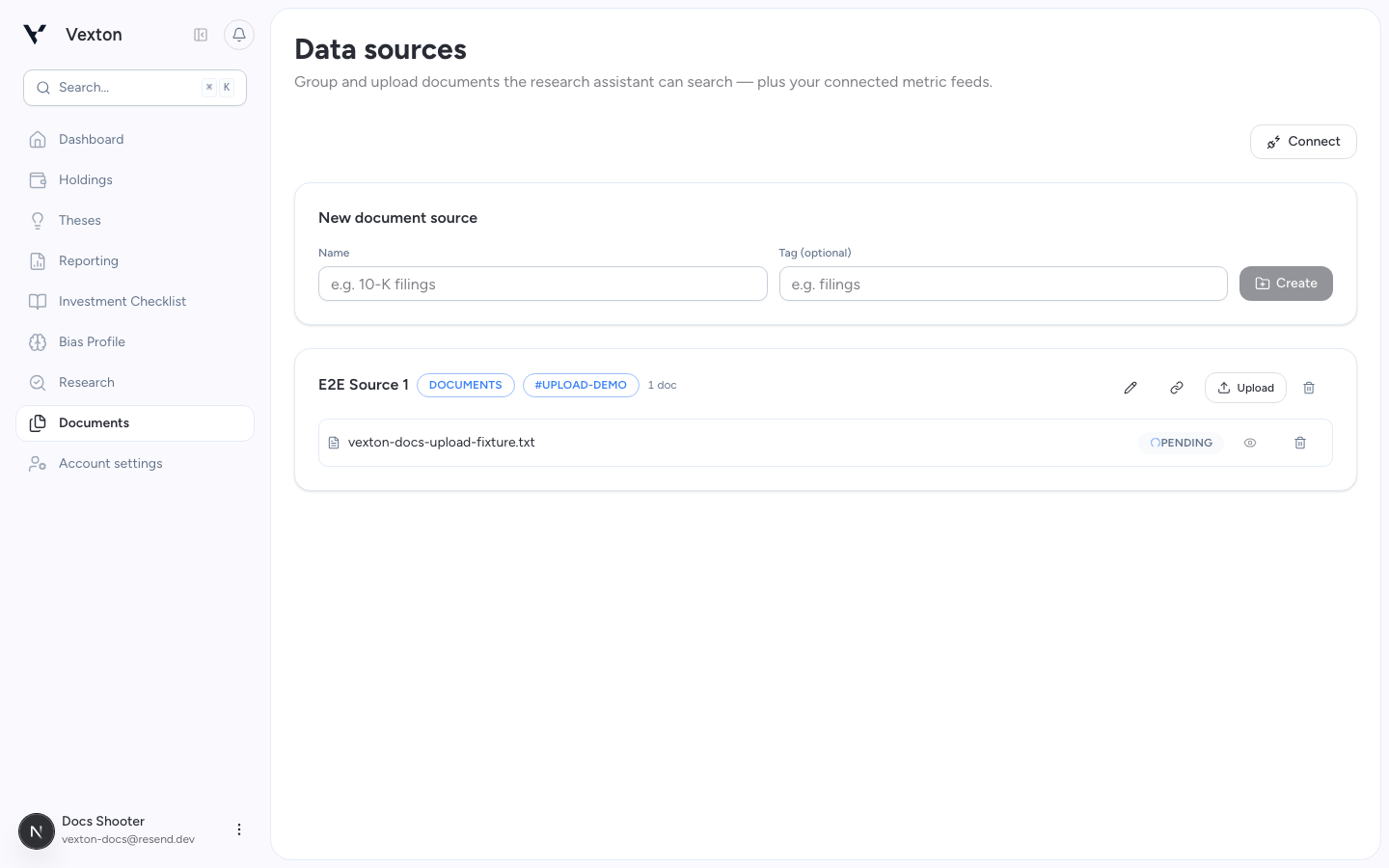
Wait for its status to become ready. A file that is still processing cannot yet support a complete search. If it fails, read the reason and check file limits.
For an upload failure, correct the file or connection issue and select Upload again. If a failed file remains in the list, use the trash icon on that file’s row to remove only that file before replacing it. Do not delete the entire source to retry one document.
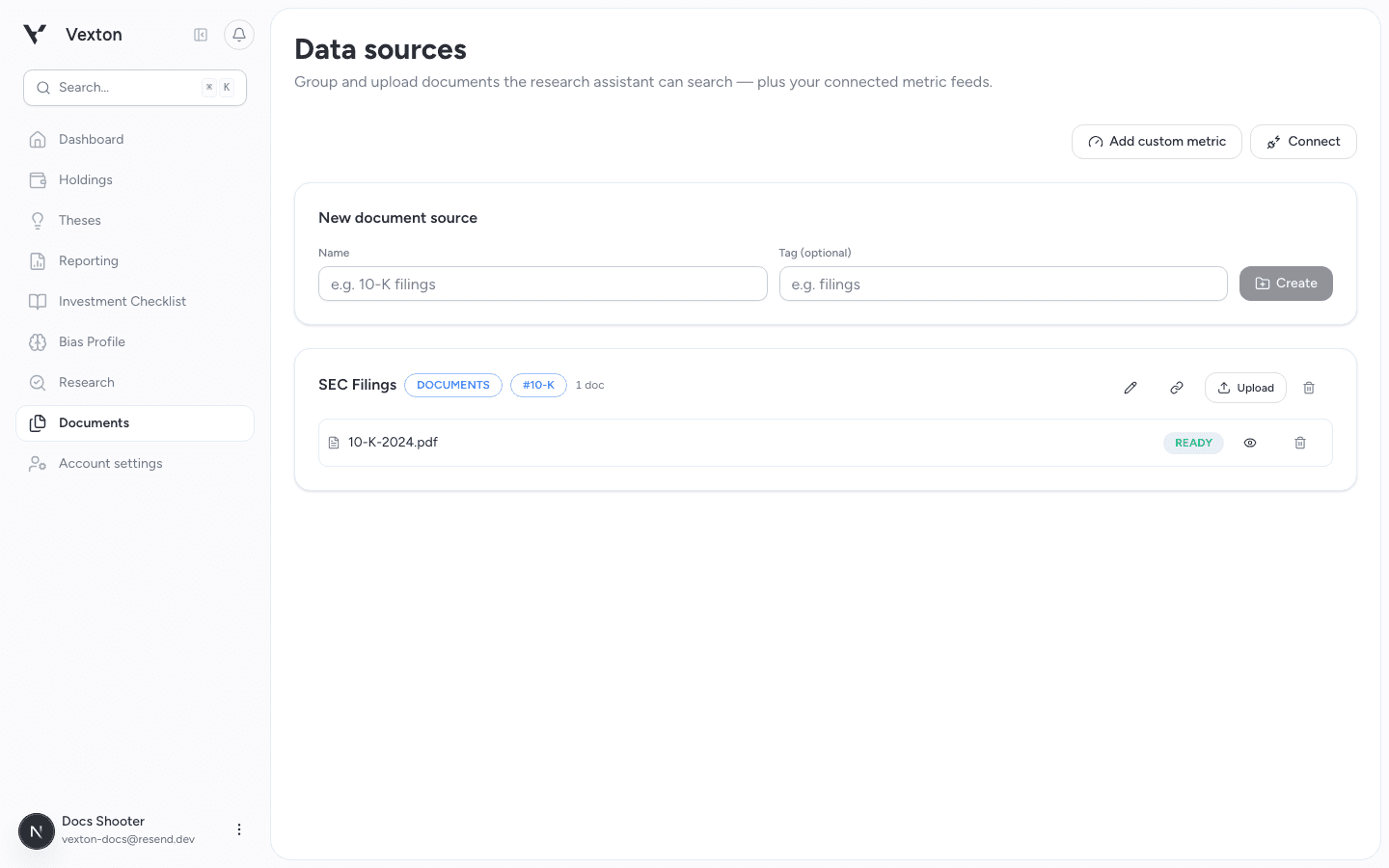
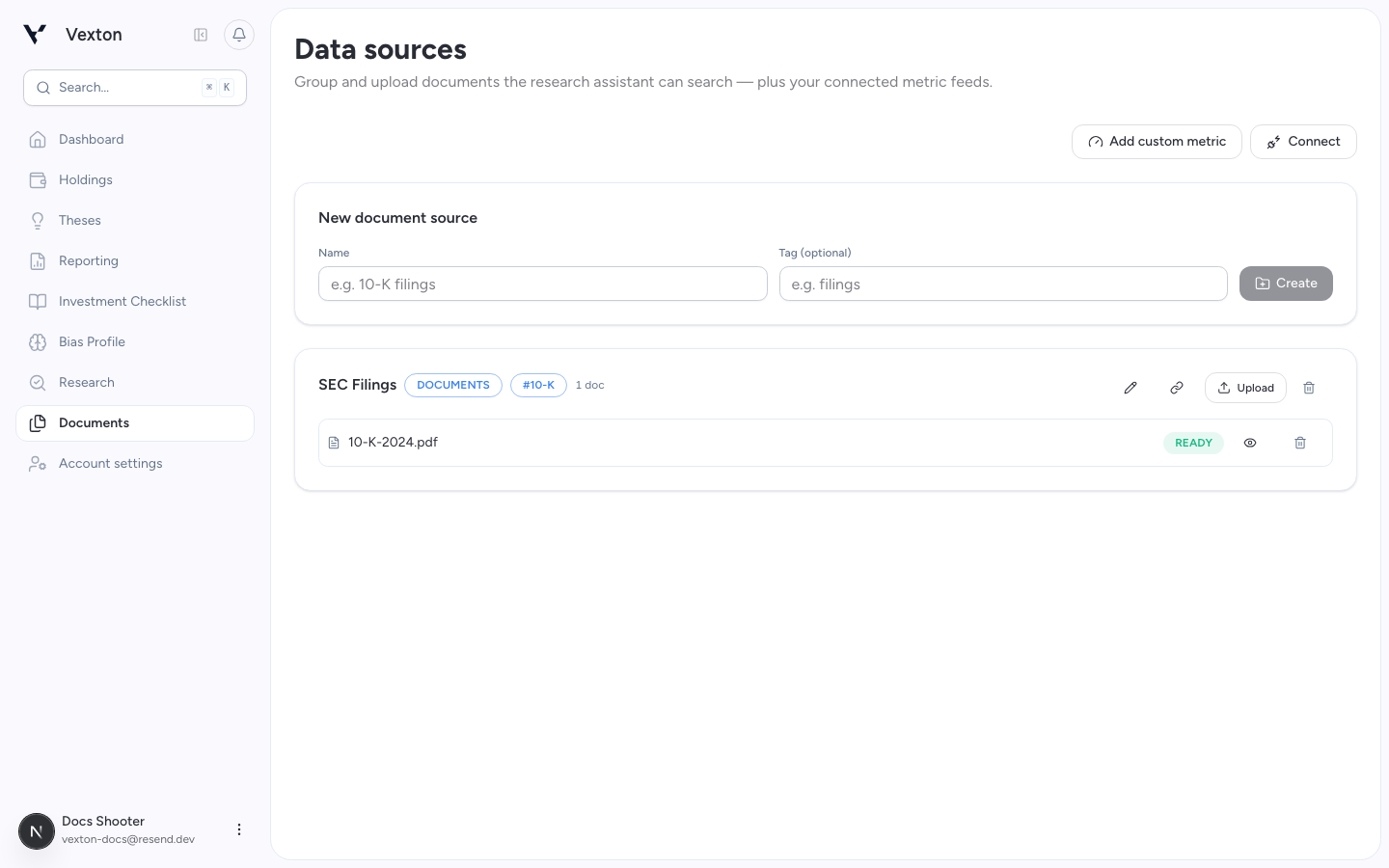
Wait for Ready. Use the eye icon beside the file to inspect it before relying on its content. View full size
3. Ask a specific question
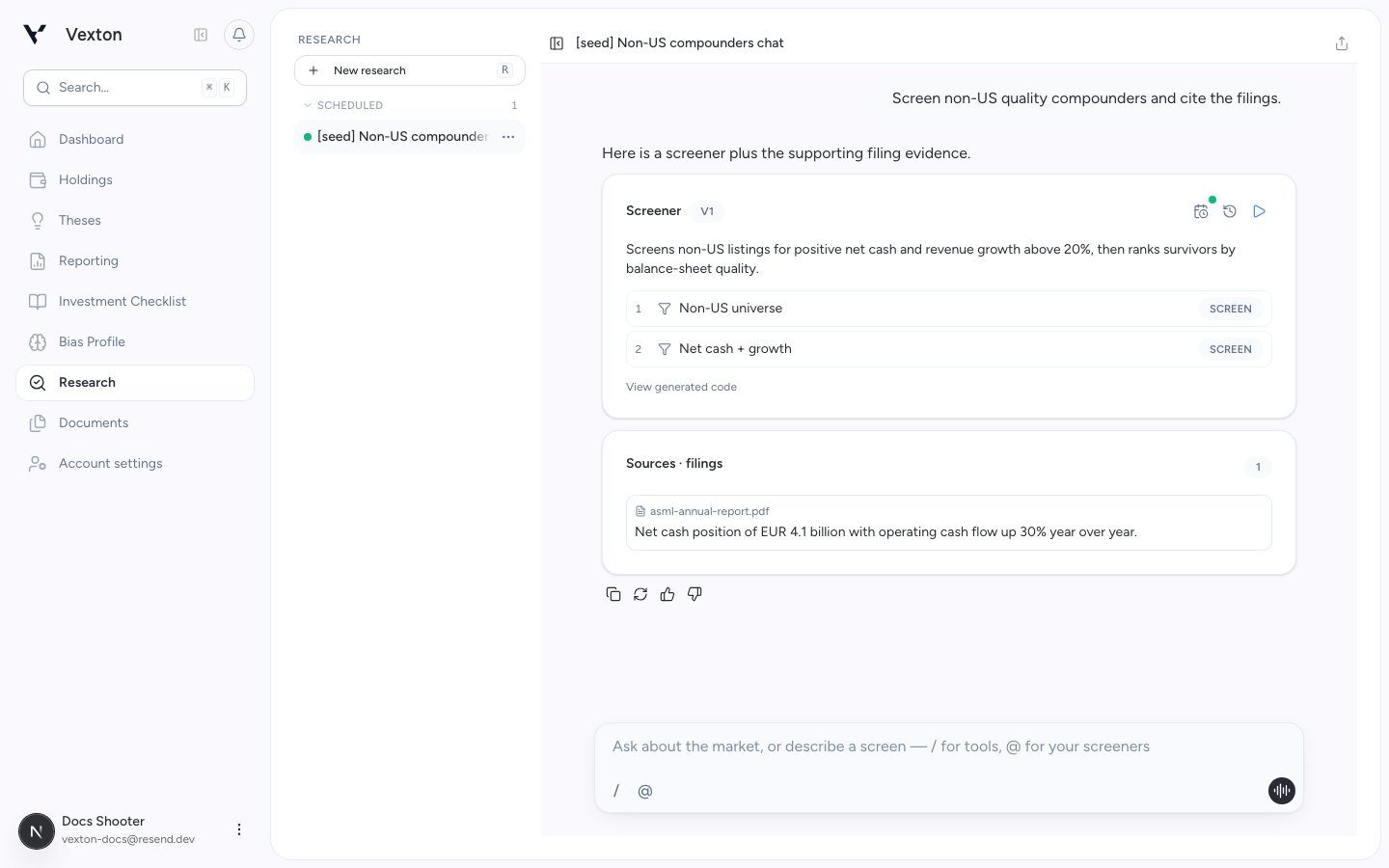
In Research, ask: “Search my Company filings source for evidence about customer concentration.” Follow the cited passages and check whether they answer your question.
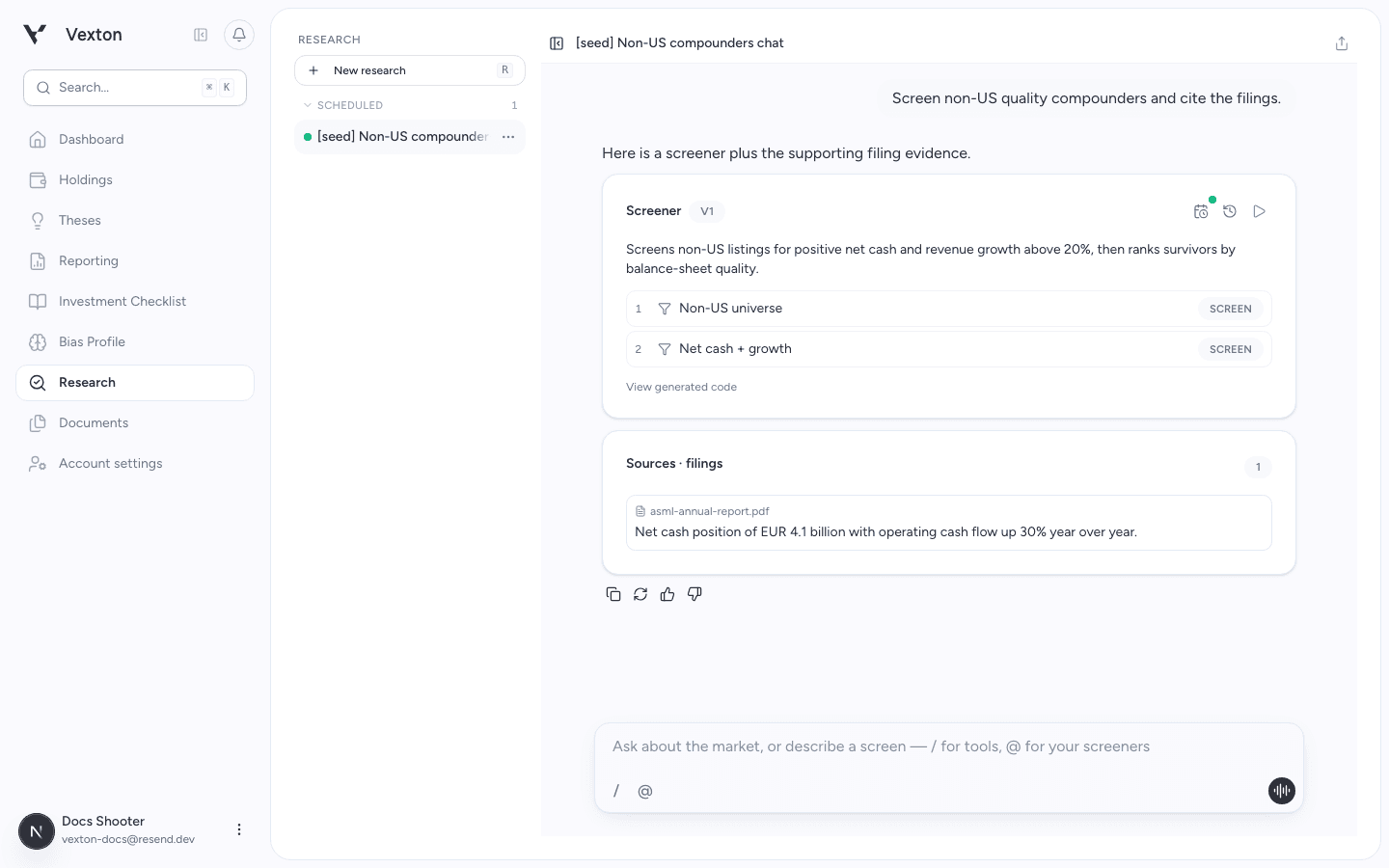
Look for the source passage beneath the answer. Open the document link to check the evidence. Example filing shown. View full size
Where the thesis workspace offers Sources, you can link an existing source there too.
Optional additions
Add a YouTube transcript
Click the link icon on the source, paste a public YouTube URL, then select Add link. Wait for the transcript to become ready.
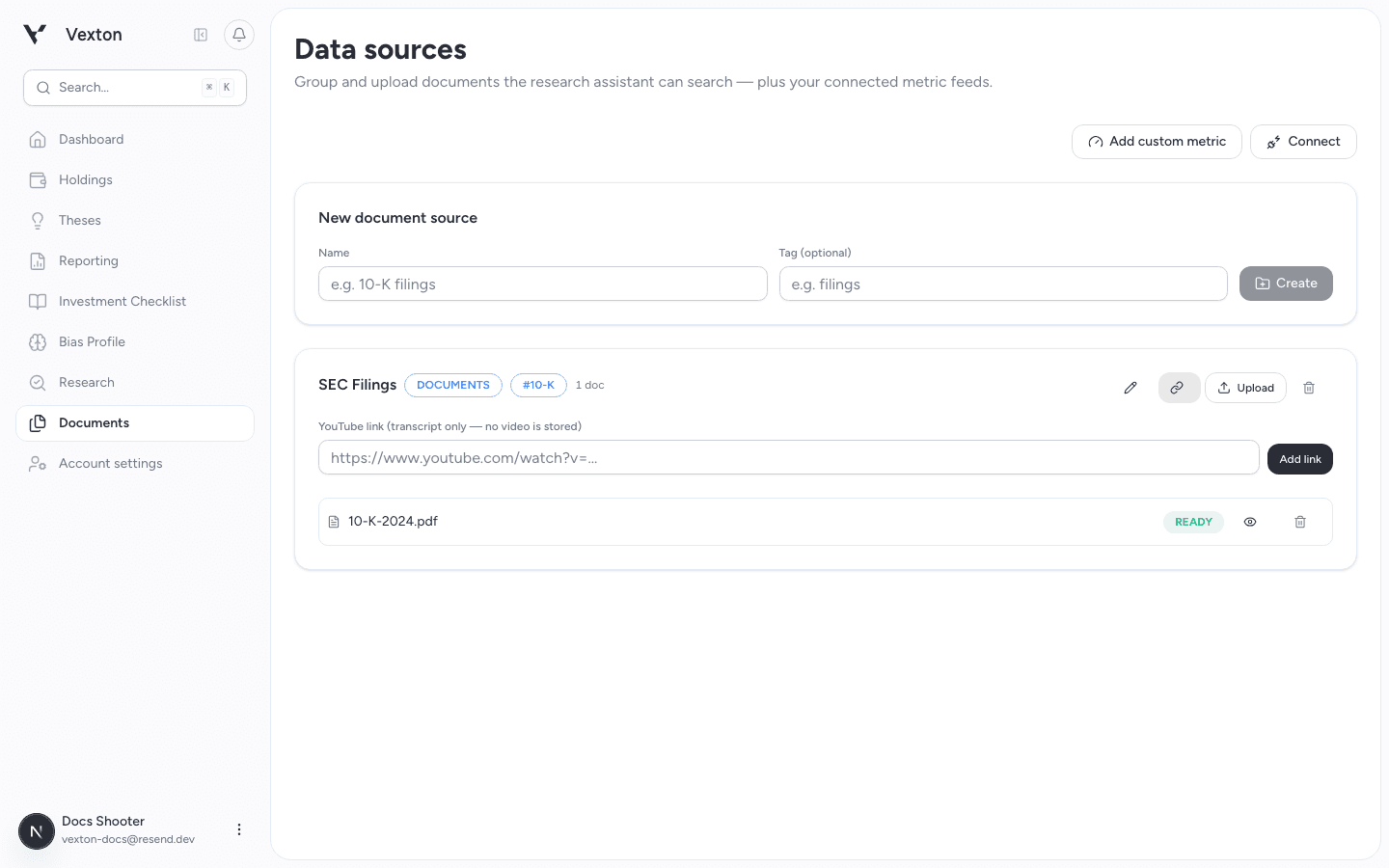
Paste the video URL, then select Add link. View full size
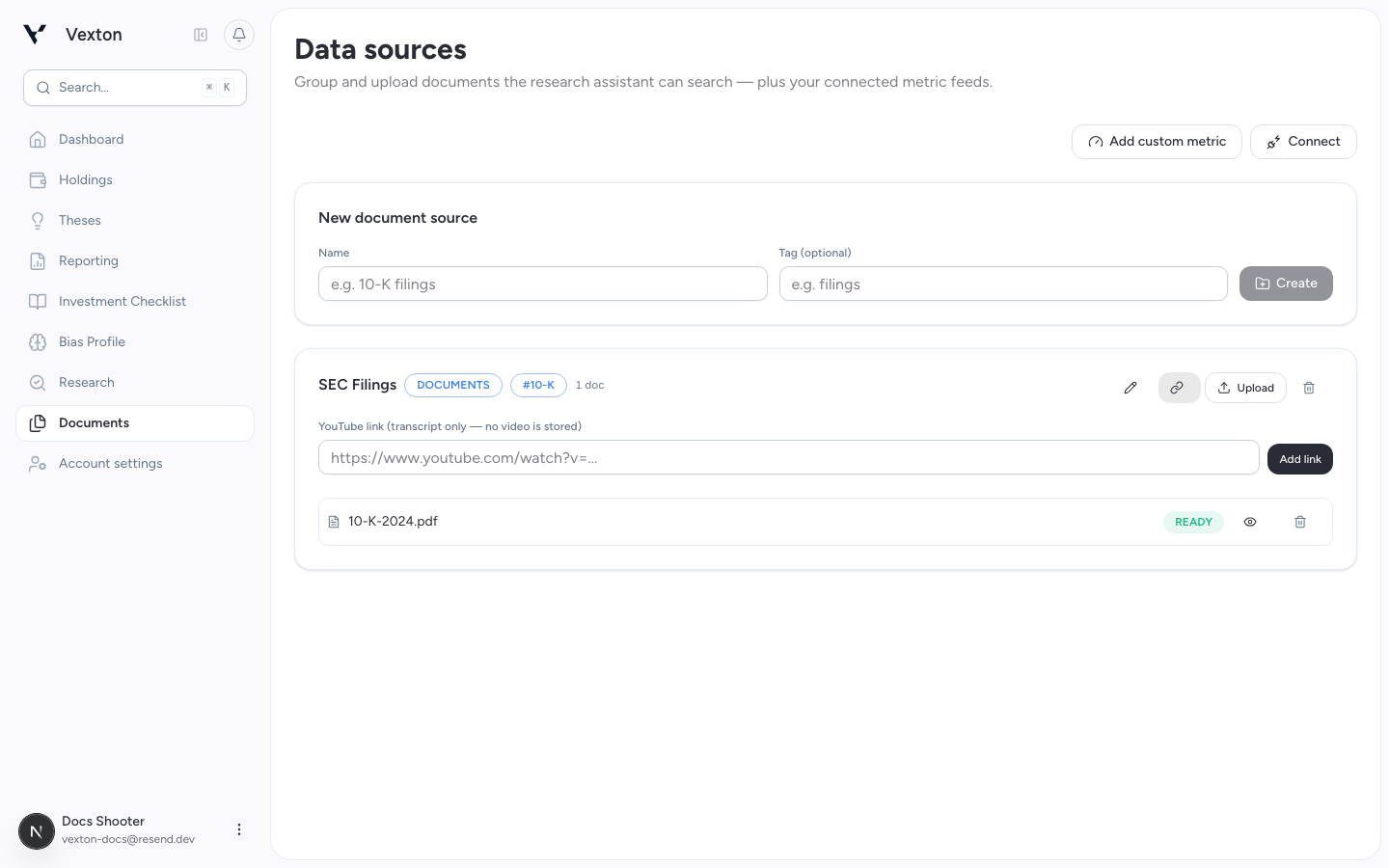
Connect a feed or server
Select Connect, choose RSS / Atom feed or MCP server, enter its URL and an optional name, then select Connect in the dialog.
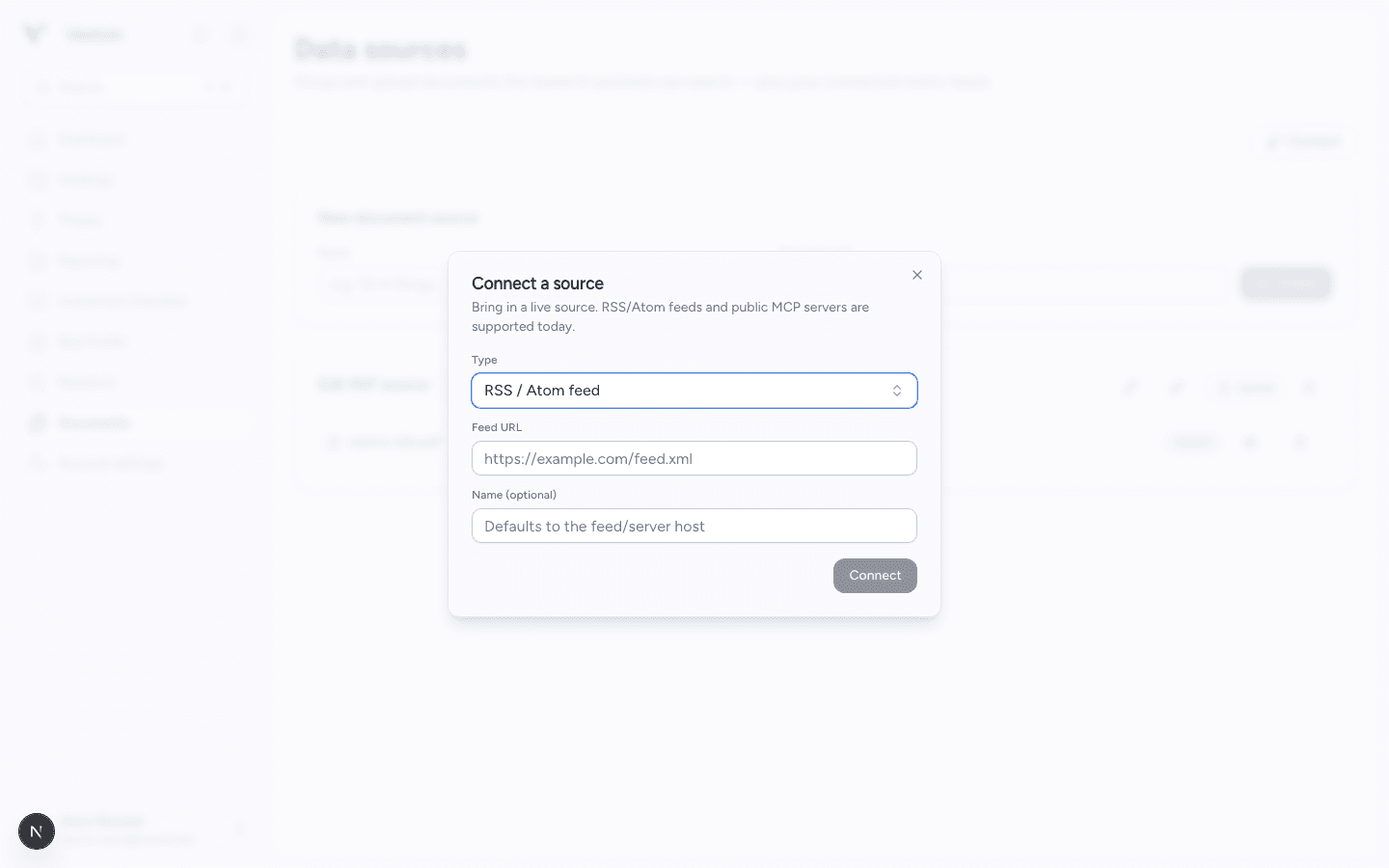
Choose the connection type first, then paste the matching feed or server URL. View full size
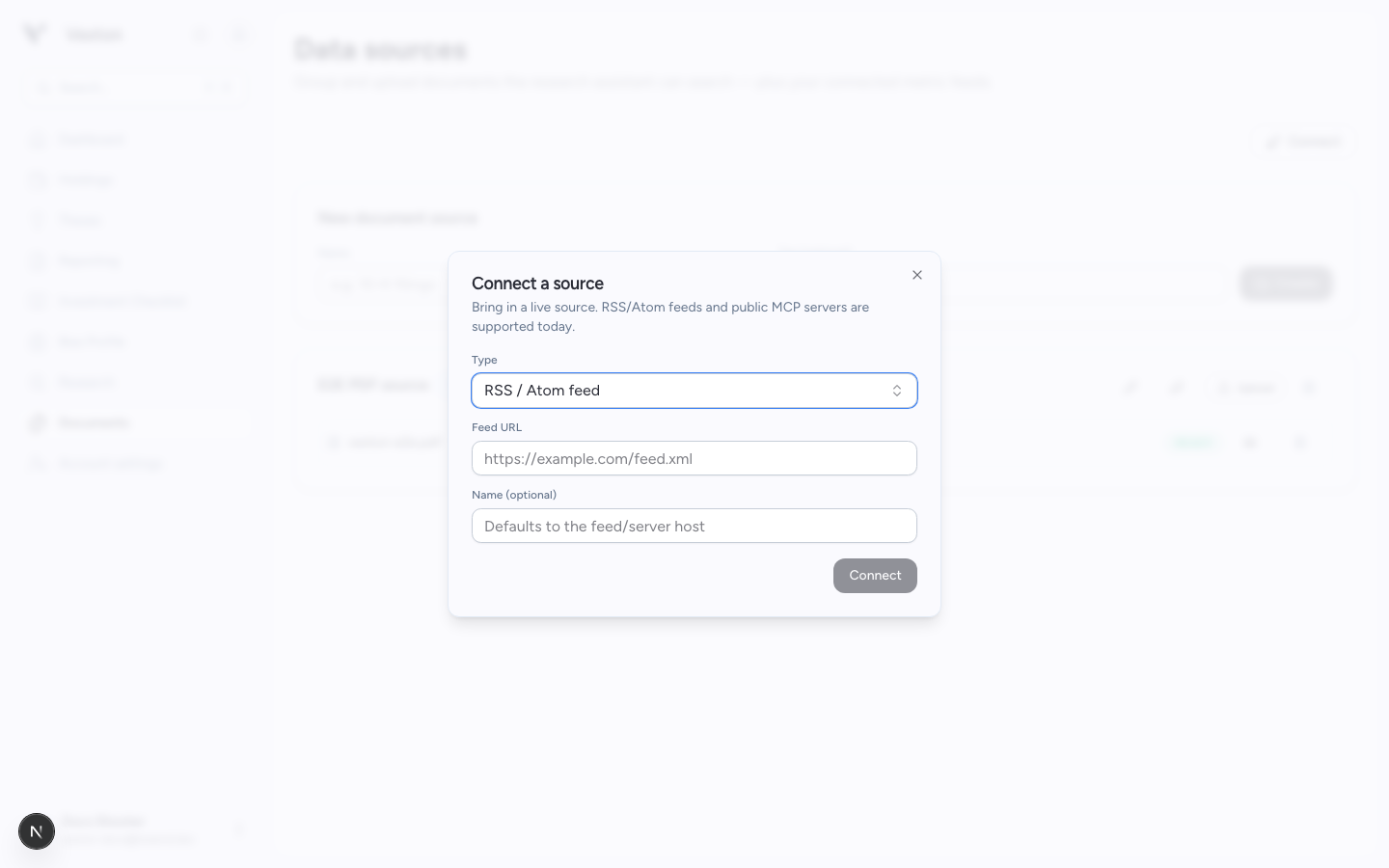
Check the new connection card and its health indicator. For RSS, Cache enables indexed feed content for later searches. MCP requests query the server live; Cache refreshes its tool list and health rather than indexing all its content.
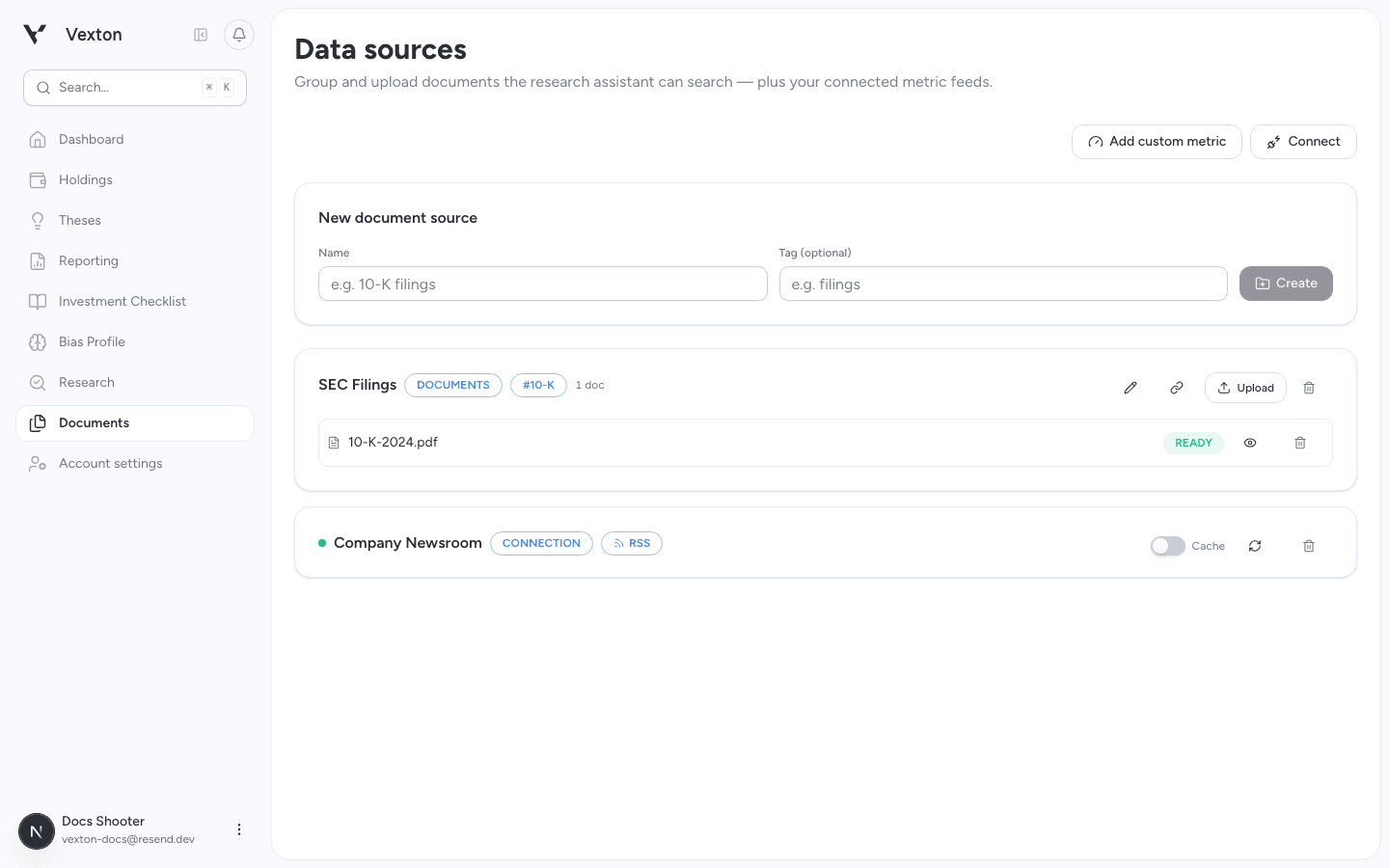
The connection appears below your document sources. Use its refresh icon to check it again. View full size
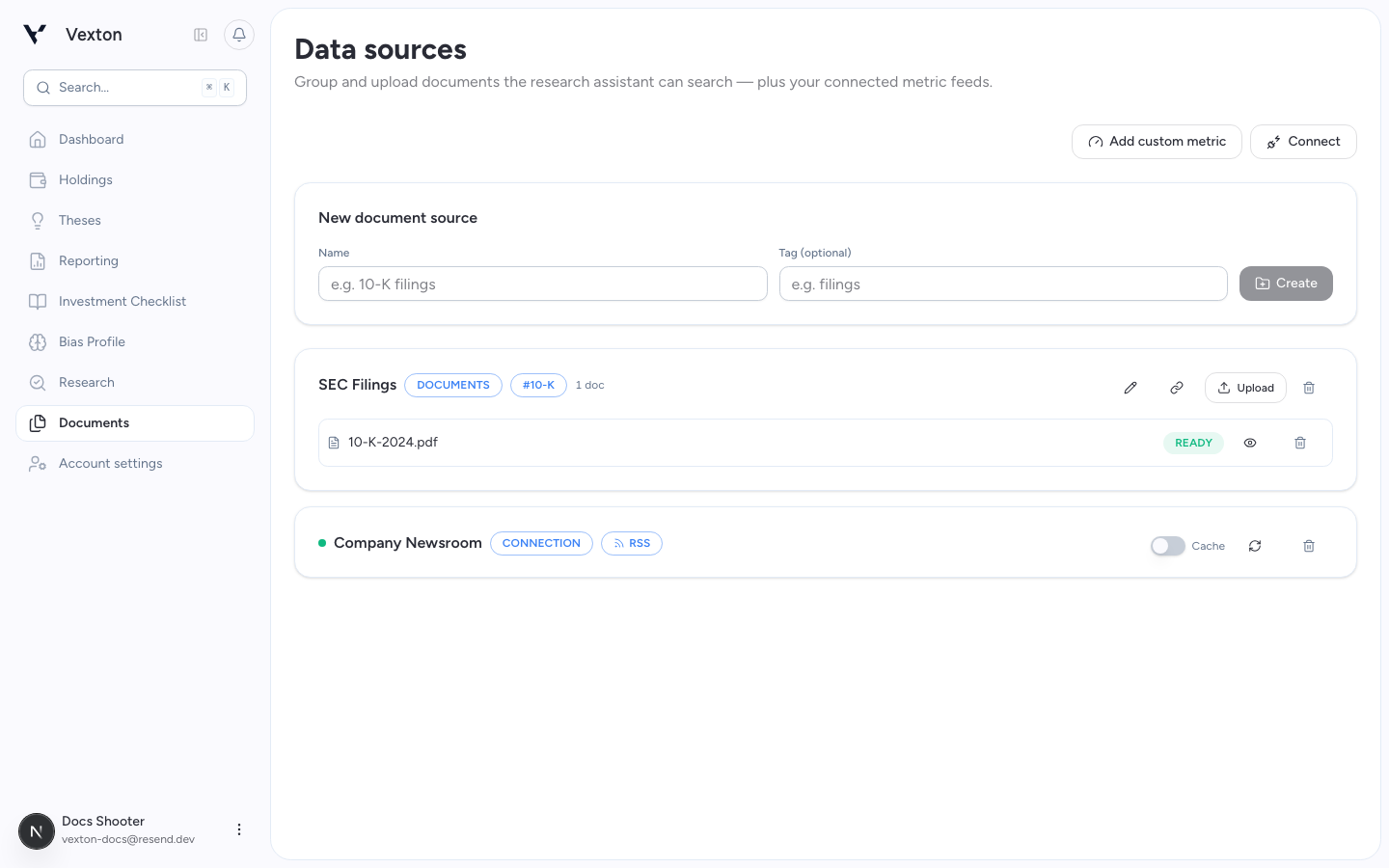
Custom metrics are an advanced setup. Read the reference before adding credentials.
Manage storage
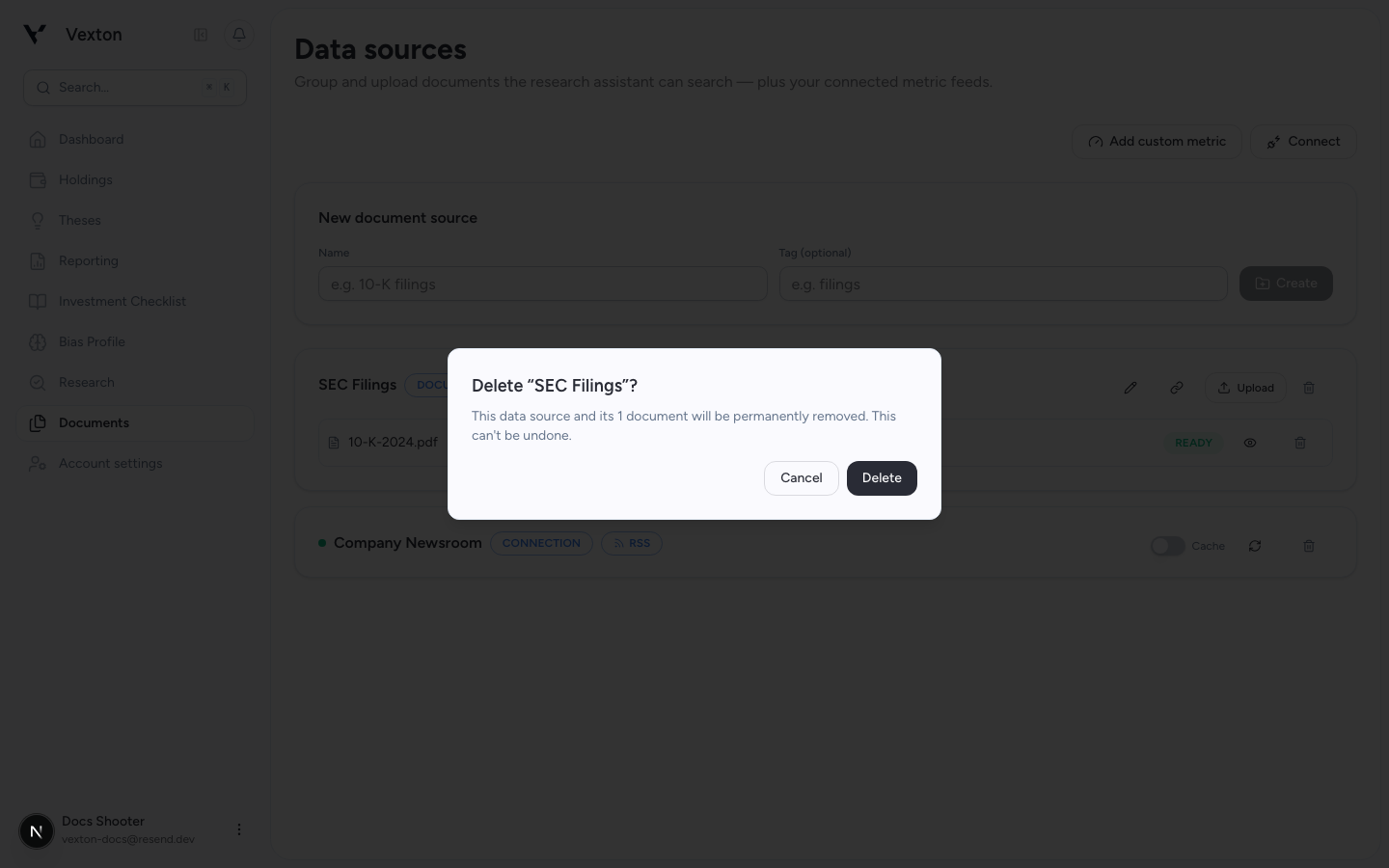
Delete only material you no longer need: source deletion removes its documents, stored files, and search entries. Monthly ingestion usage is a separate limit; deleting a file does not reset the month's usage.
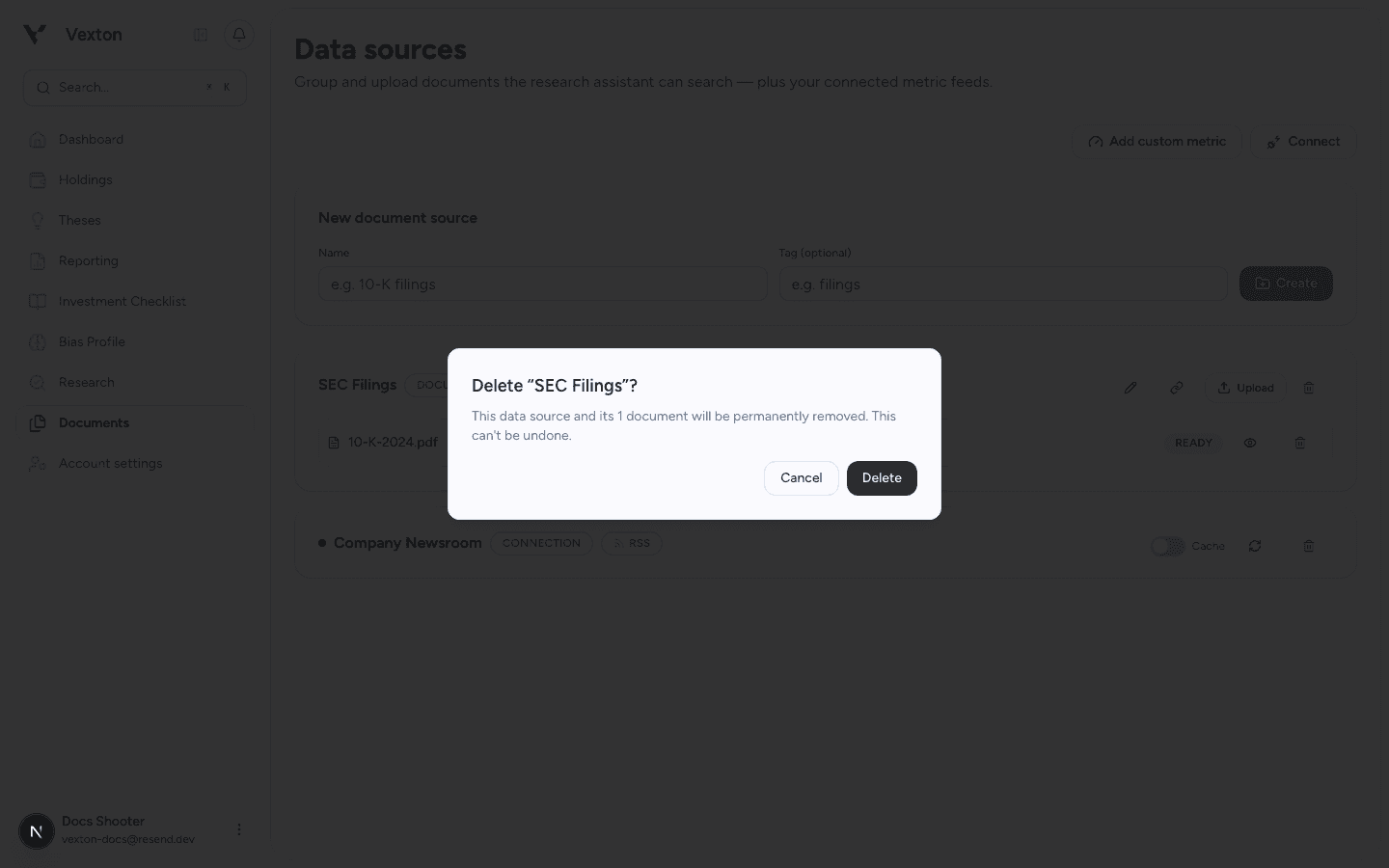
Use the source trash icon only when you intend to remove the whole source. Read its name and document count before confirming. View full size