

Connect your first account
Authorize a brokerage connection, then check what arrived.
1. Open Add Account
Go to Holdings and select Add Account, or press A. Older links to Import open this same drawer.
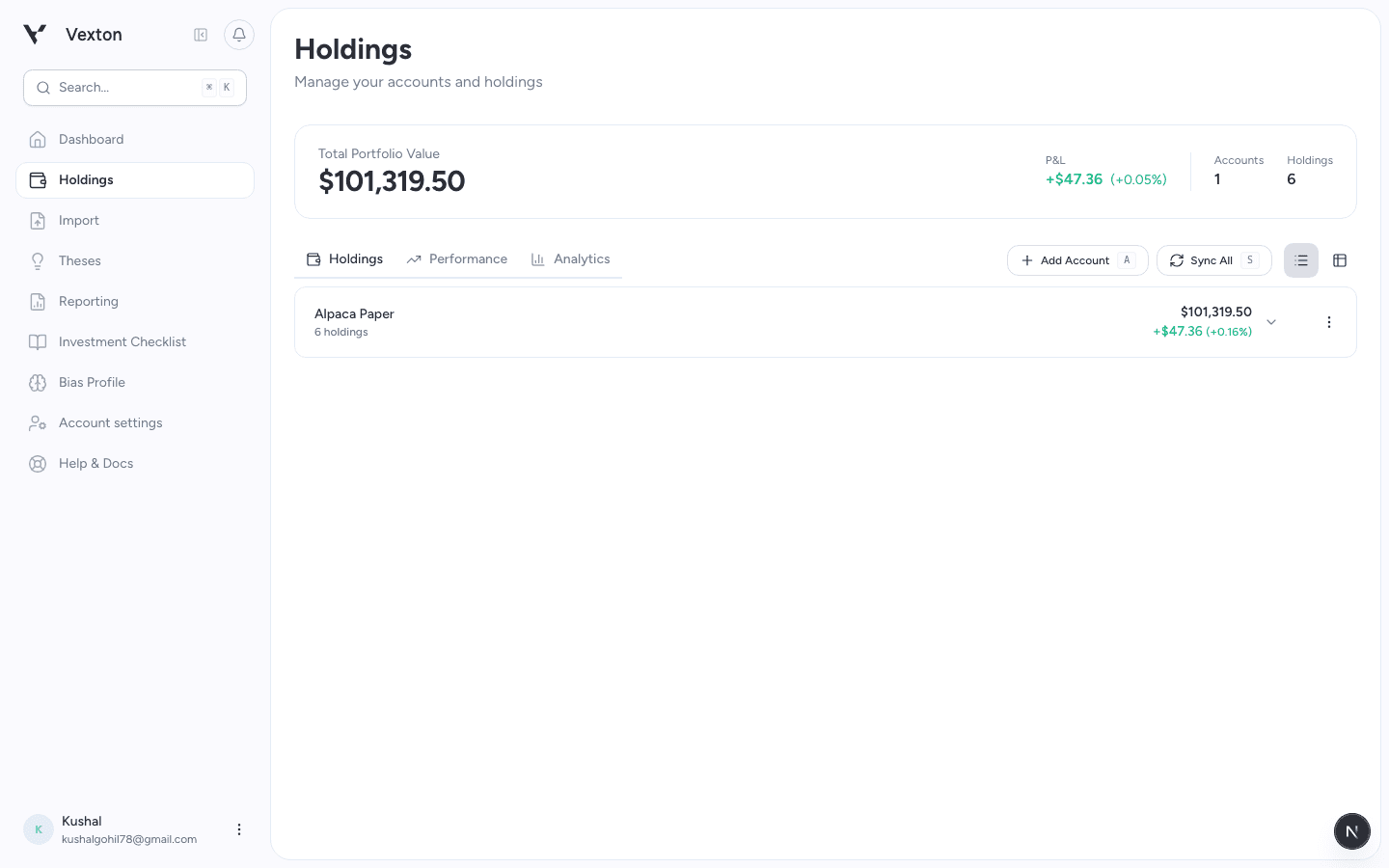
Click Add Account, beside Sync All. The connection flow opens in a drawer. View full size
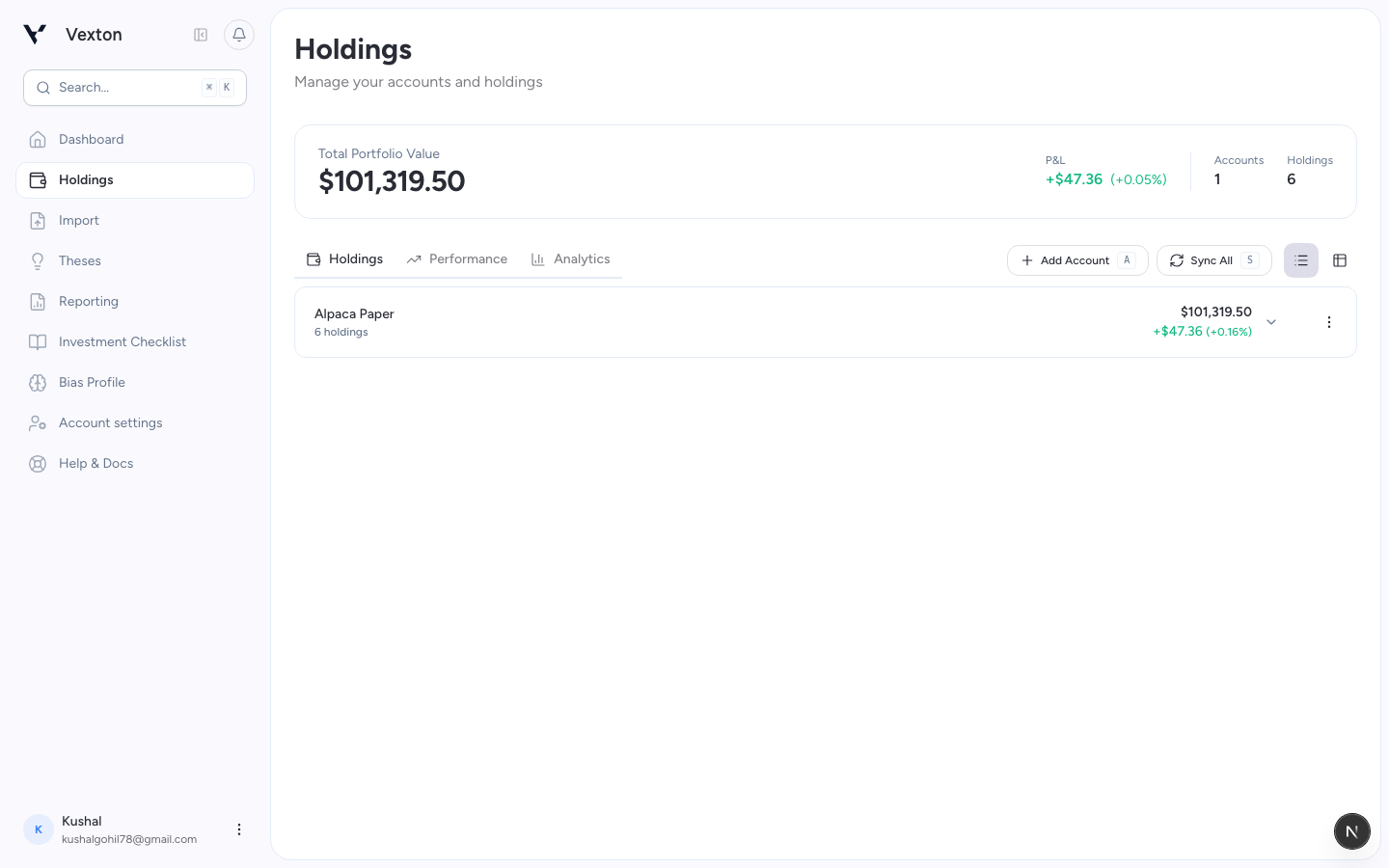
2. Connect your brokerage
Select Connect Brokerage. In the SnapTrade connection window, choose your institution and follow its authorization instructions. Review the requested access before continuing.
If your institution is not listed, close the connection window; file upload is currently unavailable. You can still research assets without connected holdings.
When authorization finishes, Vexton returns you to Holdings and starts syncing. You can leave the page while it runs.
3. Check the result
Expand the new account and compare its positions, quantities, cash, and currency with your brokerage. Use Sync All, or the account's sync action, to request an update.
Current positions can arrive before historical performance is ready. The broker's available transaction history determines how far Vexton can reconstruct the portfolio.
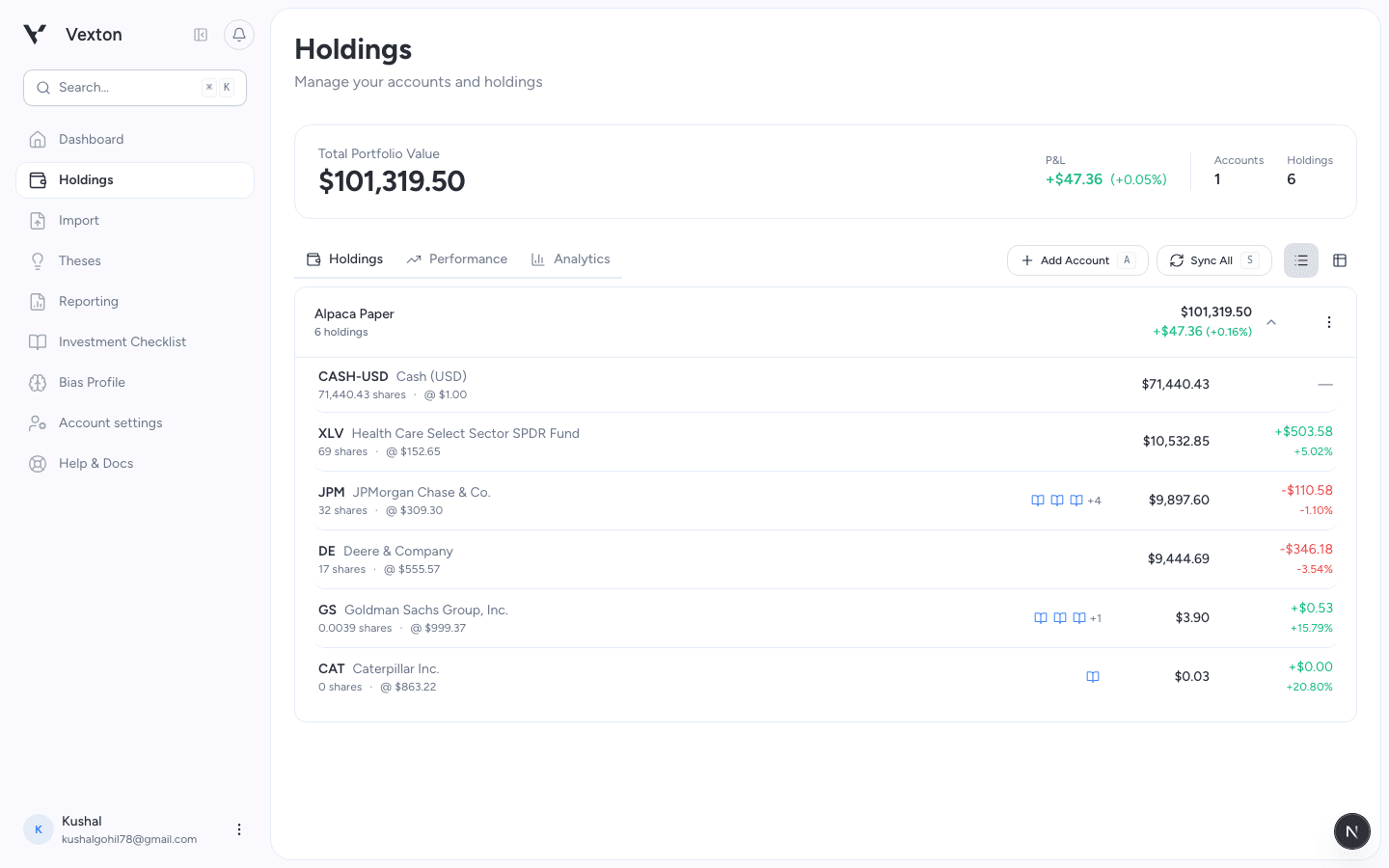
After syncing, expand the account and compare the rows with your brokerage. Example connected account shown. View full size
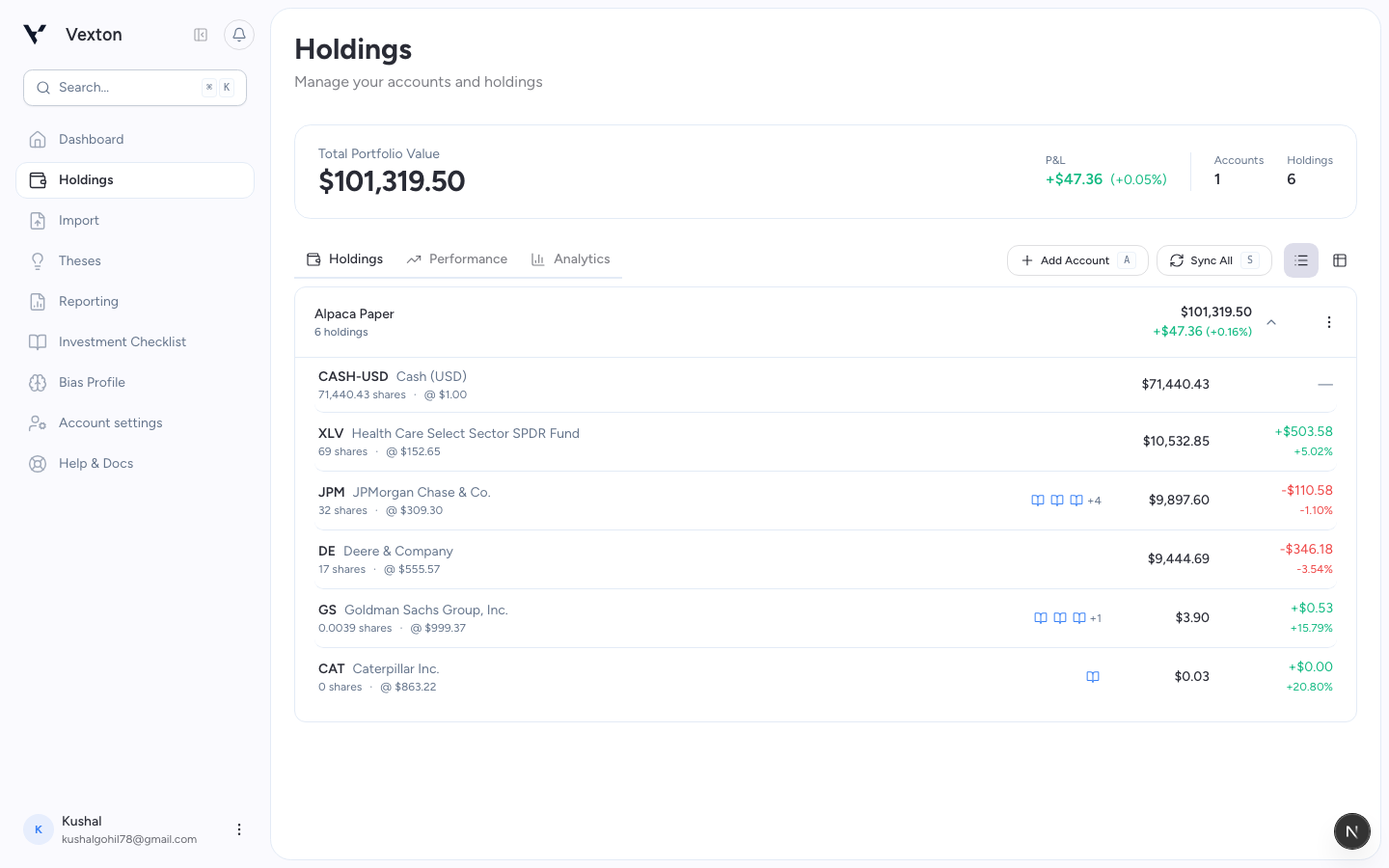
If something is missing
| What you see | Next step |
|---|---|
| Connection window closed before authorization | Open Add Account and try again |
| Account still syncing | Reopen Holdings to check its status |
| Missing cost basis | Use Enter cost basis where offered; keep the broker's records for comparison |
| Missing history or unavailable returns | Read portfolio coverage |
| Persistent connection or sync error | Contact support with the institution and visible error |
Do not send brokerage passwords or authentication codes to support.