

Review your portfolio
Move from positions to performance without reading every panel.
1. Check your positions
Open Holdings. If it is empty, select Add Account and follow Connect your first account.
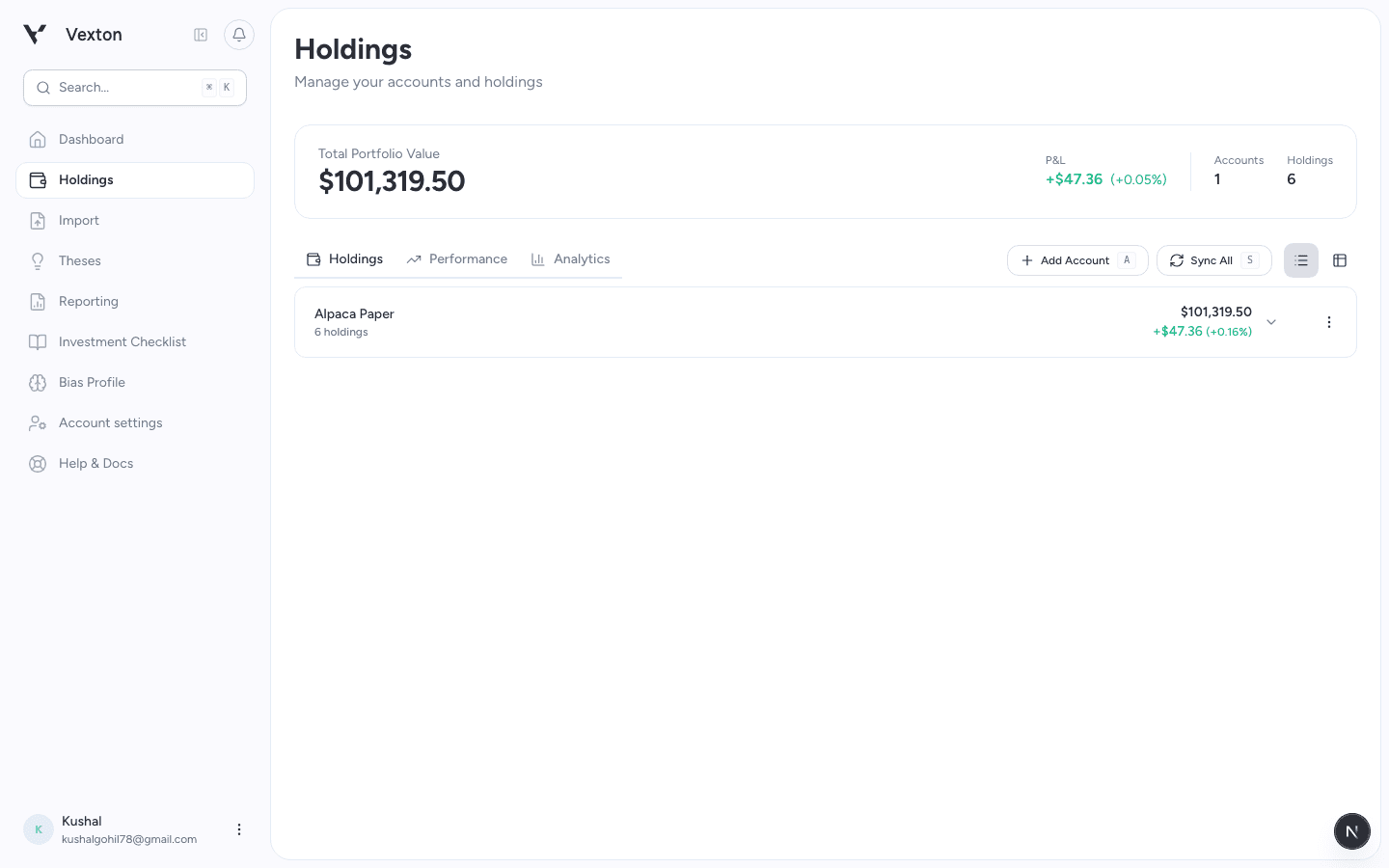
Check the summary, then use the List or Table control beside Sync All. Example portfolio shown. View full size
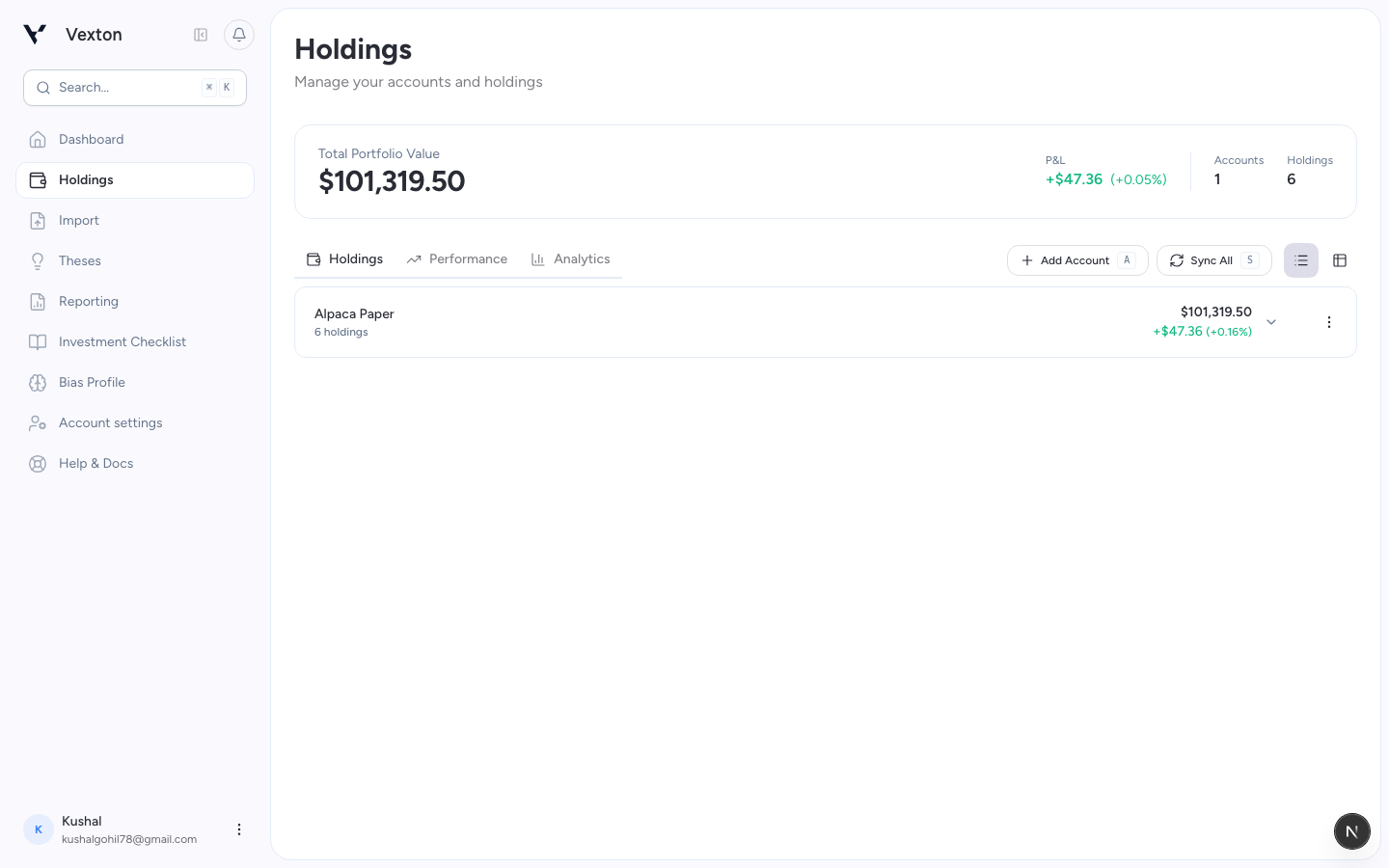
Expand an account in List view, or switch to Table view to search and sort across accounts. Use the table's page controls for more positions. Click a holding to inspect the security.
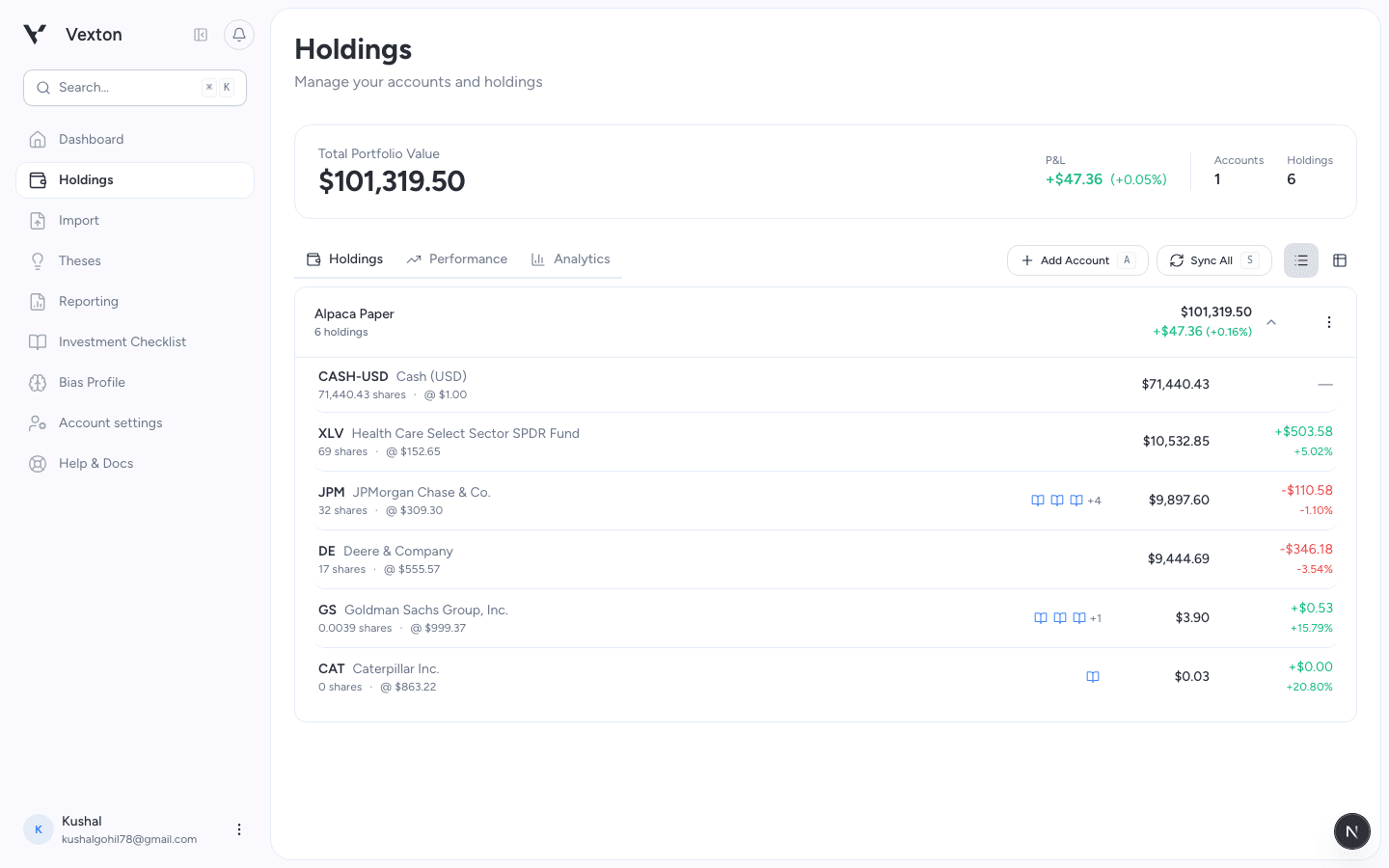
Click the account row or its chevron to reveal positions; click a security to inspect it. View full size
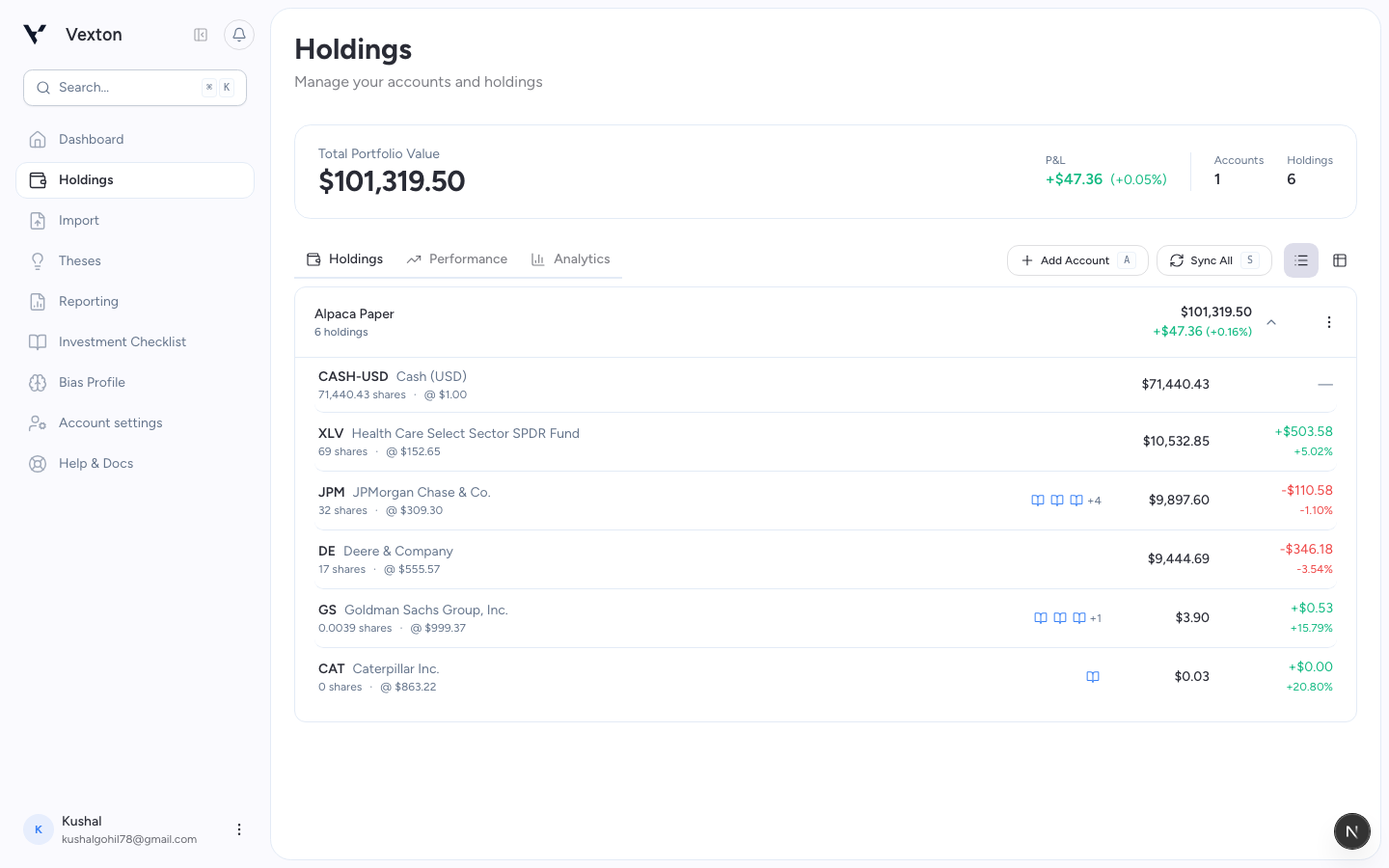
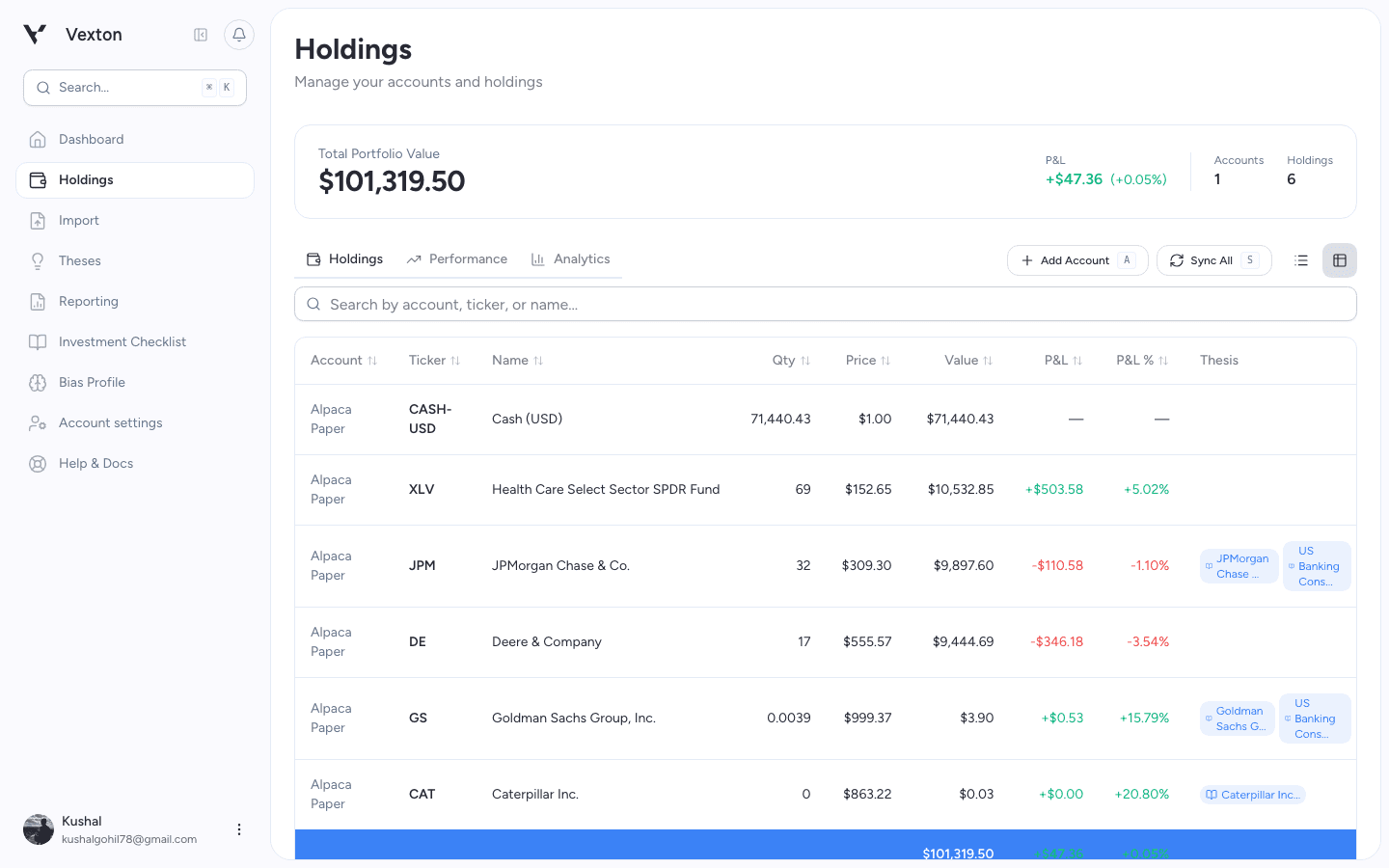
In Table view, search by account, ticker, or name. Click a column heading to sort. View full size
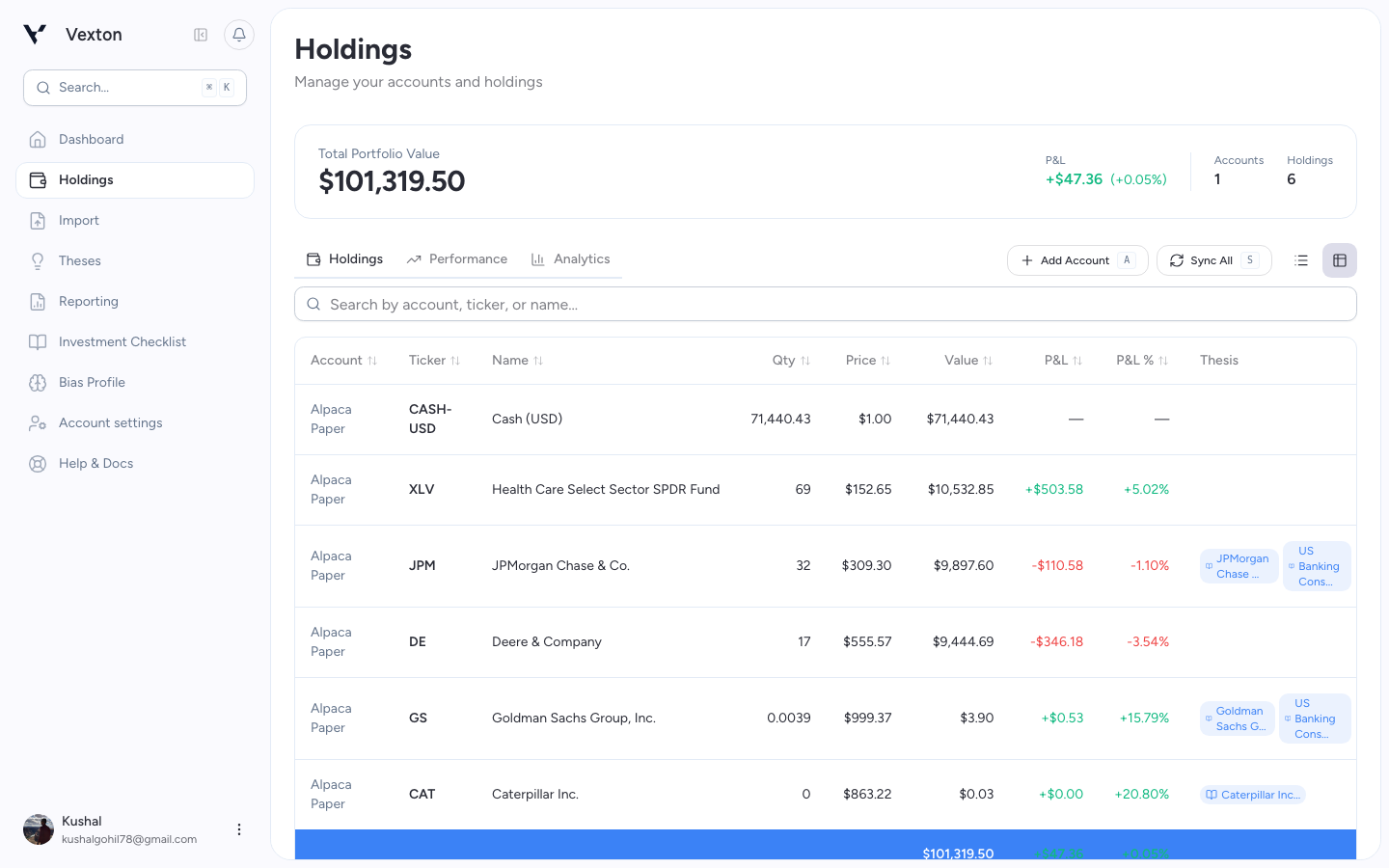
Check quantity, value, currency, and cost basis against your brokerage. Where cost is missing, select Enter cost basis, choose total amount invested or cost per share, enter the amount, and select Save. Check the updated row and its manual label before continuing.
2. Read performance
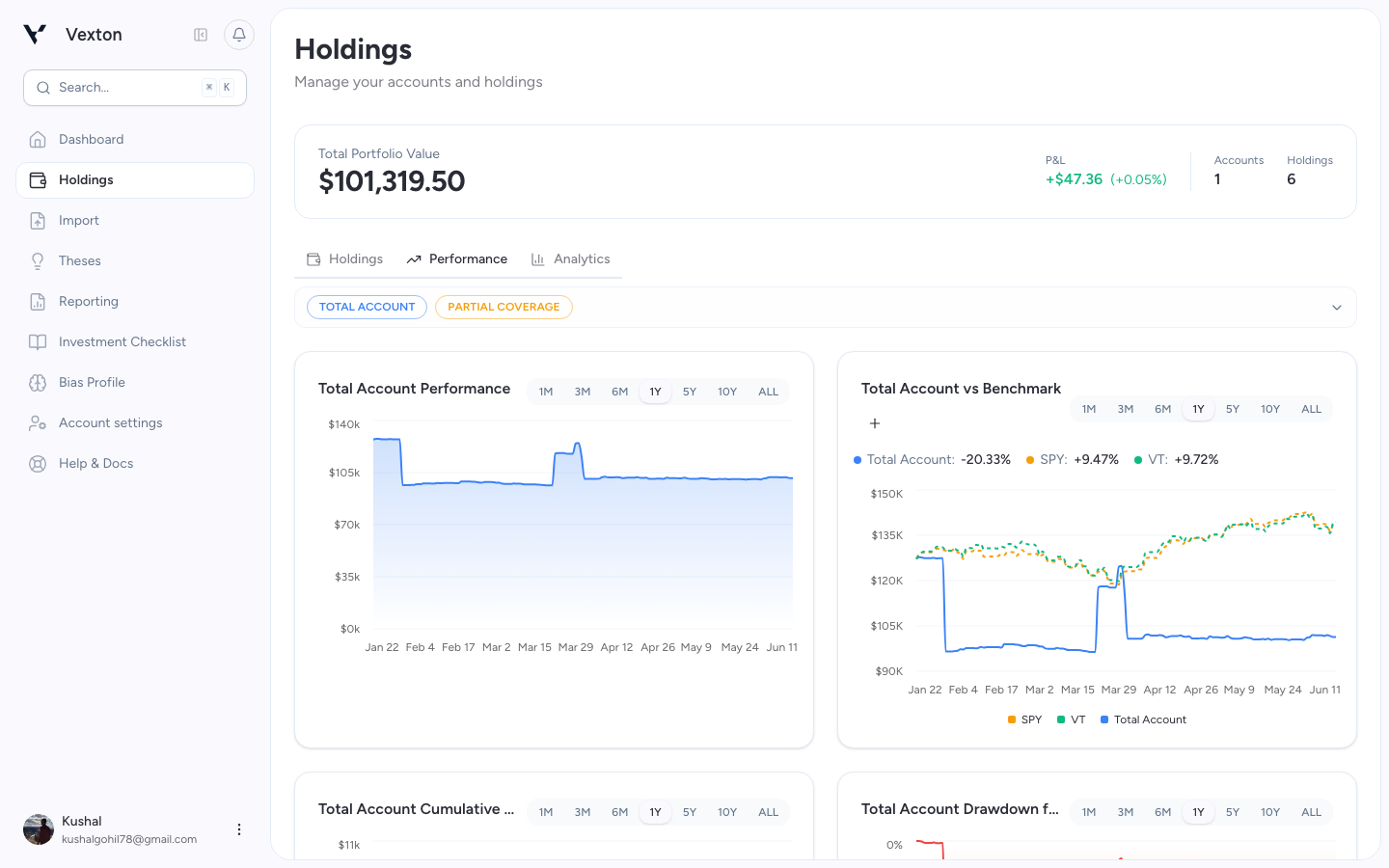
Open Performance and choose a period. Read each chart's title and unit:
- Portfolio value: the money held over time.
- Growth of $100 / benchmark comparison: the return comparison on a common starting scale.
- P&L timeline: the displayed change in value; cash movements can affect it.
- Drawdown: the decline from a previous peak in the supported return history.
Use the + control on the benchmark chart to select comparison benchmarks, then compare over the same period. Benchmark preferences carry across Performance and Analytics.
A lighter, dashed value line marks estimated points between supported parts of the history. It does not turn missing days into verified returns. See coverage and chart gaps.
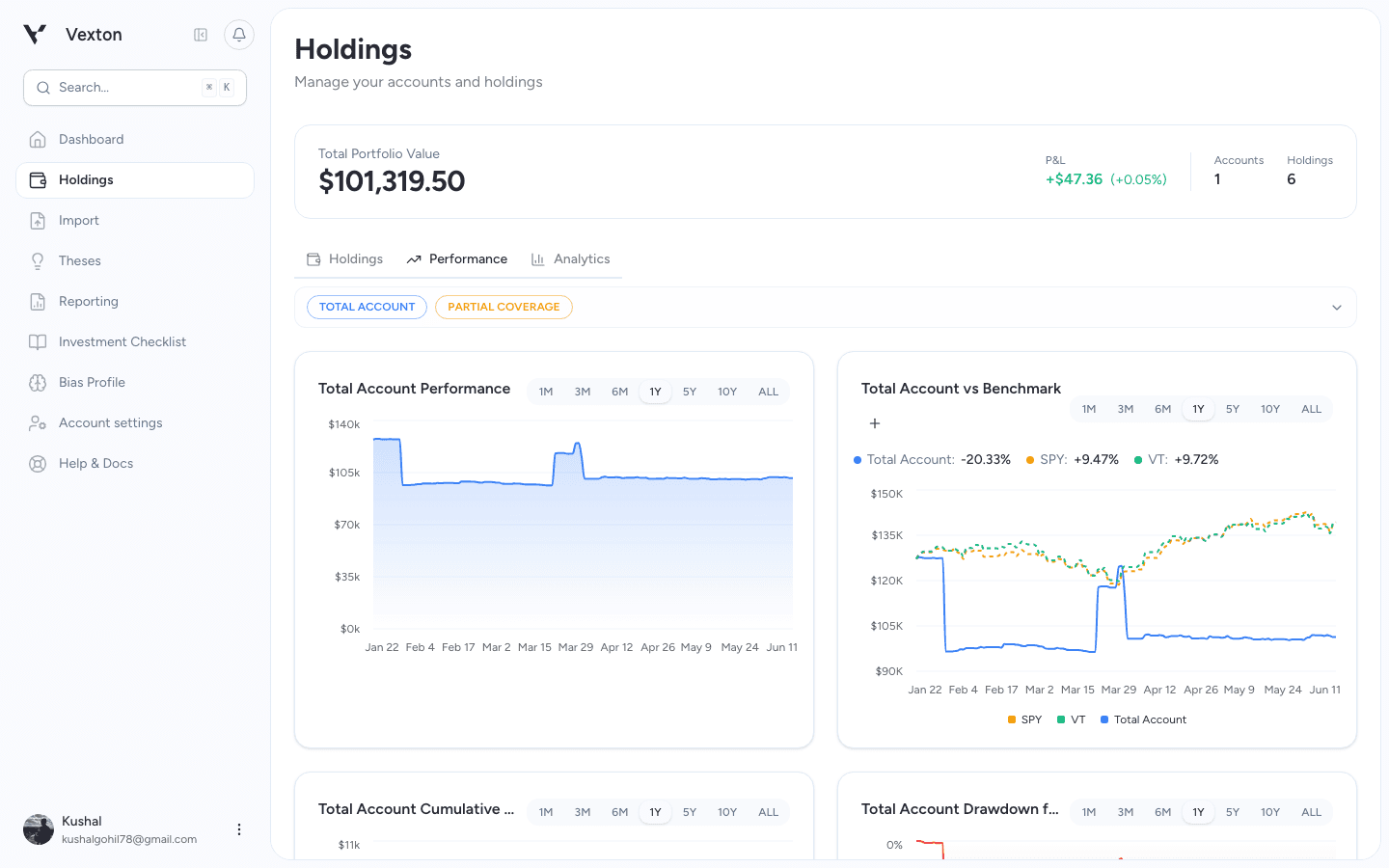
Select the period above a chart and inspect its coverage. This earlier view illustrates the controls; use the current chart titles and methods described above. View full size
3. Inspect concentration
Open Analytics. Start with allocation and top holdings, then inspect risk, correlation, or income for the question you are reviewing. Missing figures mean the required data is unavailable; they are not zero.
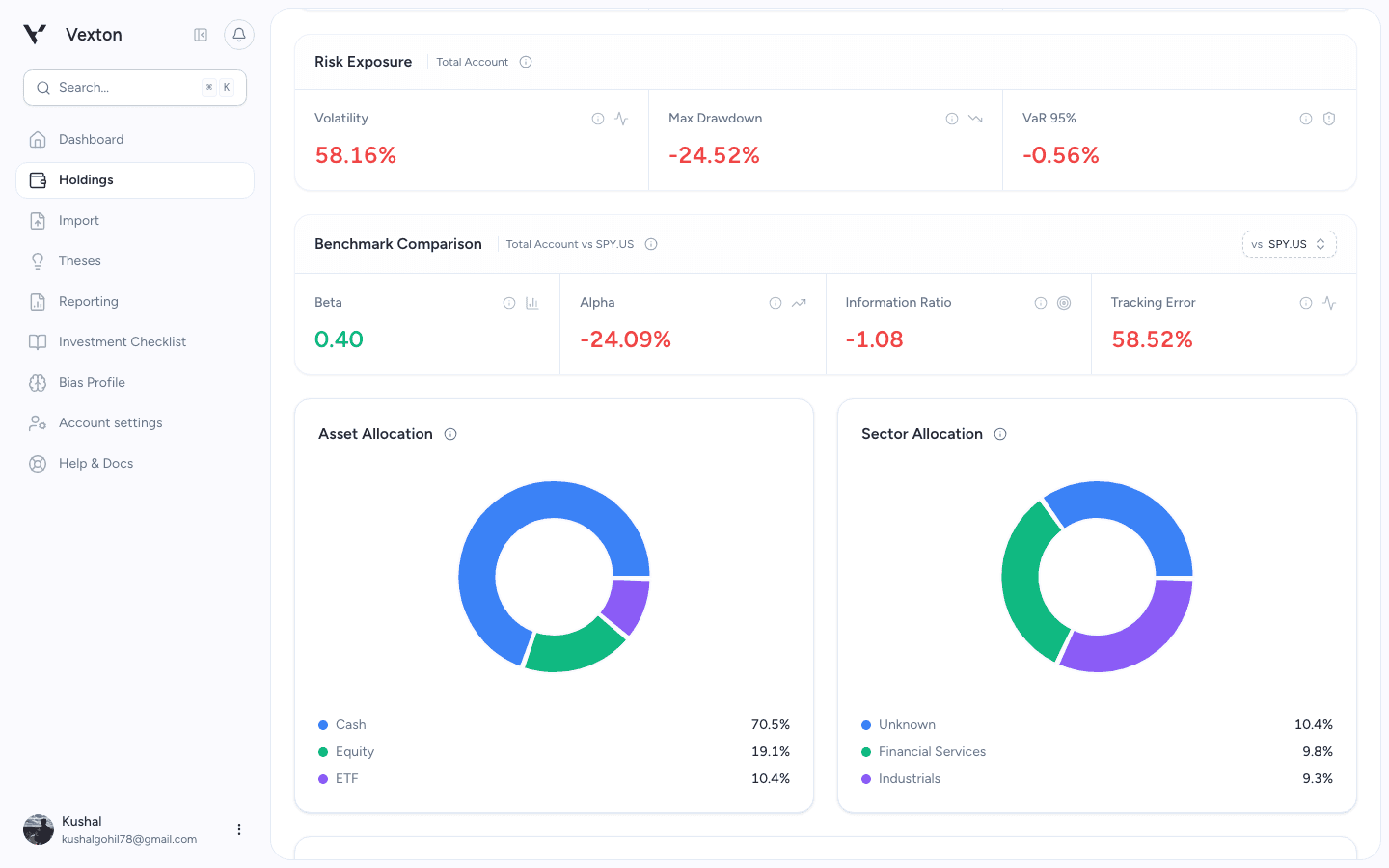
Use Analytics to inspect allocation and risk. Check Cash and Unknown categories before drawing a conclusion. View full size
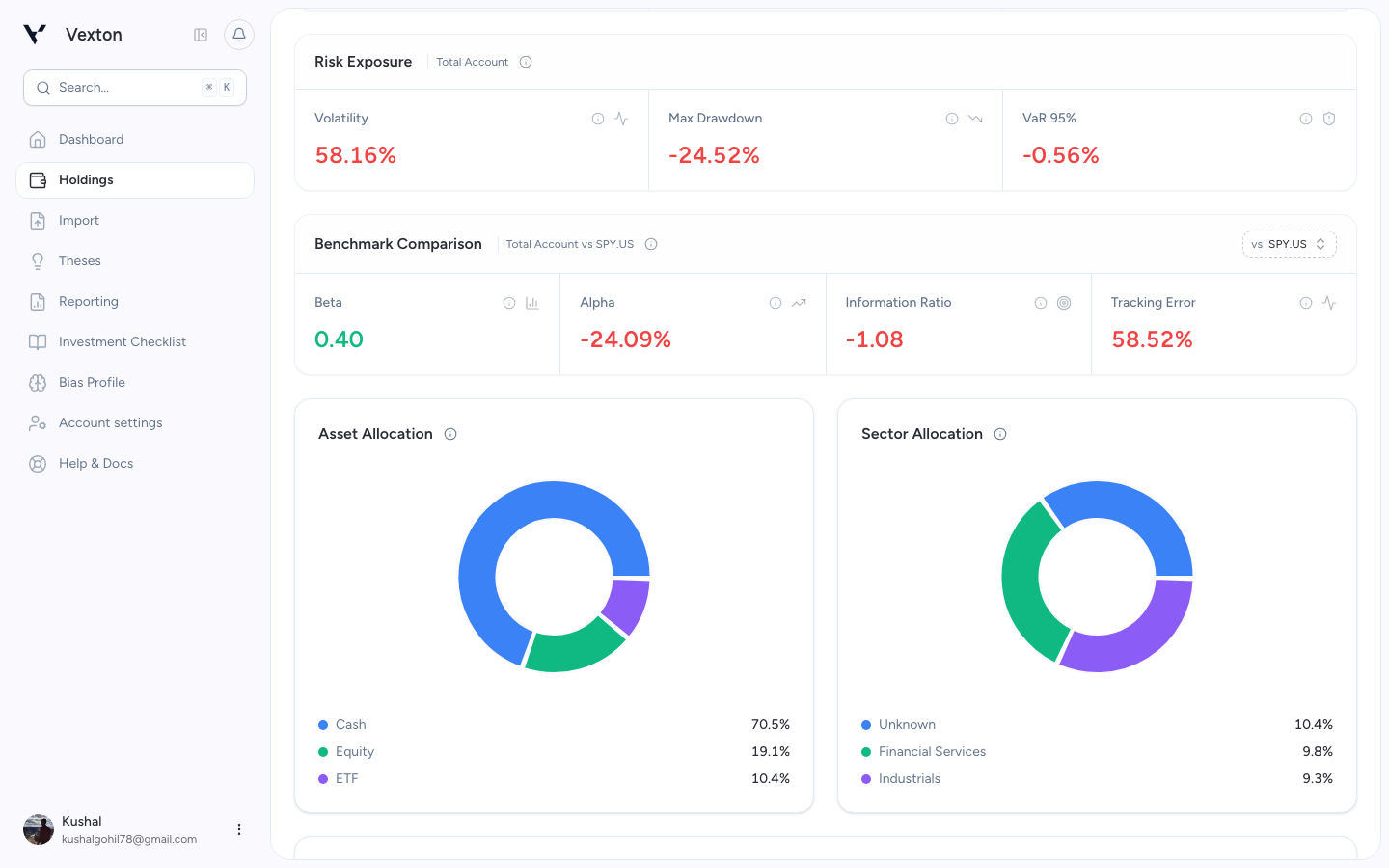
Follow the panel-by-panel guide for risk ratios, allocation, top holdings, correlation, and income.
For a client or committee review, generate a report and retain its dates, return method, and coverage notes.
Check which accounts are included
The portfolio and reports combine your tracked accounts, including cash. Use the account list in Holdings to check the connected accounts. There is no temporary account filter in Performance, Analytics, or the report picker.
To add an account, select Add Account. An account’s ⋮ menu offers Sync Now and Remove Account. Removal is not a report filter: review the confirmation before removing an account you no longer want to track.