

Read performance and analytics
Use each chart to review returns, concentration, risk, and expected income.
Open Holdings → Performance to review how the account changed. Open Analytics to examine what drives its risk and concentration. Both views cover tracked accounts, including cash. Screenshots show fictional example figures.
Before you compare
- Select a period above the charts. Performance and Analytics share this selection.
- Select Total Account above the panels and read the coverage details and available dates. A one-year selection may contain less than a year of supported return history.
- These views combine your tracked accounts and include cash. The charts use your reporting currency; there is no account-by-account selector on these tabs. Current allocation and cost-based P&L answer different questions from historical returns.
Use the information icons for definitions; on mobile, press and hold an icon to reveal its tooltip. On desktop, hover over a plotted point to inspect its date and value. On smaller screens, scroll down to each panel; charts stack vertically.
Performance charts
Account value
Question: How much was in the account over time?
Read the currency axis and inspect points around a change in value. The chart includes invested positions and cash. A deposit can raise the line even when investments have not gained value; a withdrawal can lower it without an investment loss.
Lighter, dashed sections connect dates with missing evidence. These are estimated values. Use the coverage notes before treating a movement as an observed result.
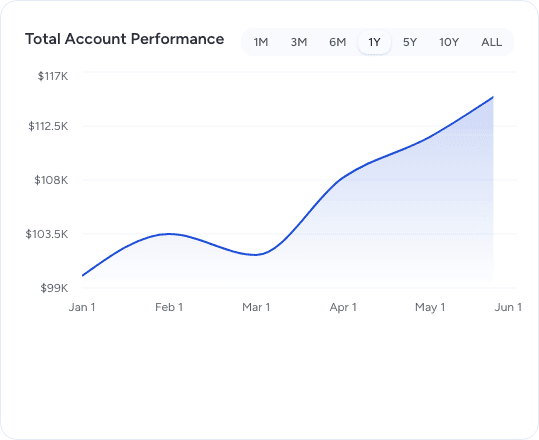
Read account value in currency; cash movements can change the line. View full size
Benchmark comparison
Question: How did the account's return compare with a reference investment?
- Select + beside the benchmark chart.
- Search for a benchmark and select its checkbox. You can compare up to five; clear a checkbox to remove one.
- Compare the portfolio and benchmark lines, then read their return labels for the selected window.
The lines start on a common $100 scale. A value of $110 represents a 10% increase on that scale, not your account balance. The portfolio comparison adjusts for external cash flows. Check whether a label is a total return or an annualized figure, and compare the actual supported dates.
Benchmark choices carry across to Analytics. Choosing a different reference changes the comparison; it does not change your holdings.
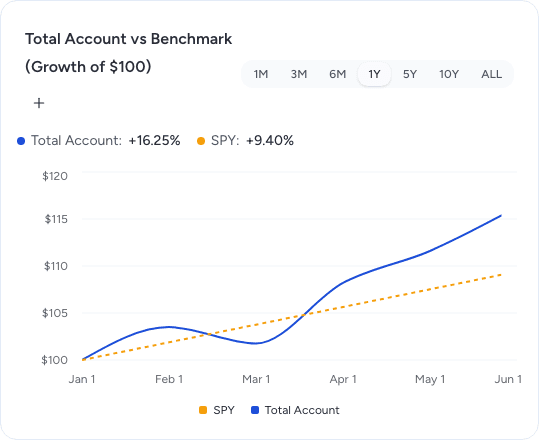
Compare returns on a common $100 starting scale. View full size
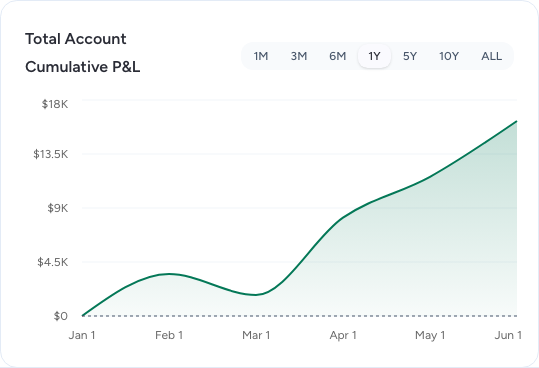
Cumulative P&L
Question: How far has account value moved from the first displayed point?
Read the line against zero and hover over a date for the currency amount. In this chart, P&L is the difference from the window's opening account value. It includes the effect of deposits and withdrawals and can include estimated value-history points.
It is not the same as the unrealized P&L shown beside a holding, which compares its current value with cost. Use benchmark comparison for the flow-adjusted return view.
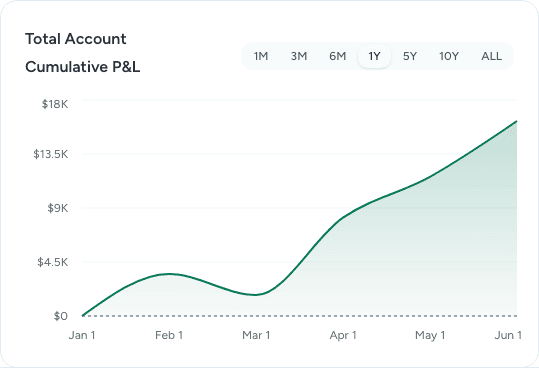
The zero line is the opening value of the displayed window. View full size
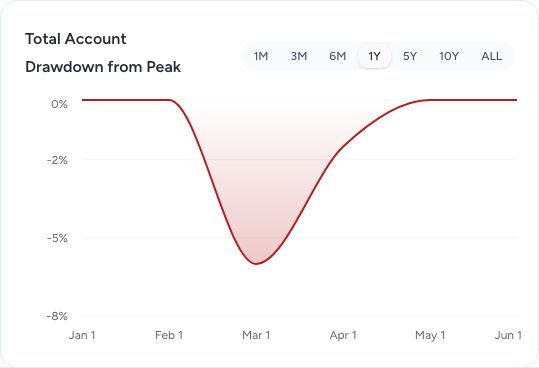
Drawdown from peak
Question: How deep were declines, and how long did recovery take?
Start at zero, then follow the dips below it. A value of −10% means the supported return series is 10% below its previous peak. Returning to zero means that series has regained its peak.
Compare the depth and duration of declines with the return chart. Drawdown uses supported, flow-adjusted history; it does not bridge missing return days with estimated account values.
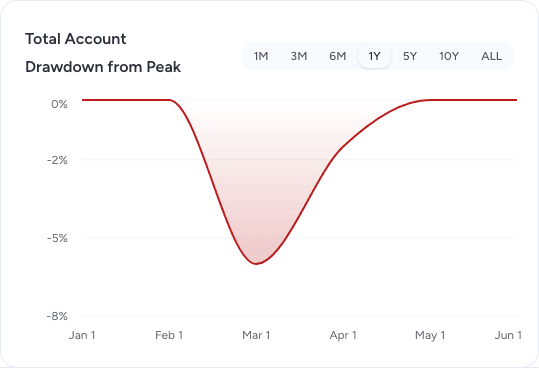
Read the depth and duration of each decline below the previous peak. View full size
Analytics panels
Return Quality
Question: How much return accompanied the risk taken?
| Measure | Read it as |
|---|---|
| Sharpe Ratio | Excess return per unit of total volatility |
| Sortino Ratio | Return relative to downside variation |
| Calmar Ratio | Annualized return relative to the largest observed drawdown |
Higher positive ratios indicate more return relative to the risk measure used; negative ratios indicate a negative numerator. Compare like-for-like measures over the same supported period. An unavailable ratio is not zero. Very short histories can make a strong-looking ratio misleading; these measures describe the observed past.

Compare ratios alongside their period and coverage. View full size

Risk Exposure
Question: How variable were returns, and how severe were losses?
| Measure | What it shows |
|---|---|
| Volatility | Annualized variation in daily returns |
| Max Drawdown | Largest observed peak-to-trough decline in the period |
| VaR 95% | An estimated daily loss threshold associated with the worst 5% of outcomes under the calculation |
Use Max Drawdown with the drawdown chart to see when a decline happened and how long it lasted. For example, VaR 95% = −1.80% is a daily return threshold of minus 1.8%. It is not a maximum possible loss; outcomes can be worse than its threshold.

Volatility, drawdown, and daily VaR describe different aspects of risk. View full size

Benchmark Comparison
Question: How closely did the portfolio follow its benchmark?
When multiple benchmarks are available, select one in this panel's dropdown. To add a benchmark to the available choices, use + in the Performance tab first.
| Measure | What it tells you |
|---|---|
| Beta | Historical sensitivity to benchmark movements; around 1 means similar sensitivity |
| Alpha | Annualized excess return after accounting for the modeled benchmark sensitivity |
| Information Ratio | Active return relative to the variability of that active return |
| Tracking Error | How much daily portfolio returns differed from the benchmark |
Positive alpha means performance above the model's benchmark expectation; negative alpha means below. A higher positive Information Ratio means more active return per unit of tracking risk. Check the selected benchmark before copying these figures into a review. The same portfolio can have different results against a broad-market index and a sector-specific reference.

Check the benchmark named above the metrics. View full size

Asset Allocation
Question: What types of assets make up the portfolio?
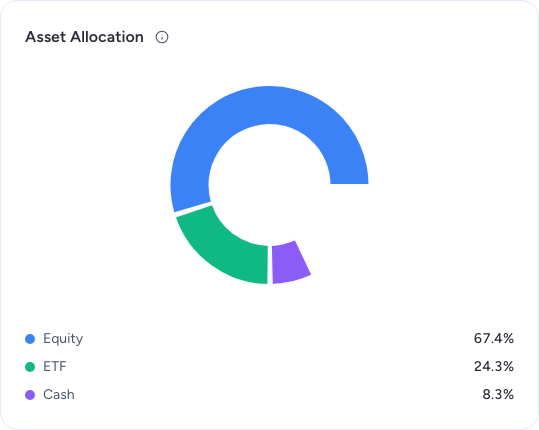
Allocation and Top Holdings describe current positions; changing the historical period does not reconstruct an earlier allocation. Read the slices and legend to compare stocks, funds, bonds, cash, and other displayed categories. Hover over a slice for its amount and percentage. Use the cash category to distinguish money waiting to be invested from invested exposure.
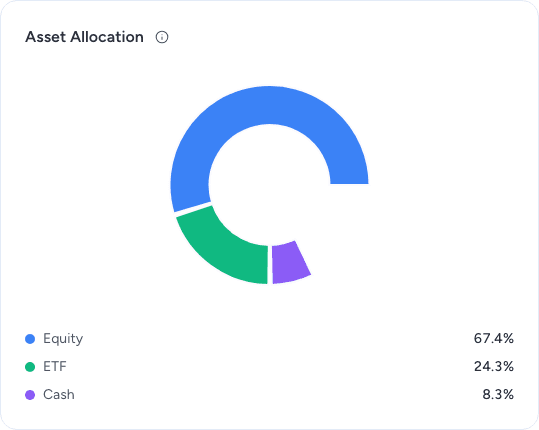
Compare asset types and cash using the legend and slice tooltips. View full size
Sector Allocation
Question: Is exposure concentrated in a few industries?
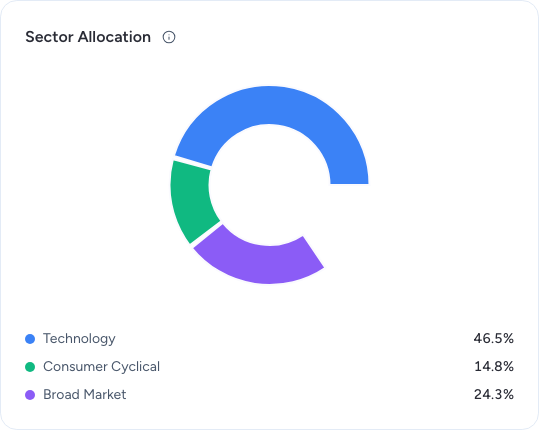
Compare sector weights and inspect any Unknown category before drawing a conclusion. Sector weights use the total-account denominator. Categories without a sector classification can leave the displayed sectors short of 100%; do not treat the visible slices as a complete look-through analysis. A category describes the classification available to Vexton; it does not by itself establish a fund's underlying constituent exposures.
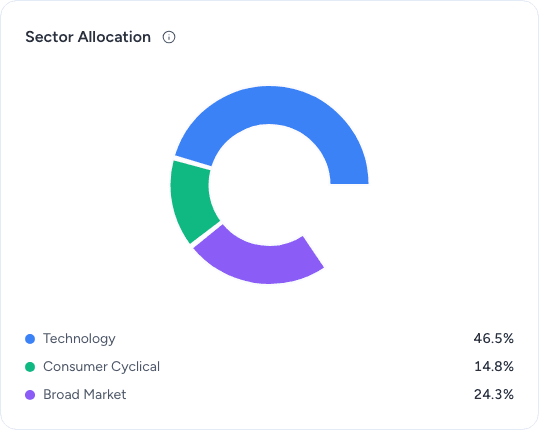
Inspect sector weights and any missing classification. View full size
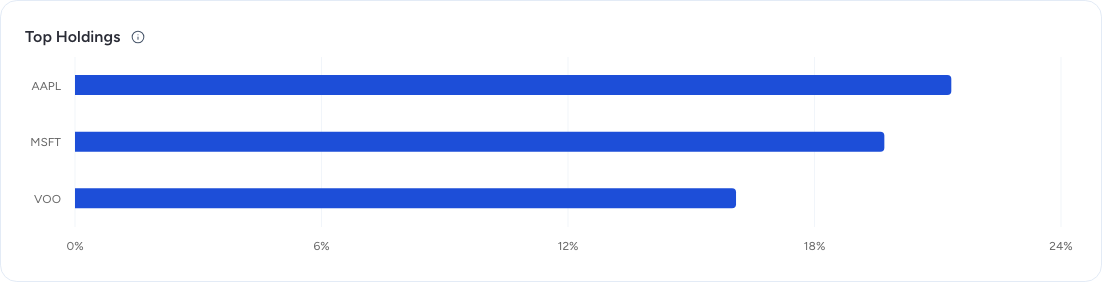
Top Holdings
Question: Which positions dominate the account?
This panel shows up to ten non-cash holdings by value, with weights measured against the total account, including cash. Read the longest bars first. Hover over a bar to inspect its value and weight. A short list of large positions can reveal concentration that a broad asset-type allocation hides.
To investigate one, return to the Holdings tab and click the security to open its detail view.
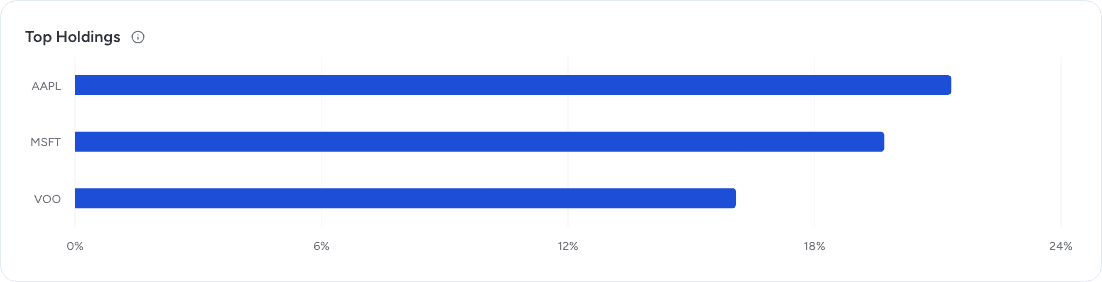
Start with the largest positions when reviewing concentration. View full size
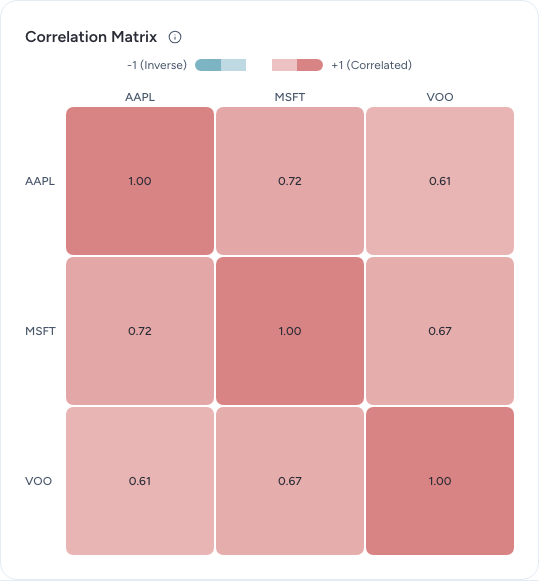
Correlation Matrix
Question: Which holdings have tended to move together?
- Find one holding's row and another holding's column.
- Read their intersection. On desktop, hover over the cell to see the pair and a more precise value. On mobile, read the number printed in the cell or press and hold it briefly to reveal the precise pair value.
- Compare several pairs, especially among your largest positions. On a narrow screen, scroll the matrix horizontally to reach additional columns.
| Value | Interpretation |
|---|---|
| Near +1 | Returns tended to move together |
| Near 0 | Little linear relationship in the measured history |
| Near −1 | Returns tended to move in opposite directions |
The diagonal compares each holding with itself and is normally +1; use the off-diagonal cells for comparisons. Read the number as well as the color. A missing value means the pair lacks usable evidence, not that it is uncorrelated.
Correlation describes the available return history, not a promise about future behavior. Pair it with Top Holdings and Sector Allocation: owning many names does not necessarily mean they behave differently.

Read an off-diagonal cell to compare two holdings. View full size
Dividend & Income
Question: What income has arrived, what is expected next, and which holdings contribute it?
- Compare paid and expected income. Paid (last 12 months) comes from recorded dividend and interest transactions. Forecast income (next 12 months) estimates upcoming income for supported holdings. Projected Annual Yield expresses projected annual income relative to the supported invested-portfolio value; it is not yield on purchase cost.
- Read the timeline around Today. Solid bars show paid income; lighter bars show forecast income. The Today marker identifies the start of the forecast portion. A month can contain both paid and expected amounts, stacked in one bar—do not treat that whole bar as cash already received.
- Inspect a month. Hover over its bar to see the month and year, total amount, and payment count or status summary. Read paid, announced, and estimated separately: an announced payment has a provider record; an estimate is a projection.
- See who contributed. The tooltip lists holdings, payment dates, and amounts. Multiple payments for the same distribution can be grouped into one row with a payment count. Where available, amount per share × quantity explains the calculation. The small lines compare each row with the largest contributor; they are not portfolio weights.
- Check coverage. An information icon beside the forecast or yield can identify excluded holdings, such as an unlisted fund without usable dividend history. A populated forecast can therefore cover less than the full portfolio. Read that explanation before using the total in a client review.
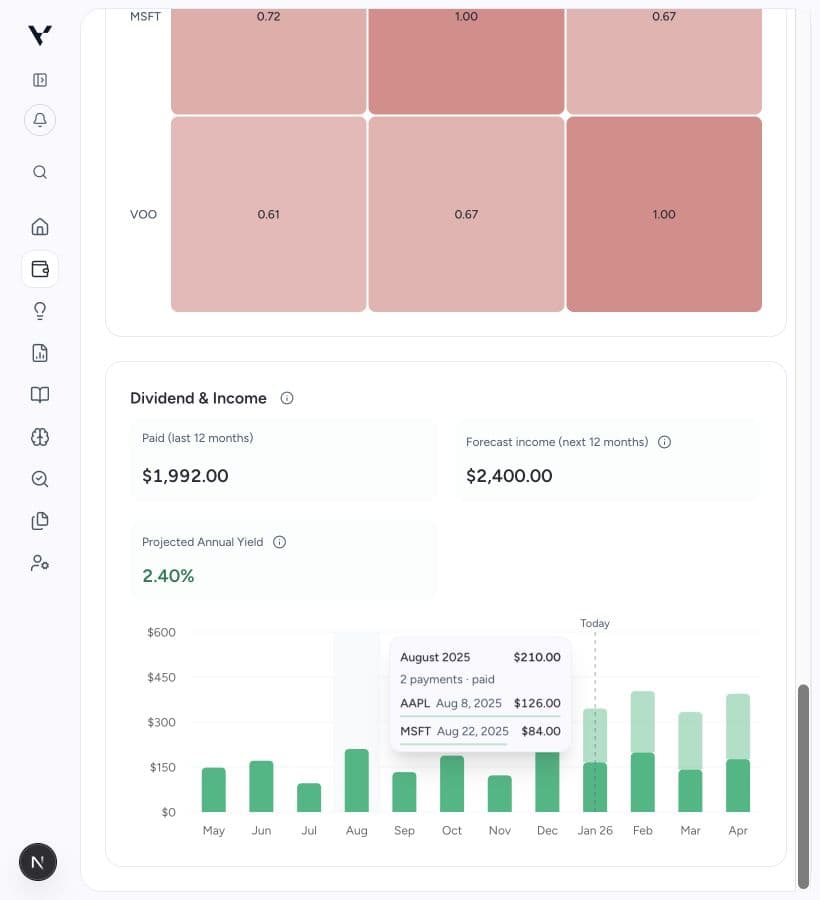
A paid month expanded in the current interface. The monthly total is broken down by holding, with payment dates and amounts. Example figures shown. View full size
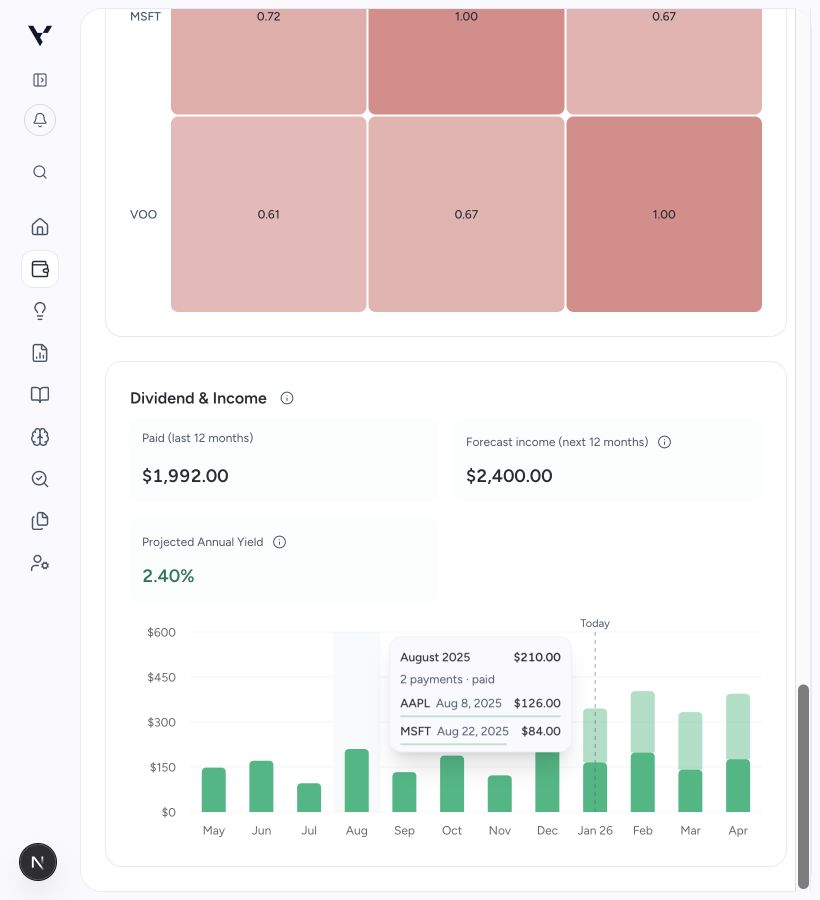
Forecast months offer the same breakdown and may mix announced and estimated payments. A +N more line means the tooltip is showing only its first six contributor rows; it is not the complete list. The total still includes the month's stated amounts.
Use the Future Income report for detailed upcoming events and the Calendar report for payment-date planning. Projections can change; missing amounts are not zero.
Why a chart may have gaps
A current balance and a historical return need different evidence. Your broker may supply today's positions before enough dated holdings, prices, cash flows, and currency rates arrive to reconstruct history.
The value chart can show several supported segments joined by estimated values. Return and risk calculations do not treat those bridges as verified daily returns. A shorter return series can therefore appear beside a longer value chart.
If figures differ from your brokerage, compare the same accounts, cash treatment, dates, currency, and return method. If coverage remains incomplete after syncing, ask for help. Reconnecting repeatedly cannot supply history the broker has not provided.