

Generate a portfolio report
Choose a report, review its coverage, and keep a copy.
1. Choose a report
Open Reporting → Generate report. If you have no tracked account, connect one through Holdings → Add Account first.
Choose Performance for an overall return review, or use the report guide to pick another question.
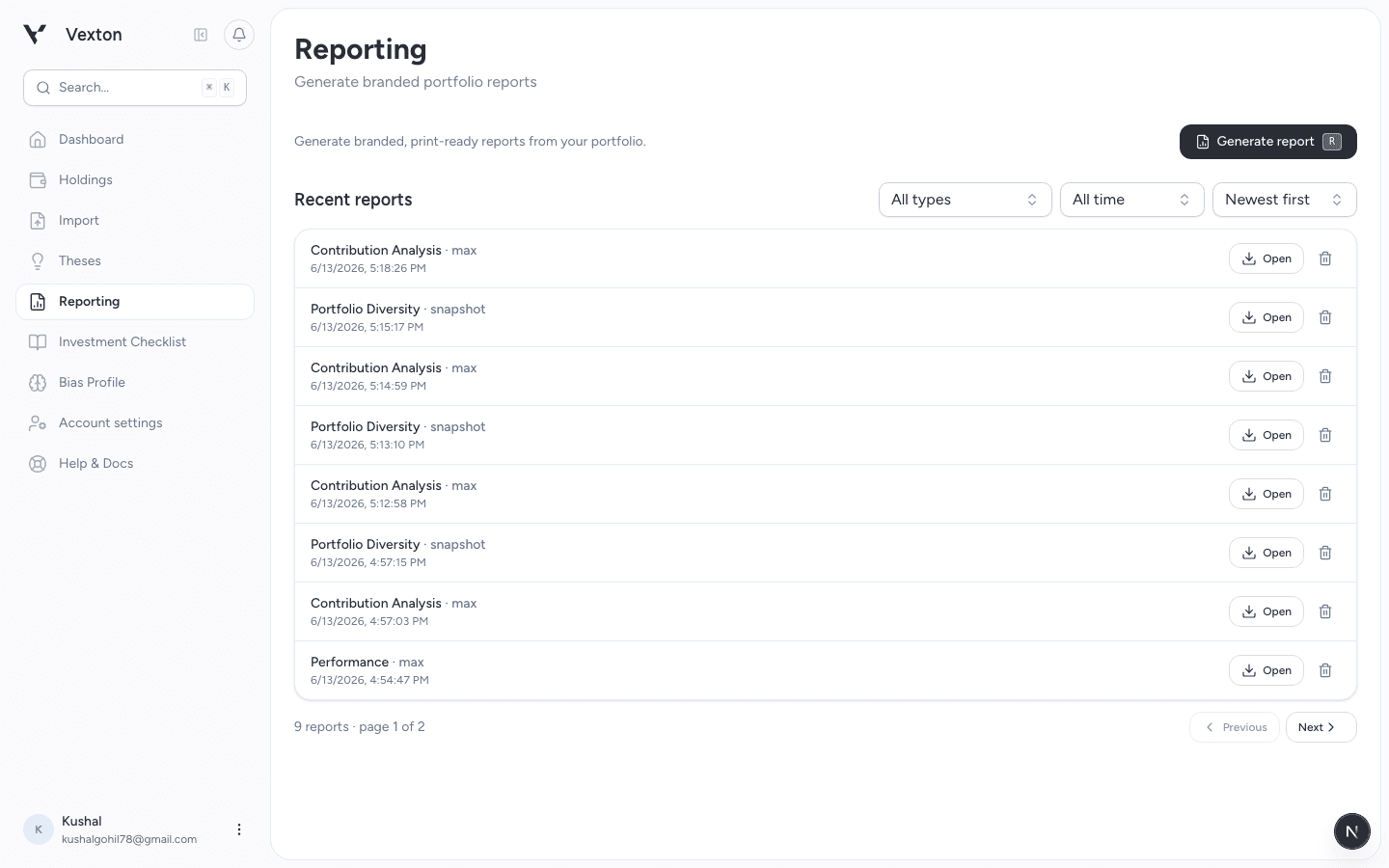
Click Generate report at the upper right; existing reports stay in the list below. View full size
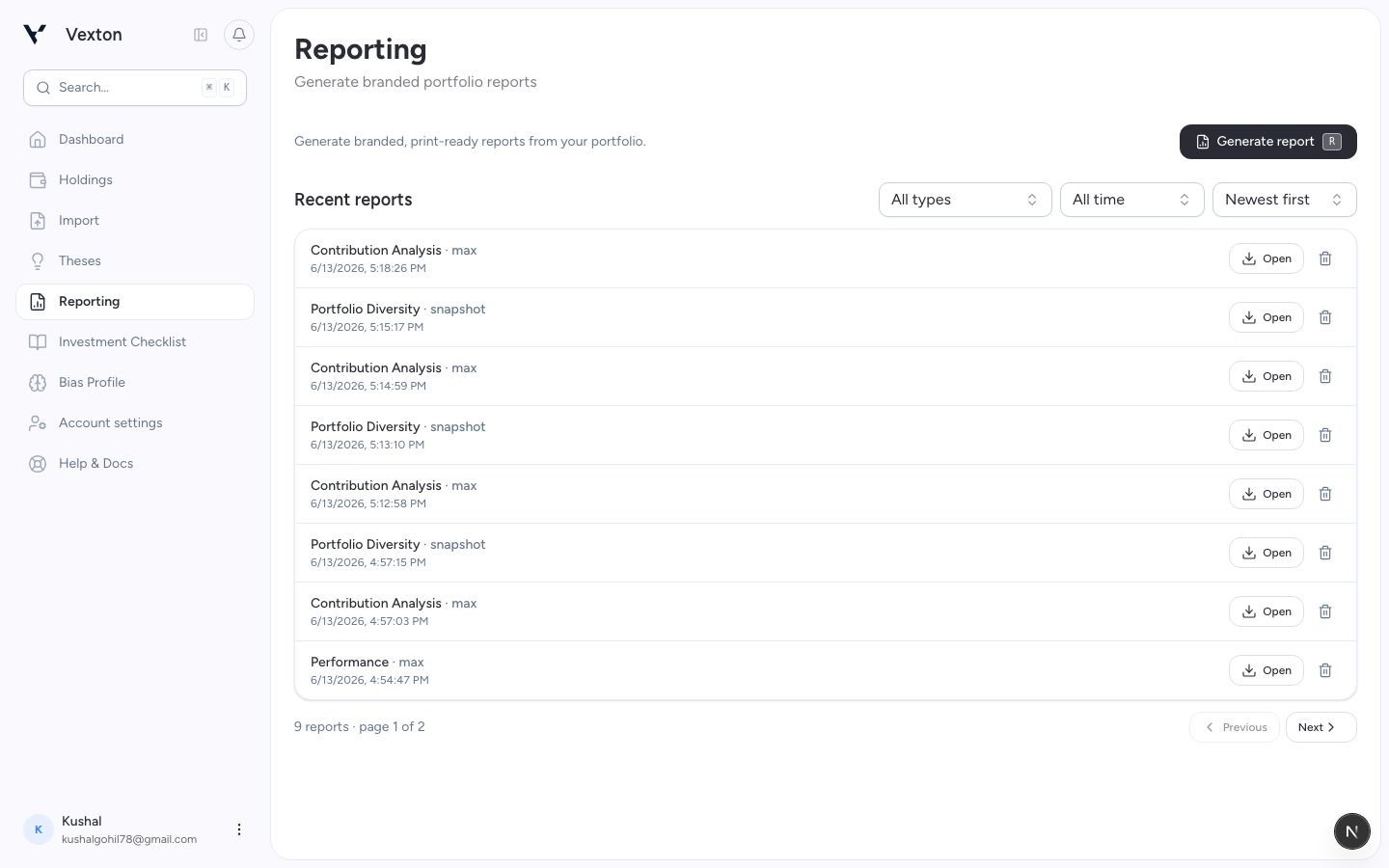
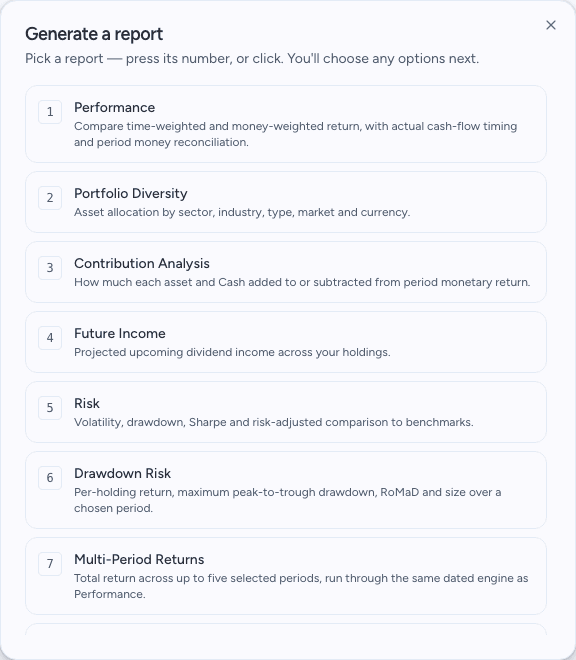
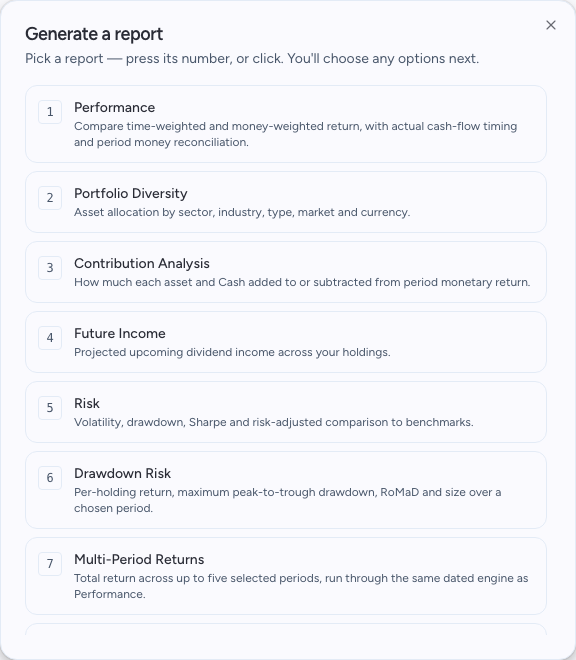
Click a report row to open its options. The catalogue contains thirteen report types. View full size
2. Set the scope
For a first review, choose Performance, then select Time period, Return method, and Presentation. Scroll inside the dialog for any further controls; Back returns to report selection.
Reports use the tracked portfolio in your account. This dialog does not offer a separate client-account selector or currency picker. Check the included positions and reporting currency in the output before treating it as a client-specific report.
Select a period or horizon where offered. Additional controls depend on the report: dates, return method, annualization, open or closed positions, grouping, and visible columns.
- Time-weighted return (TWRR): review performance after adjusting for deposits and withdrawals.
- Money-weighted return (MWRR): review the result experienced by invested money, including cash-flow timing.
- Period / annualized: choose the return over the interval or its annual equivalent.
Read the actual dates in the output. An available period option does not guarantee complete underlying history.
3. Generate and inspect
Select Generate report at the bottom of the dialog. Wait while it reads Generating…. Review the result, including any unavailable figures and coverage explanations. Historical reports require supported dates and data; missing history can prevent generation.
Check the chart and table together. Confirm the reporting currency and included positions before using the result in a discussion. Where a holding name is a link, select it to inspect that security in Asset Detail; rows without a holding link do not open a drawer. Read the reconciliation and any availability notes before exporting.
When a report provides an interactive result, it also appears under Latest result on Reporting. Dismiss closes that view; it does not delete the saved report. If generation shows an error, return to the options, check the supported period, and try again.
4. Keep a copy
Use Export spreadsheet for the generated result when that control is available. Generation opens a print-ready report in a new window. Choose Save as PDF in your browser’s print dialog; to reopen it later, use Open on its row in Recent reports. If a new window is blocked, allow pop-ups for Vexton and try again.
Saved reports appear in Recent reports. Reopening a saved report shows the stored result; generate a new one for updated data. Filter by type or date to find a previous review.
Select Open on the saved review you need. Use the type and date filters above the list to narrow it down. View full size
Deleting a saved report removes it from your history. Keep any copy you need before deleting it.
If the numbers are unavailable
Check the account's sync status in Holdings and read the coverage reason. A shorter supported period may be useful, but it answers a different question. Never present it as the original requested period.
Methods and definitions · Get help
To verify which accounts are included, check the account list in Holdings. The report picker has no temporary account-by-account filter.
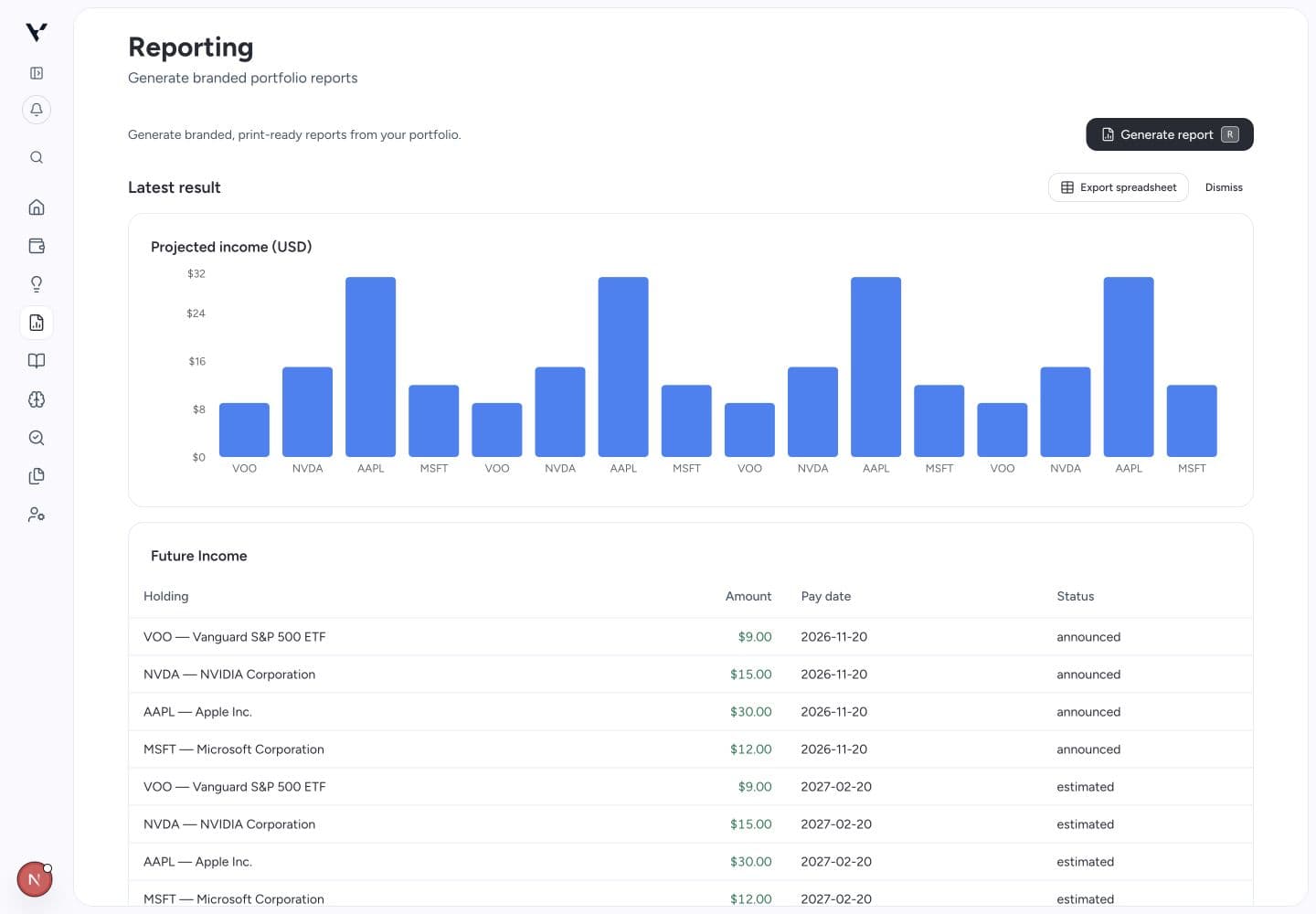
Review the chart and table in Latest result before exporting. Example figures shown.