

Run your first screener
Turn one investment idea into a shortlist you can investigate.
1. Describe the screen
Open Research and write the criteria in one sentence. For example: “US software companies with positive free cash flow and more cash than debt.”
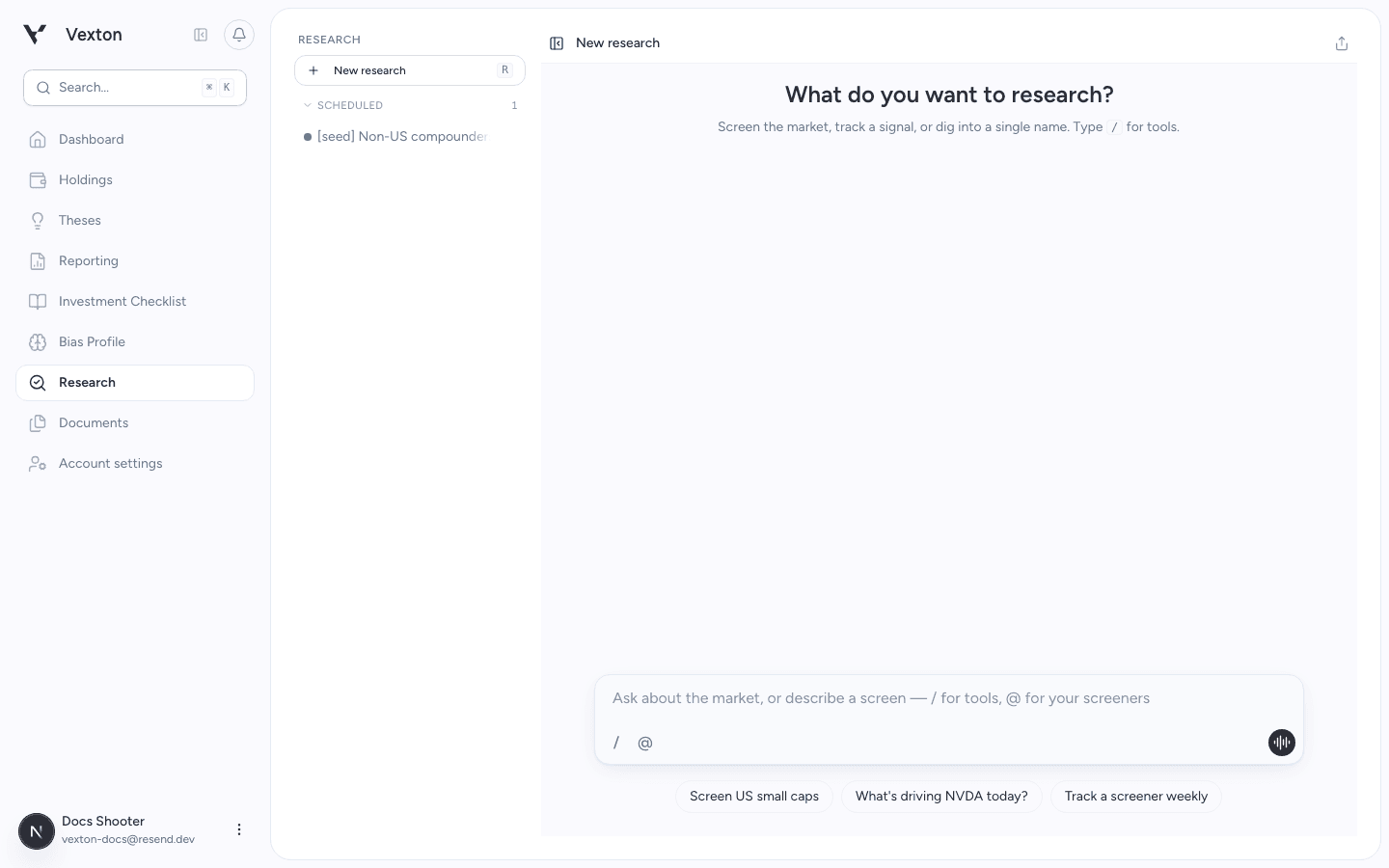
Click New research at the left. Enter your criteria in the message box at the bottom. View full size
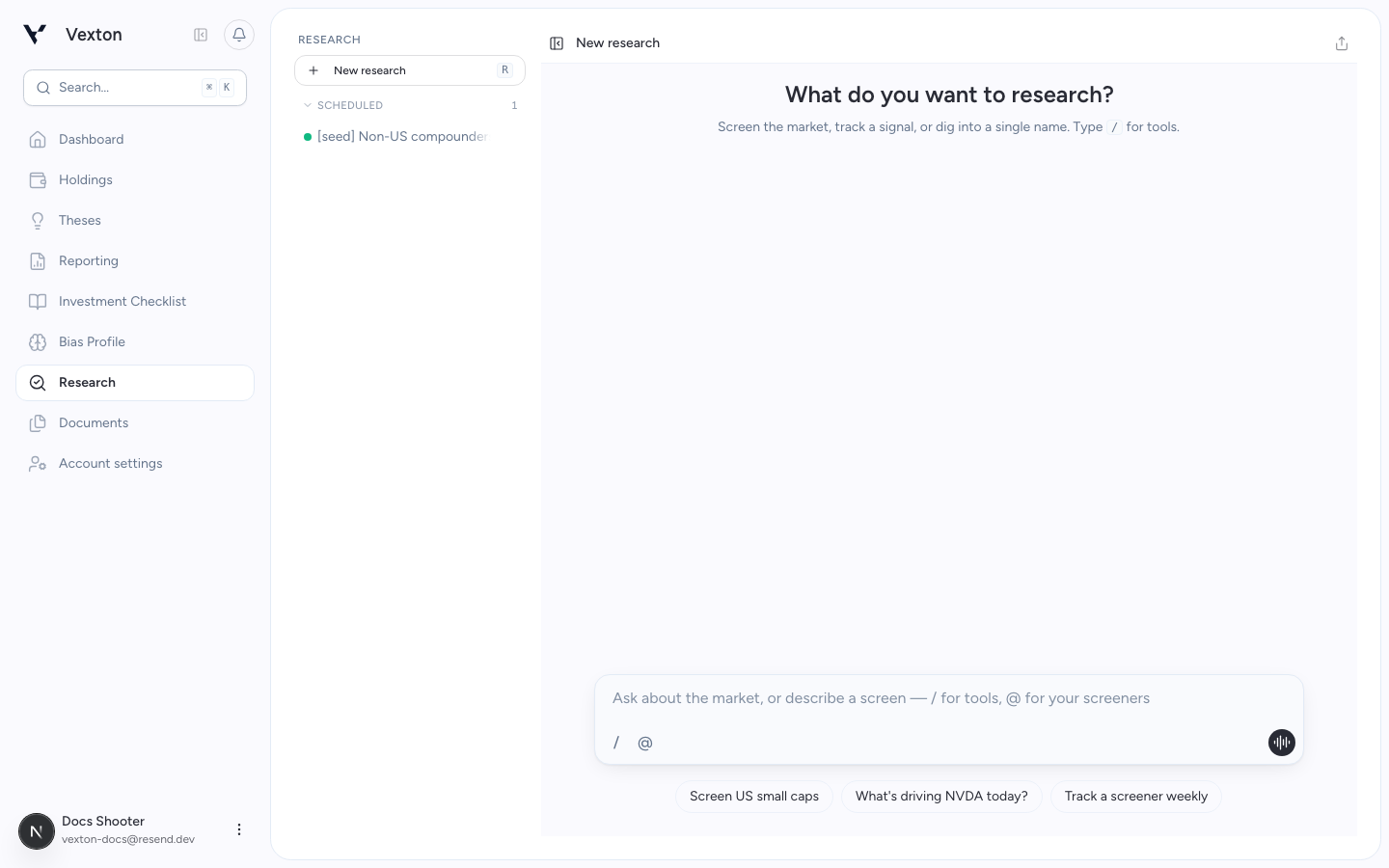
You can use /screen to request a screener, or /thesis to start a thesis. Other actions can be requested in ordinary language. The microphone lets you dictate and review the text before sending.
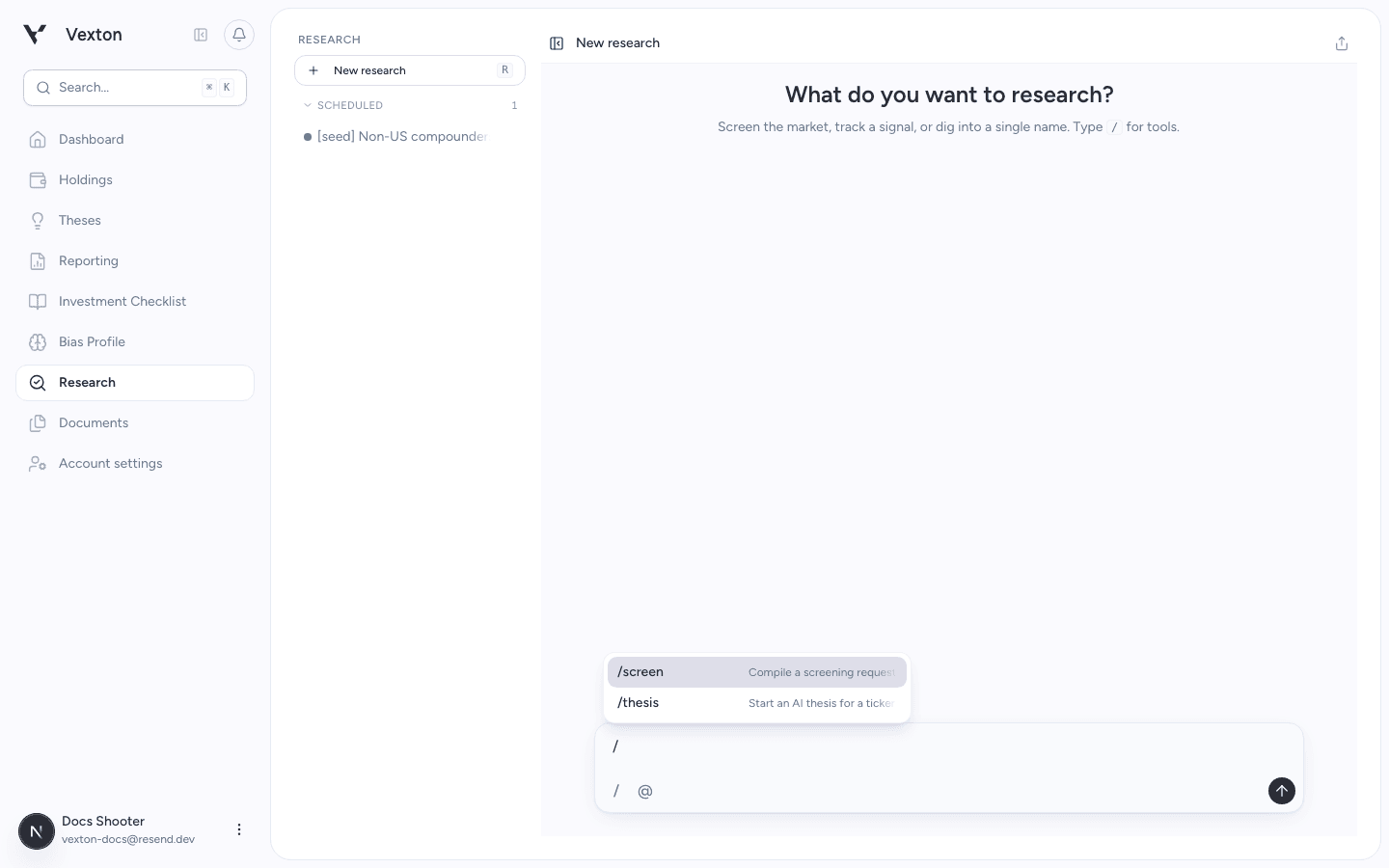
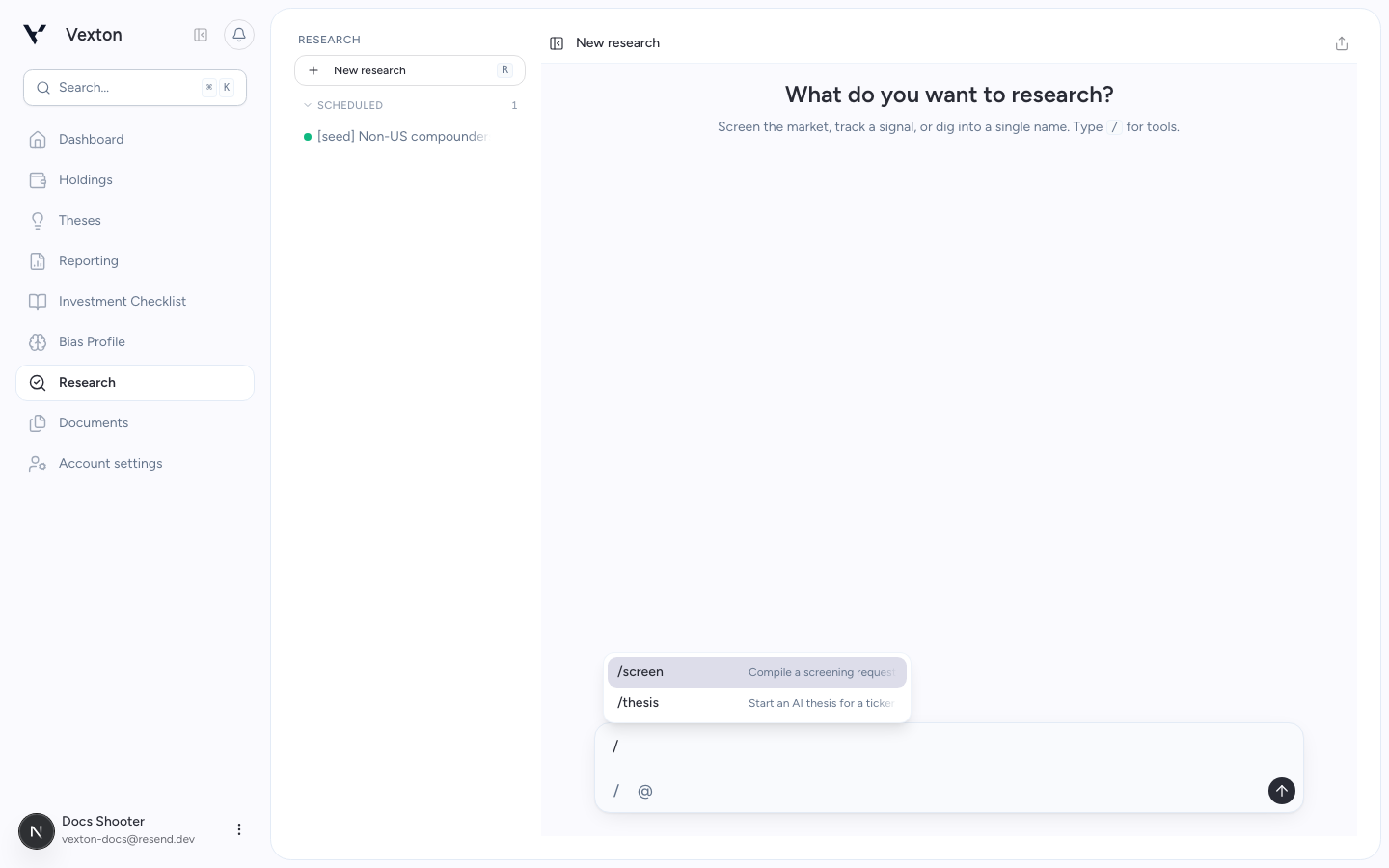
Type / and select /screen, then add your criteria and send the message. View full size
2. Review before running
Read the screener card. Check the market, filters, and any AI judgment step. Ask for changes if it does not match your intention. Refinements create a new version.
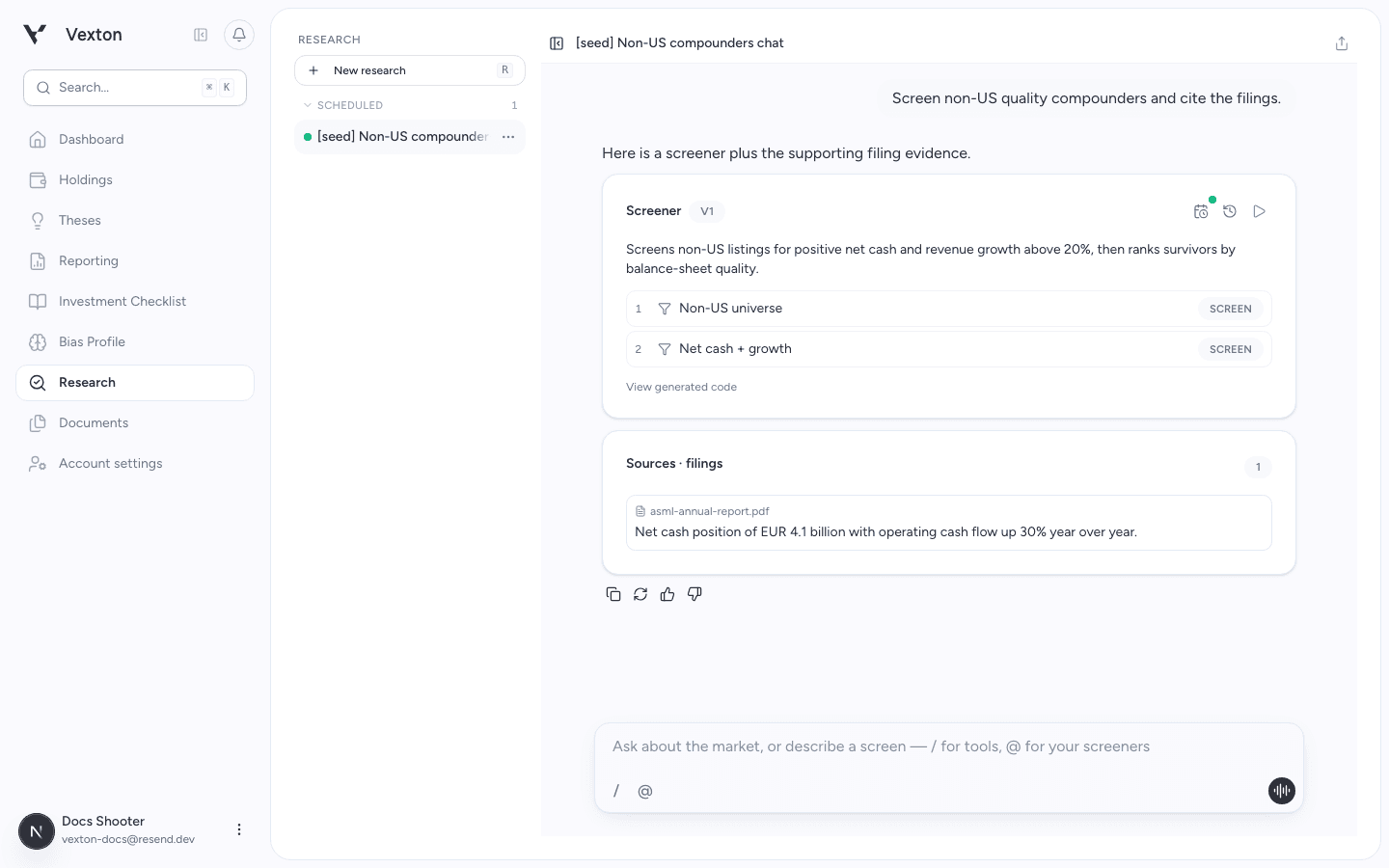
Review the plan, then click the triangular Run control at the top right of the screener card. View full size
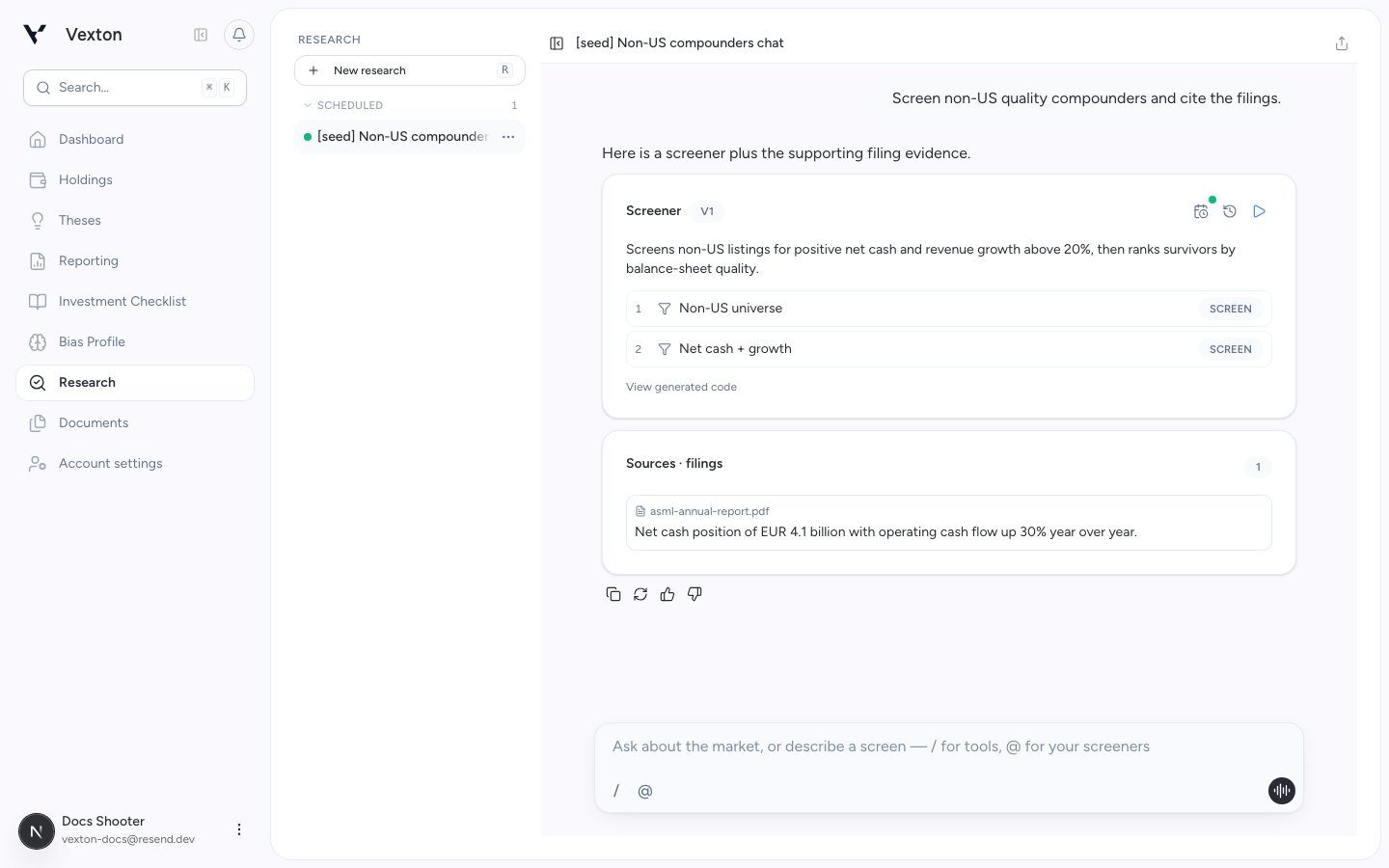
Select Run. The run panel shows how the candidate list narrows. You can leave the page. To resume, open Research and select the conversation in the list on the left; scheduled conversations appear under Scheduled.
3. Inspect the results
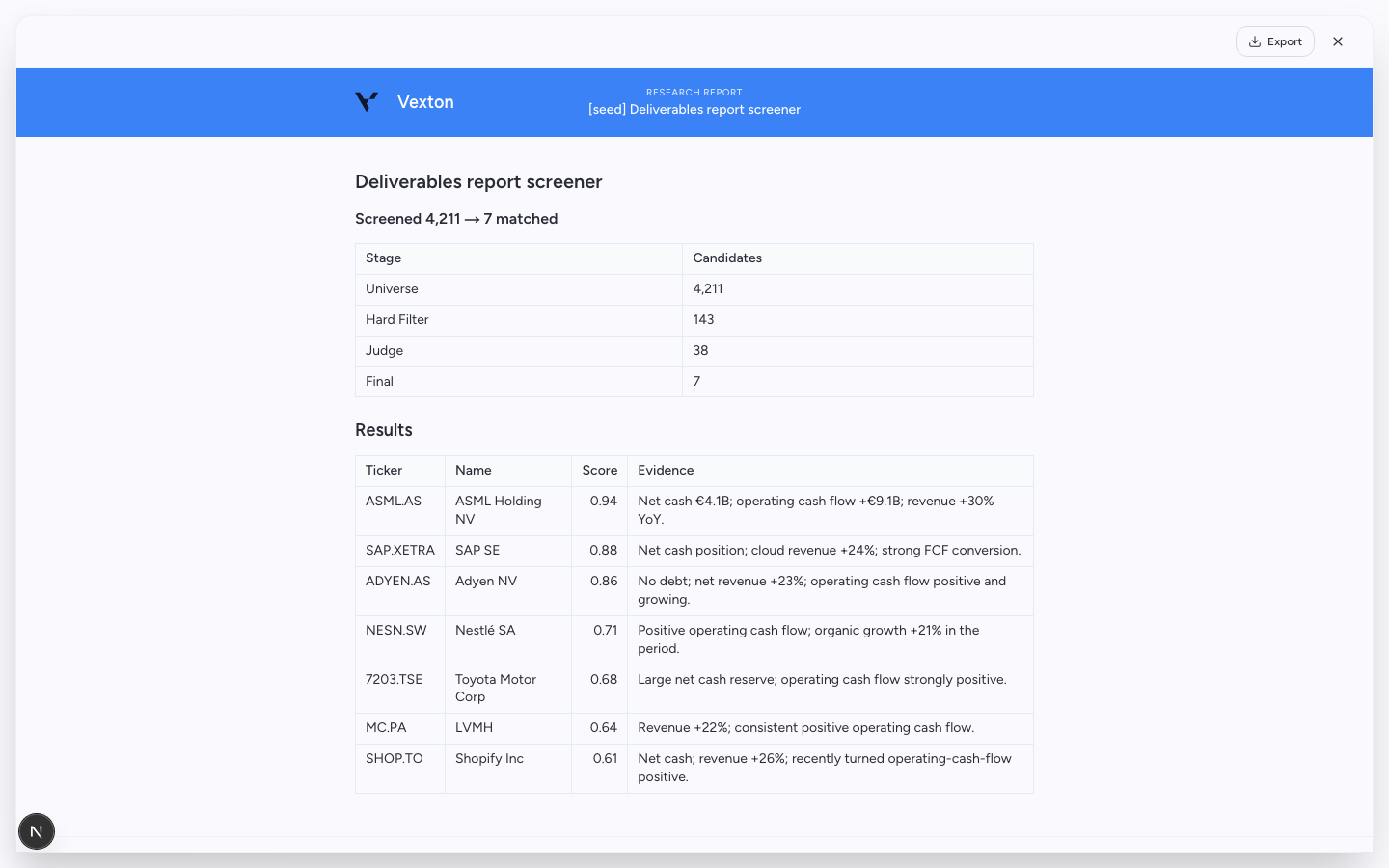
Open a candidate's explanation and compare it with the criteria. Review the report and results table. Use the available export controls to keep a Markdown report, CSV, or printable PDF.
Some reused runs have fewer downloadable files. The deliverables panel shows what that run actually provides.
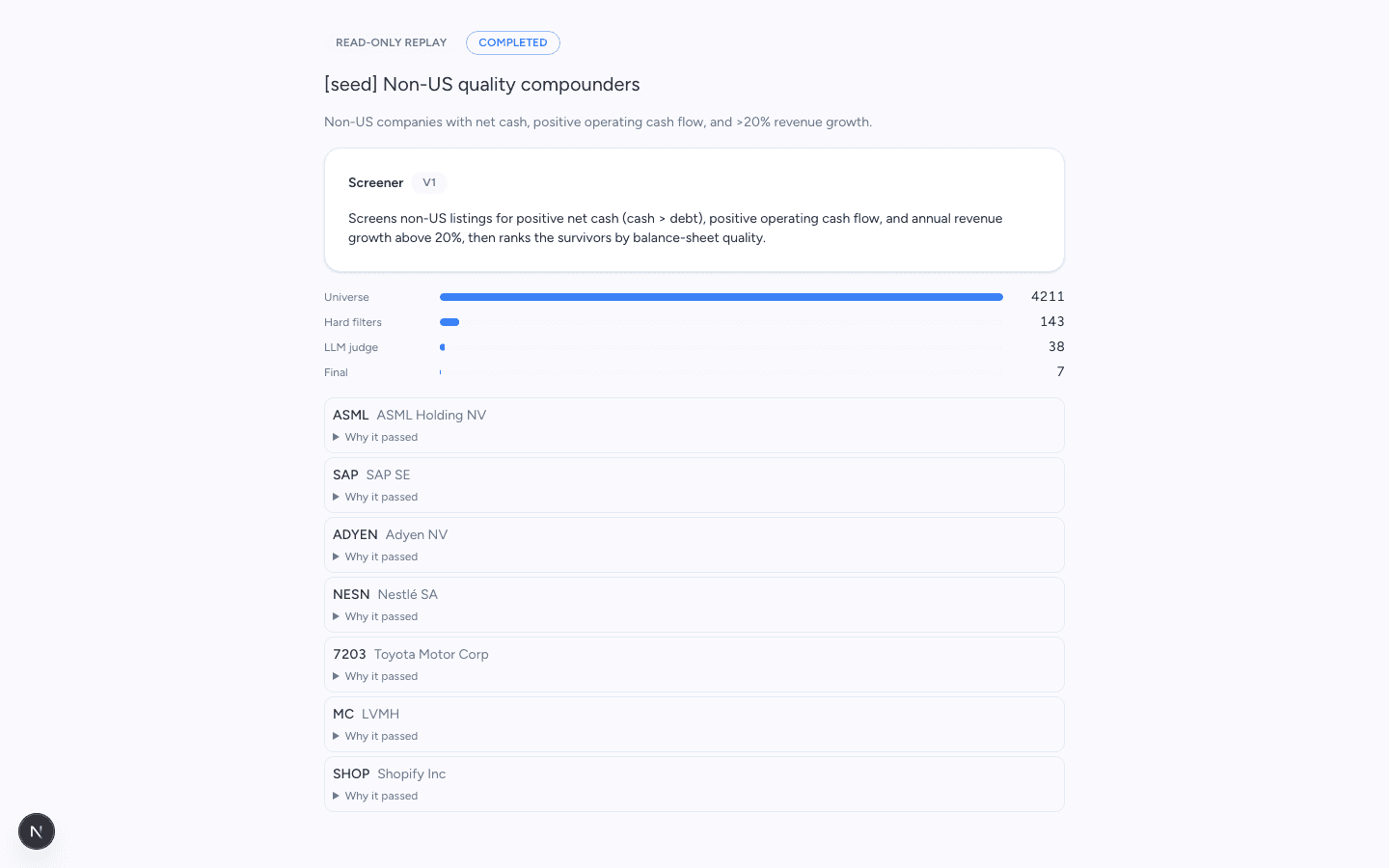
Example completed replay using demonstration data. Open a candidate’s explanation before taking it into research. View full size
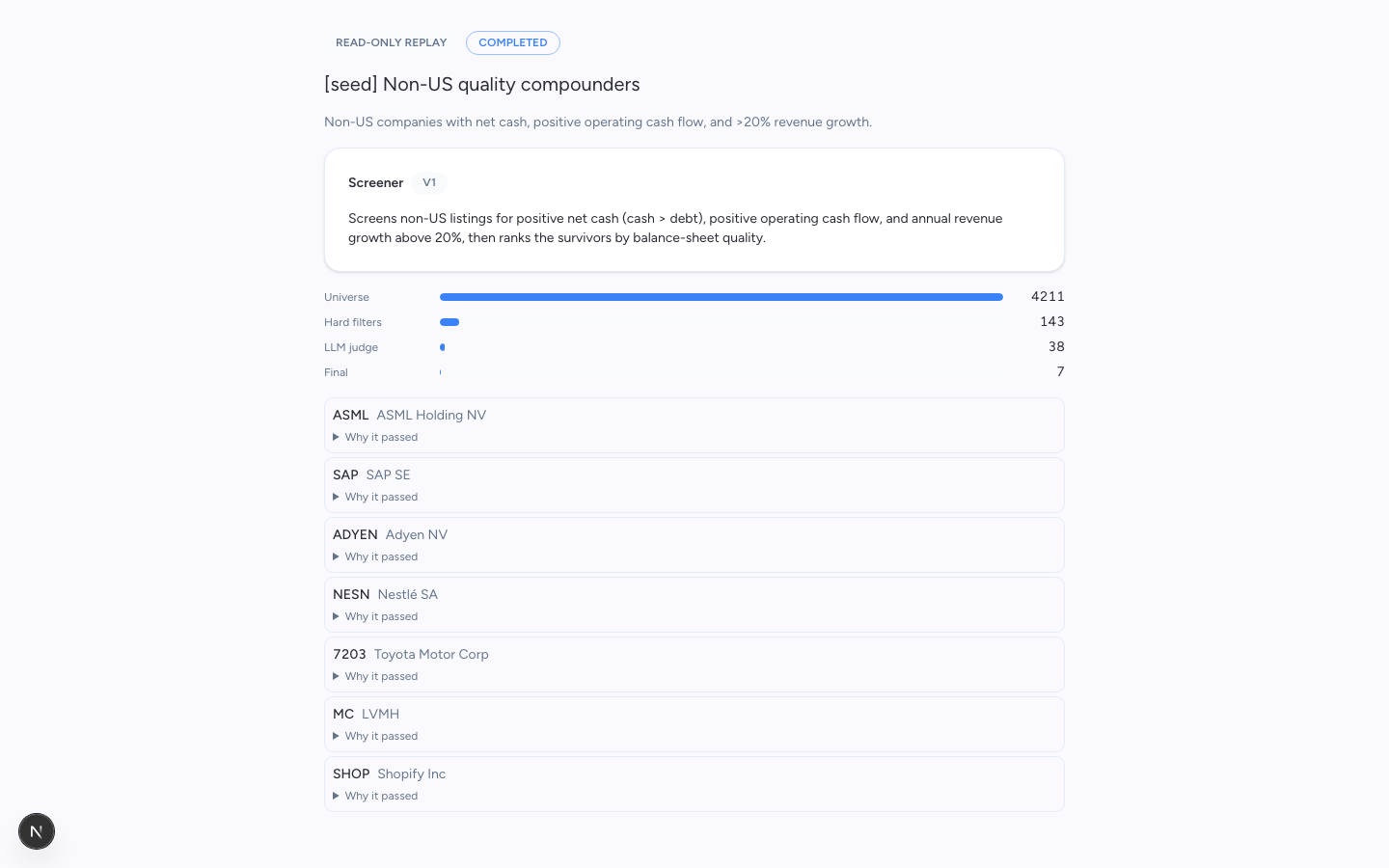
Keep the report
Open the run’s report from its deliverables, then select Export at the upper right. Choose from the formats that run offers; close the report with × to return to your conversation.
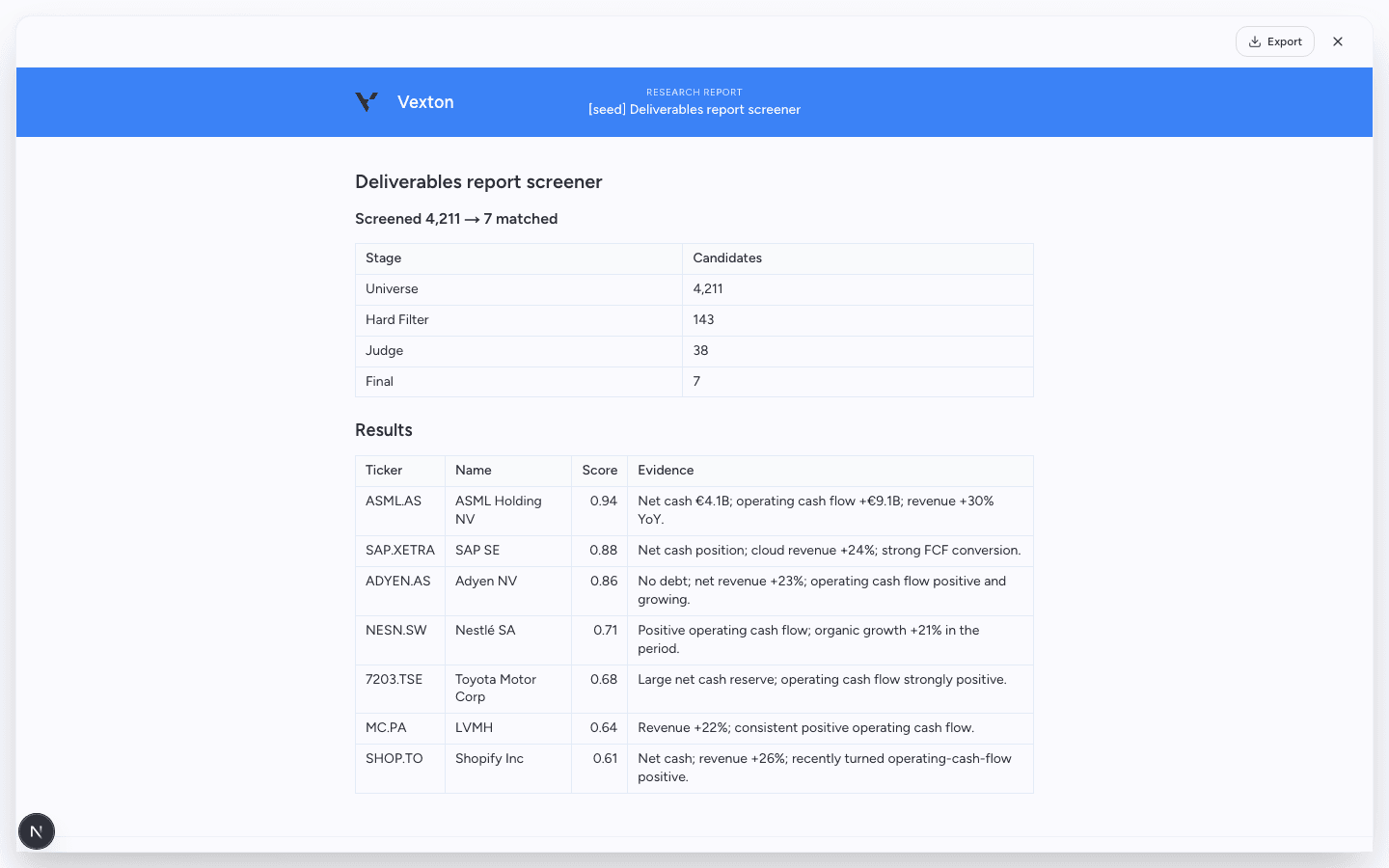
Use Export to retain the report. Example results shown. View full size
4. Choose one next step
| Your question | Ask for… |
|---|---|
| Would these criteria have found different names in the past? | “Backtest this from 2015 to 2023.” |
| What changes next week? | “Schedule this weekly.” |
| Does one candidate deserve further work? | “Build a thesis for this company.” |
A backtest replays screening criteria; it does not simulate investment returns. It uses today's stock universe, so delisted and acquired companies can be absent. Read the backtest limits.
Repeat it on a schedule
Click the calendar control on the screener card. Choose Daily, Weekly, or Monthly, choose weekdays for Weekly or a day of the month for Monthly, then select Schedule. Wait for the confirmation before closing the picker. Reopen the calendar to check its state; an active schedule offers Pause and Remove schedule.
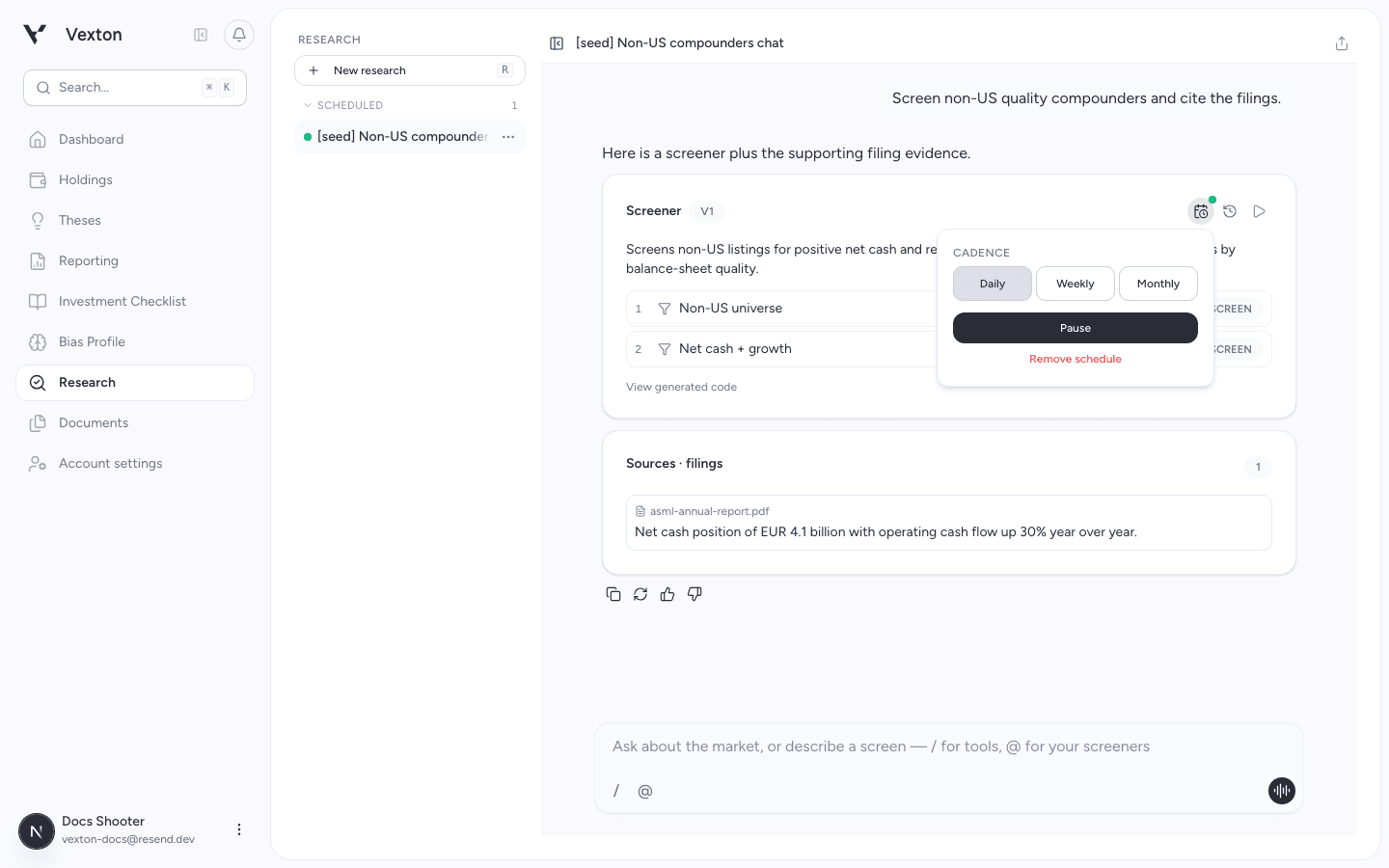
This schedule is already active. Select Pause to stop runs temporarily, or Remove schedule to remove it. View full size
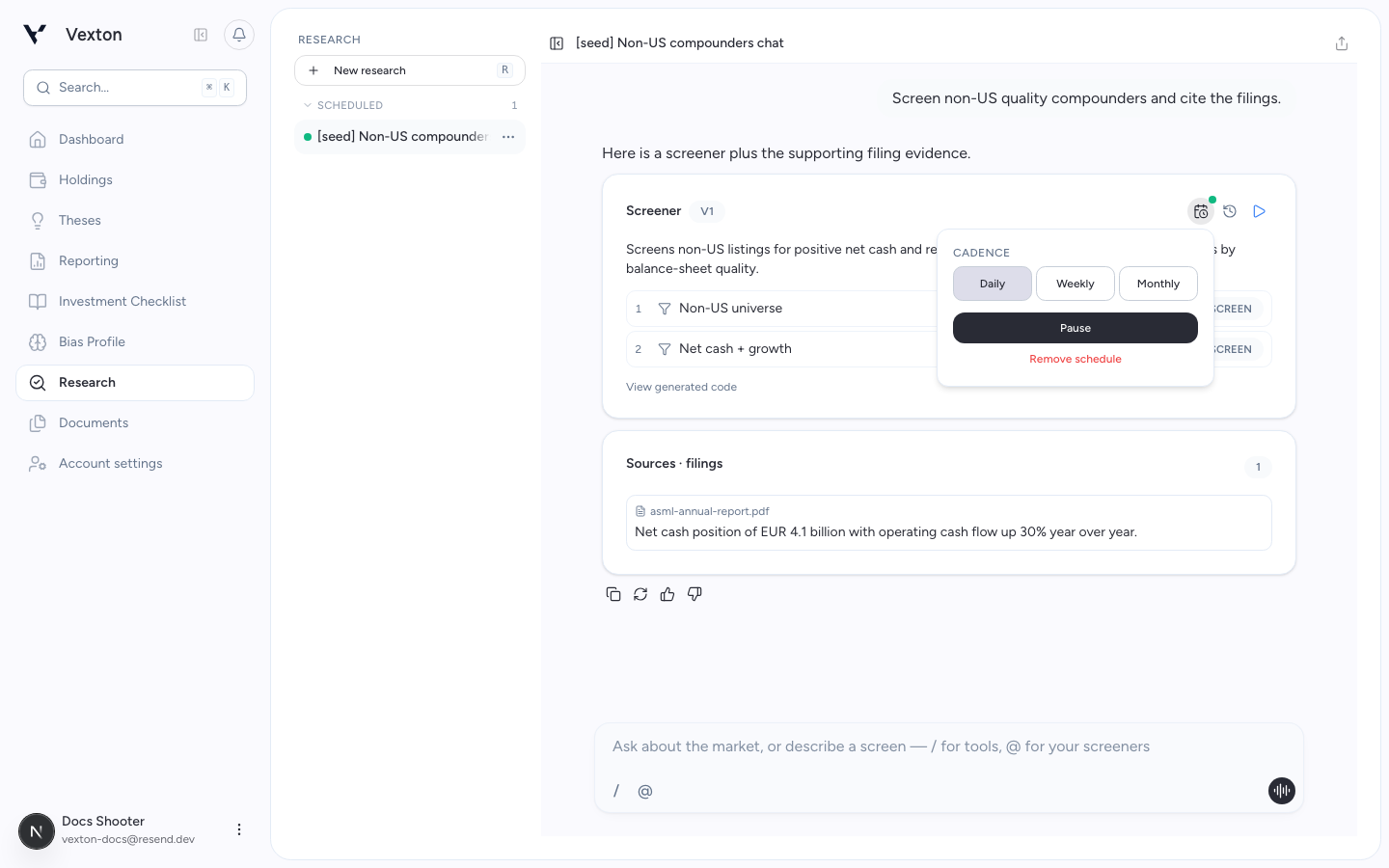
To find it later, select the conversation under Scheduled in Research. You can also ask “List my signals” or “Stop this signal” in the conversation.
Choose Resume in the calendar picker to restart a paused schedule. Cadence controls frequency; the picker does not offer an exact execution-time or timezone setting. If a run fails or AI work is paused, read the status before starting another run and check credits and limits.
Keep important work
Export material you need to retain. Inactive conversations are subject to retention rules; see the reference.
If AI work pauses, read the limit message and check Billing.