

Monitor changes and recover research
Keep a holding under review without losing the last completed case.
Turn on tracking
Enable Track on a thesis you want to follow. Tracking uses background checks and relevant events to revisit research. A refresh is not promised for every headline.
Check that the switch is on; its tooltip reports Tracking on. To stop future monitoring, turn the same switch off. This releases a tracked-thesis slot; it does not delete the thesis.
To review an update, open the notification or find the thesis in Theses. Open Activity where offered to inspect the update, then read the changed research pages. Configure delivery in Notifications; enabling tracking does not override your email preferences.
Tracked-thesis limits apply. Background tracking is included with access to the product; a manual refresh uses a different billing rule. See AI credits.
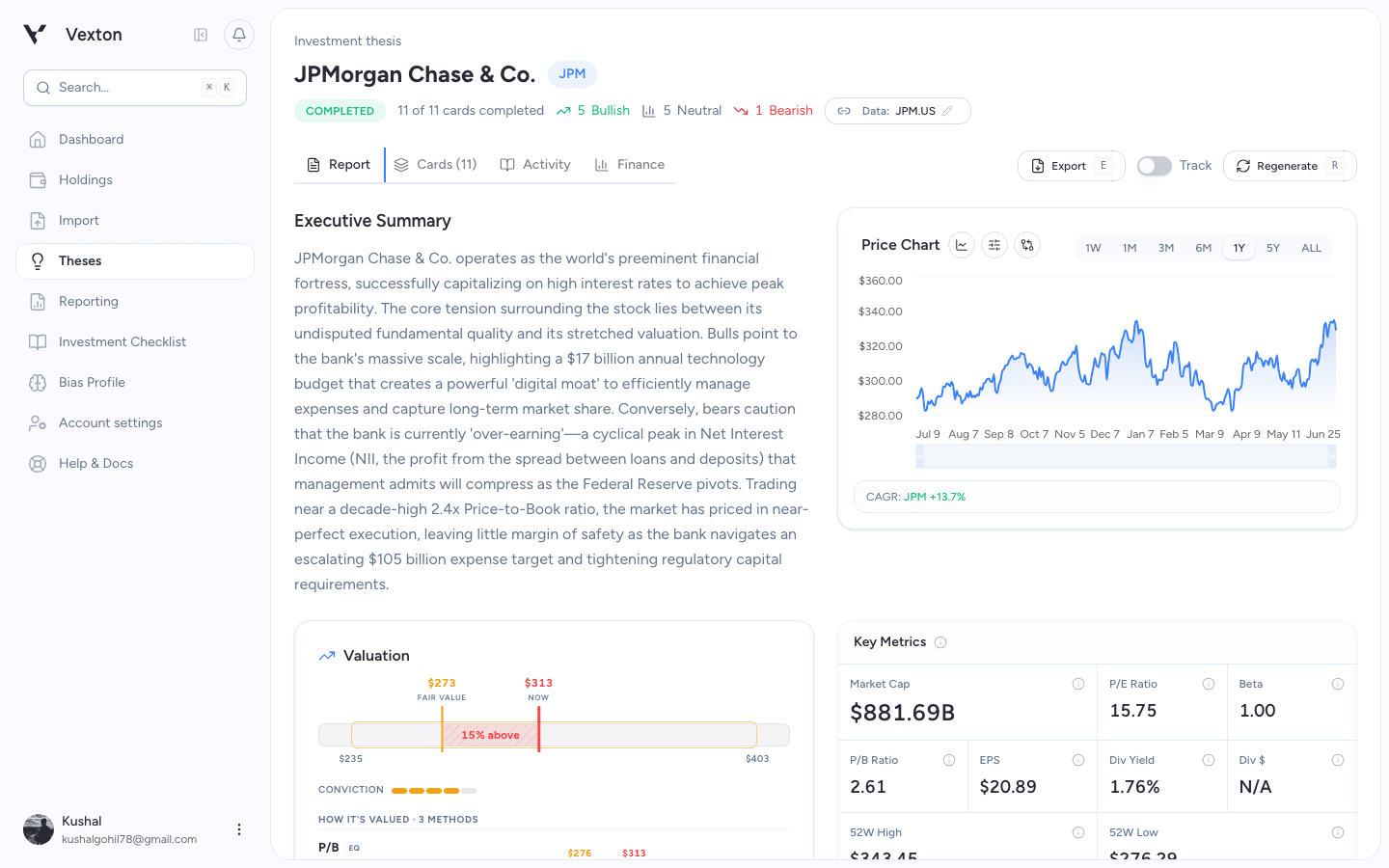
Track is off in this example. Turn it on for monitoring; turn it off again to stop tracking. Newer workspaces place these actions in the compact toolbar. View full size
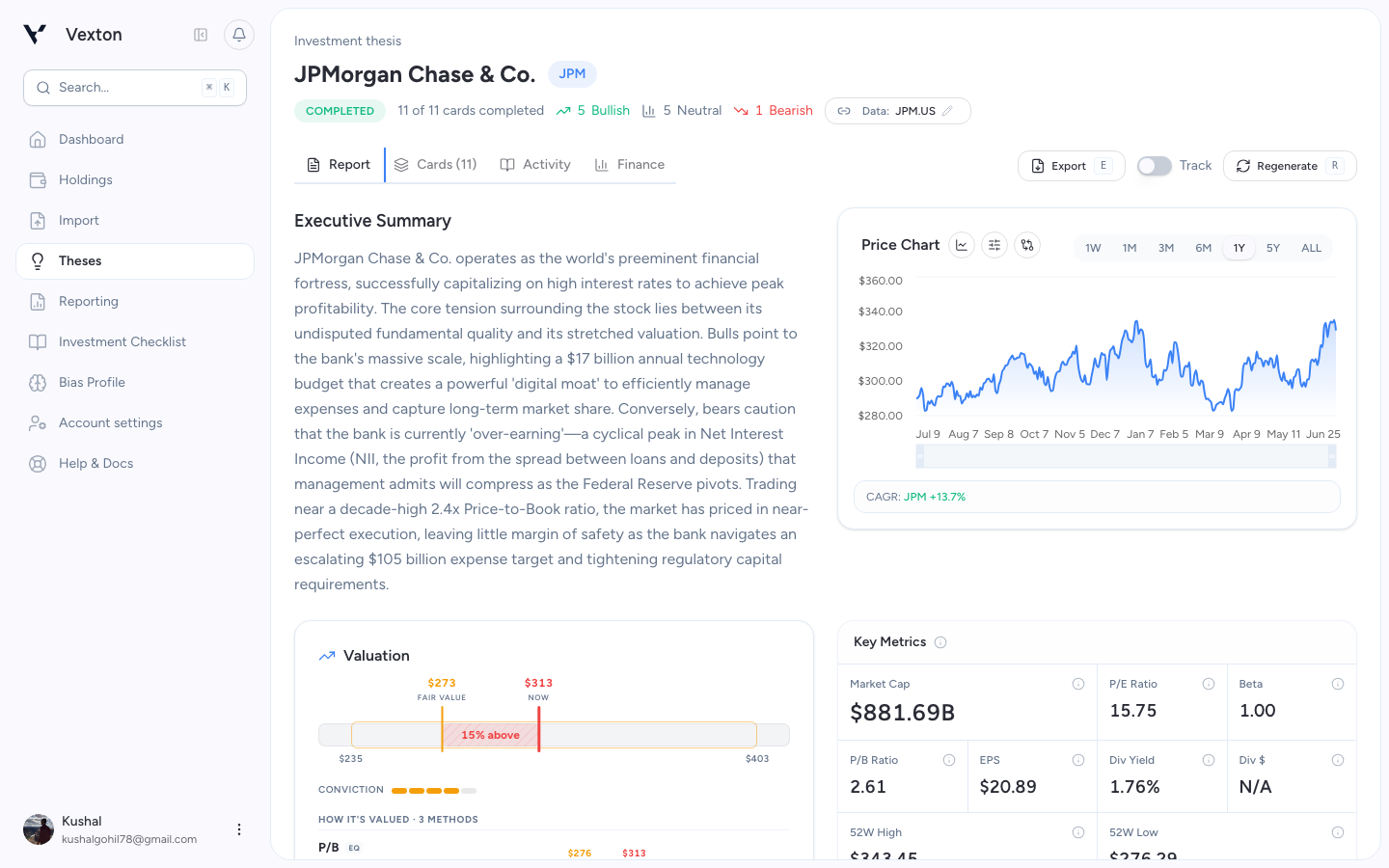
Refresh now
Use the refresh or regenerate control for an intentional new research request. Read the dialog before confirming. A failed refresh preserves the last accepted thesis rather than replacing it with incomplete findings.
Reopening an in-progress thesis reconnects you to the existing attempt. Use Retry when the product confirms a failure.
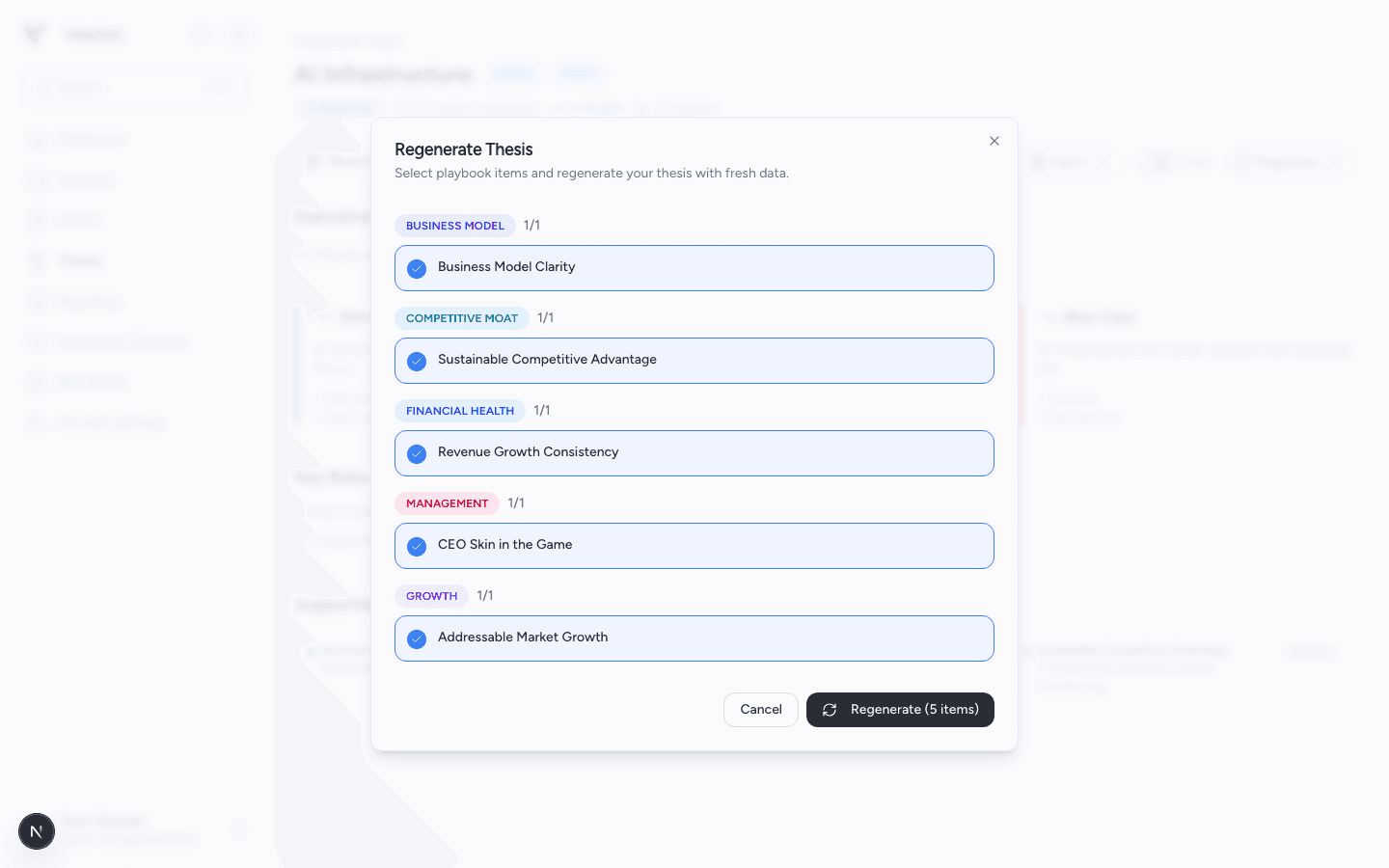
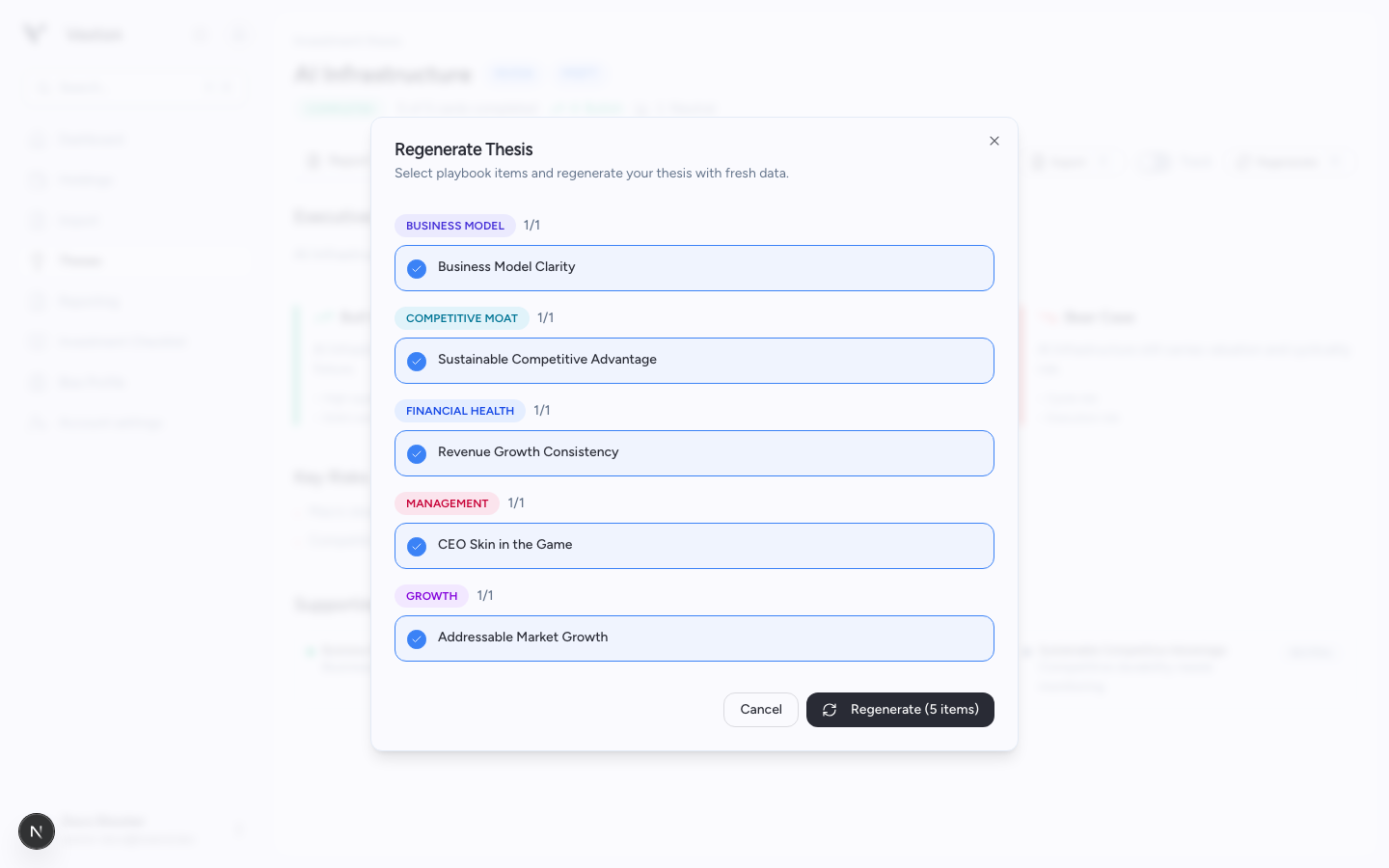
Choose the research items to revisit, then confirm Regenerate. Cancel closes the dialog without starting a refresh. View full size
Recover an edit replaced by a refresh
In an editable workspace, a refresh can replace a page you changed but had not saved as a version. A recovery notice on that page lets you restore the preserved edit.
Read the restored text alongside the new research, then Save if you want to accept your revision. Recovery returns the draft; it does not automatically make it an accepted version.