

Review, edit, and save your thesis
Keep your own reasoning beside the evidence and retain a version for review.
The page-based Report workspace has an Overview and individual research pages grouped by topic. Select a page to focus on one question at a time.
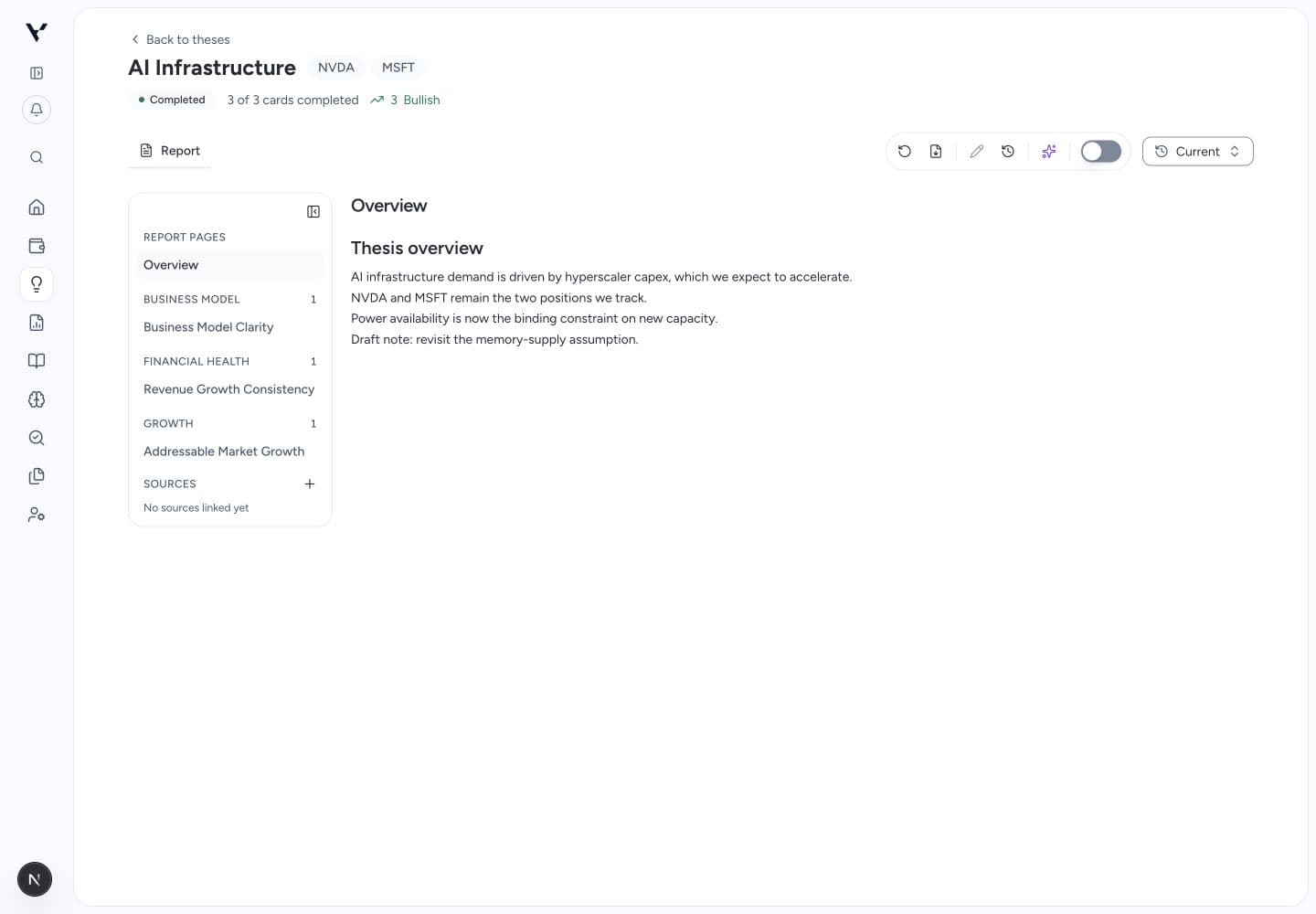
Open a thesis from Theses, then select Overview or a research page from the side rail. View full size
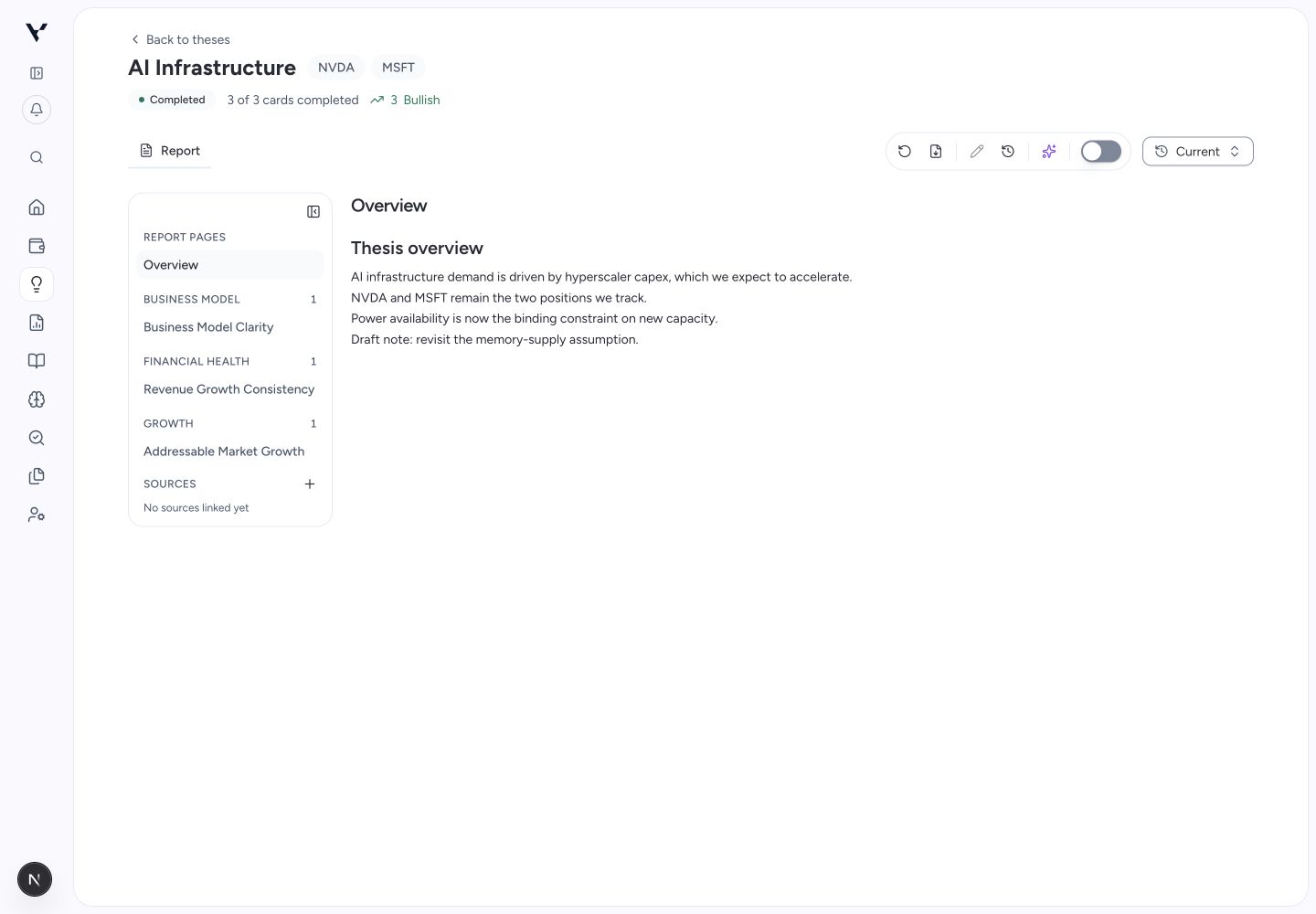
Add your own reasoning
Select the pencil / Edit this page control in the toolbar, then change the text. You can move between research pages while editing; drafts are synchronized by the workspace. Done editing returns to reading mode without discarding those drafts.
Select Save to accept a version of the whole thesis, including edits on other pages. Wait for the success message, then open History to check the saved version. If Save reports an error, keep the workspace open, read the message, and retry when the connection or conflict is resolved. Do not treat a pending or failed save as an accepted review record.
Editing availability can vary. A disabled Edit control or read-only notice means changes cannot be made in that view. Past versions are read-only.
Ask a focused follow-up
Select Open AI chat in the toolbar. Its panel identifies the context: the selected research page, or the whole thesis when Overview is selected. Type a specific question and send it. Where text selection offers Ask AI, select the passage first and check the attached context before sending. Older layouts label this action Ask this page.
The thesis conversation and Open full view lead to the same research conversation. Follow-up chat uses AI credits; see billing.
Bring in your sources
Use Sources and its add control, where available, to link documents you have already added in Data Sources. This helps keep supporting material close to the question being reviewed.
Compare and restore
Open History to inspect saved versions and page differences. Restore is a separate action from viewing: read the confirmation before making an older version current.
Select Back to current to leave a historical view. Restore makes an older version current; viewing it alone does not. Version history records changes; it does not establish committee approval.
Export a review copy
- Return to the current Report view and save any edits you want included.
- Select Export in the toolbar, or press E while the report is active. Hover an icon to see its label.
- Choose One-pager, Key findings, or Full report.
- In the new report window, use the browser print dialog’s Save as PDF option. If the window is blocked, allow pop-ups for Vexton and retry.
Default export uses the accepted thesis. Preview unsaved changes, when offered, is a separate draft preview. Export is unavailable while viewing an older version; keep a review copy at the time you accept a version. Note the version and date with the copy you retain.